116
Coloring Group Items
Applying a colored border to a Group Item
You may color code groups, which will be displayed by a thicker and colored border around the group
item in pools and magic sheets by pressing the [Name]-key twice.
The command line will read Appearance.
Now select the Group Item using the touchscreen or by using the numberblock.
If you use the numberblock you may also color multiple Items at once using the [+], [-] and [thru]
keys. Complete the numberblock command by pressing the [Enter]-key.
For example: [Appearance] [Group] [1] [thru] [10] [Enter]
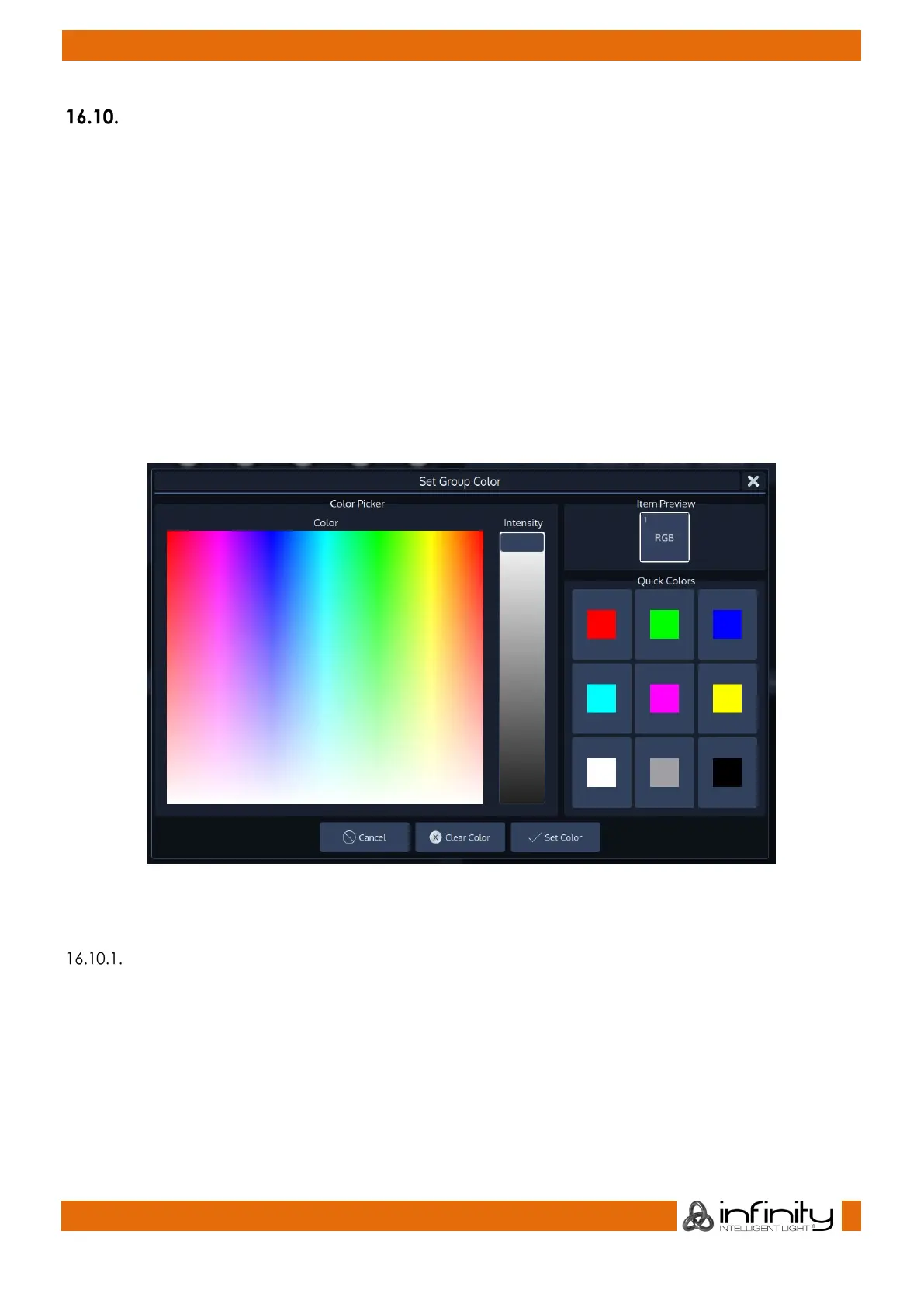
A dialog window asking for the color will be opened. Click on Set Color when done.
Fig. 89: Set Group Color Dialog
Resetting User Colors for a Group Item
You may reset the user colors for one or multiple groups by pressing the [Name]-key twice. The
commandline will read Appearance.
Now select the Group Item using the touchscreen or by using the numberblock.
If you use the numberblock you may also reset the color for multiple Items at once using the [+], [-] and
[thru] keys. Complete the numberblock command by pressing the [Enter]-key.
Click on Clear Color in the dialog window to reset the user colors.



 To Next Page