81
Clone Fixtures
Sometimes you might wish to add more fixtures to a show and copy existing programming of specific
fixtures to the new fixtures. To do this, open the Setup Menu and select the Patch widget.
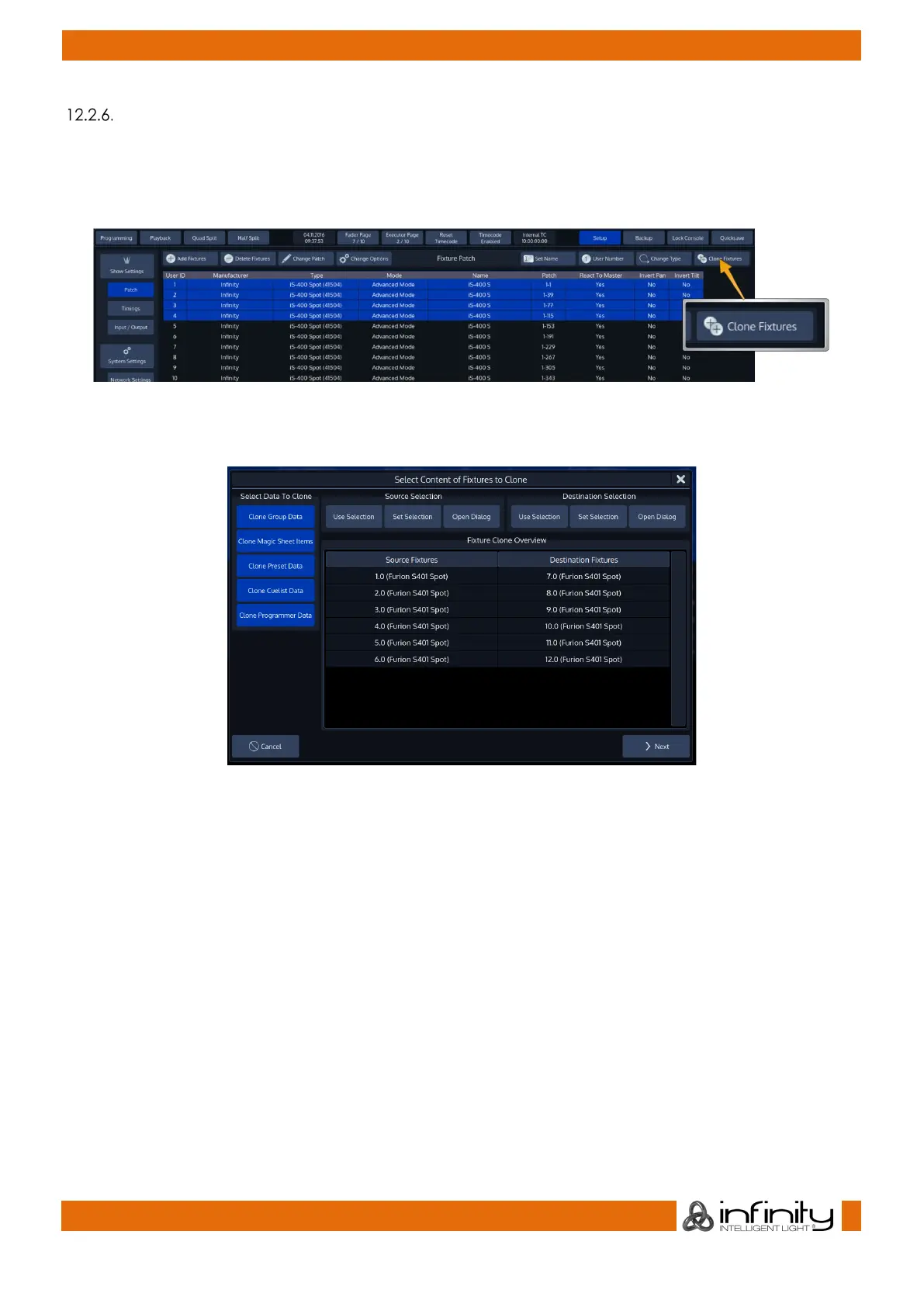
First, add the new fixtures to the showfile as usual. When done, click on Clone Fixtures.
Fig. 64: Clone Fixtures Button
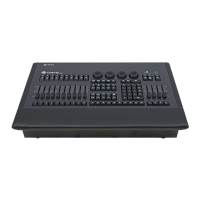
A wizard that assists you in the cloning process will be shown.
Fig. 65: Clone Fixtures Dialog
Select which data you would like to transfer to the new fixtures from the left-hand side of the dialog.
Now, select the source fixtures. You may do so by using the Numberblock or by selecting a group from
the secondary screen. Then, from within the Source Selection group box, click on Use Selection.
Alternatively, you may click on Open Dialog from within the Source Selection group box to open a dialog
window to select the source fixtures.
Now, select the destination fixtures. You may do so by using the Numberblock or by selecting a group
from the secondary screen. Then, from within the Destination Selection group box, click on Use Selection.
Alternatively, you may click on Open Dialog from within the Destination Selection group box to open a
dialog window to select the source fixtures.
The Set Selection button will select the fixtures from either the source list of fixtures or the destination list of
fixtures, respectively.
Click on Next when done.



 To Next Page