171
What is a Cuelist
Cuelists are the backbone of your programming and show. They may contain one or more cues,
whereas each cue might have a different fade and wait time applied.
Faders, Executors and Virtual Executors all rely on Cuelists.
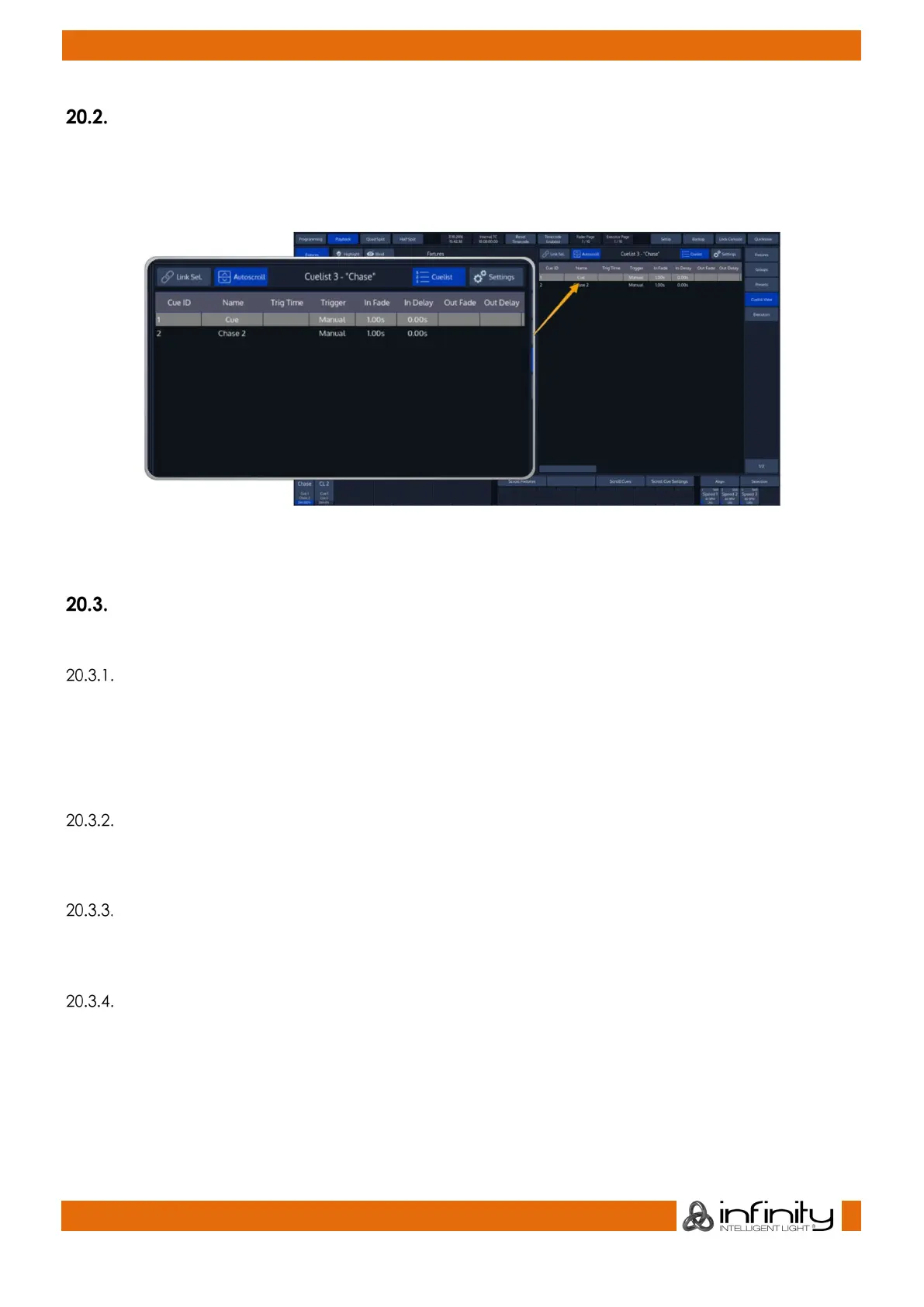
Fig. 149: Cuelist View
Each Cuelist has its own settings that define the behavior of the Cuelist.
Storing Cues in a Cuelist
Remember, only values that are touched and active will be recorded.
Storing a Cuelist to a Master or Executor Button
After setting up a look, press the [Rec] -key followed by the either a faders [Go], [Pause/Back] or an
[Exec] -key Or just select a virtual Executor from an Executor Split Widget.
If you store a Cuelist that way, it will be stored to the first free spot in the Cuelist Pool and will be
automatically assigned to the selected Fader or Executor.
Storing a Cuelists using Cuelist Split Widget
Once you created a look and wish to store it as a cue, open a Cuelist Split Widget from the side menu
and press the [Rec] key. Select a cuelist to store the cue.
Storing a Cue using Command Line Interface
After creating a look, press the [Rec] key followed by the [Cuelist] key. Type the number of the cuelist
you would like to record the cue to - i.e., [1] followed by [Enter] in to the command line.
Storing a second Cue to a Cuelist
To store another cue into the same Cuelist, simply press the [Rec] key again, followed by the Cuelist you
would like to add the cue to. If the Cuelist only contains one Cue, a window will pop up asking you what
to do. Select Append As New Cue.



 To Next Page