247
Add a new Fixture to the Library
To add a new fixture to the User or Show library, first pick the library type from the Fixture Library Page by
selecting the appropriate tab. Click on New Fixture contained in the Menu Bar of the Window. You may
now choose to start a fixture from scratch, or to use an existing fixture as a Template.
Start a Fixture from scratch
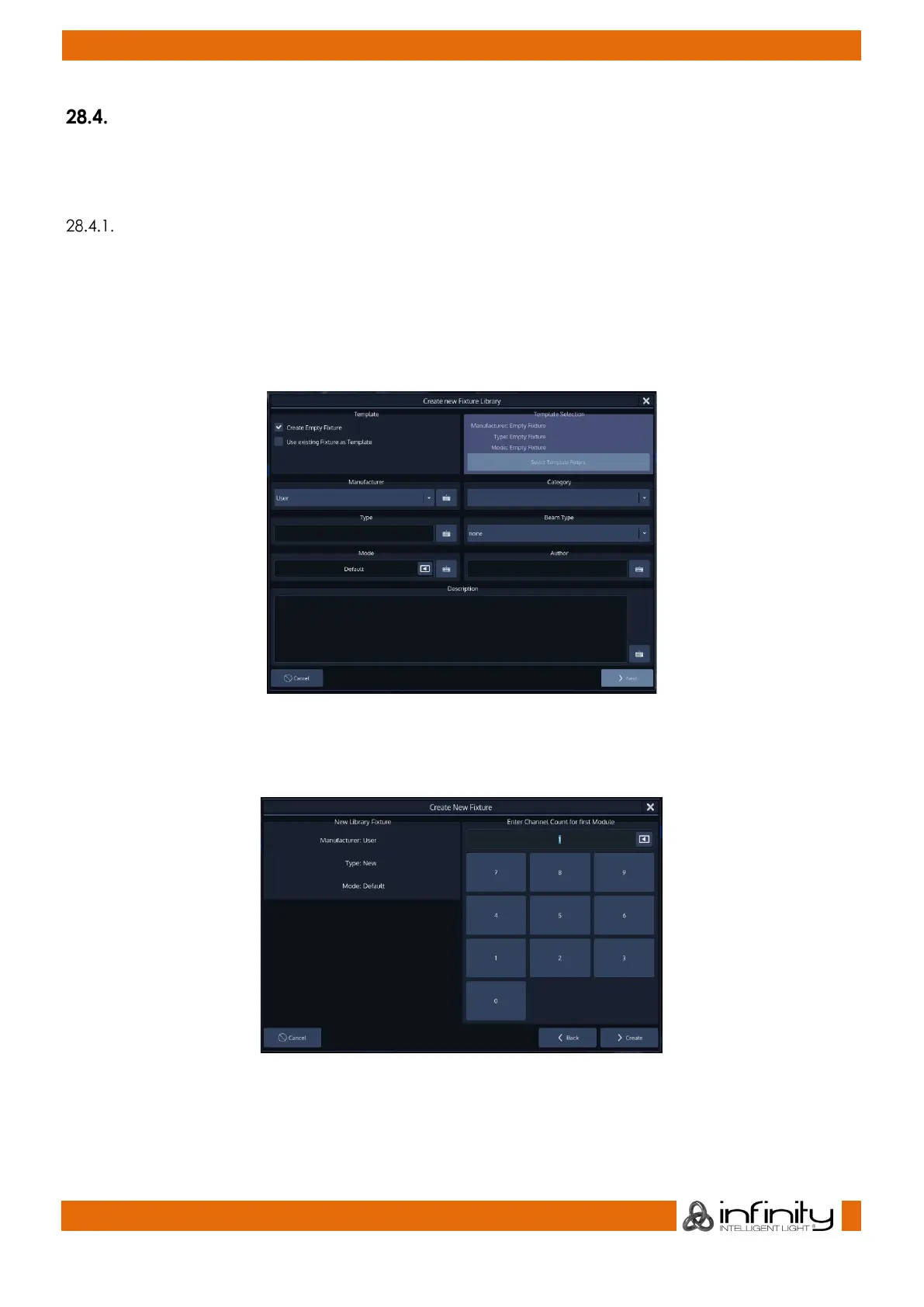
A screen asking a few questions regarding the new fixture will be shown. You need to specify the
Manufacturer, Type, and Fixture DMX Mode. Category, Beam Type, Author and Description are optional
but recommended.
In order to create a fixture from scratch, make sure Create Empty Fixture is selected.
Click on Next when done.
Fig. 220: Create new Fixture Library
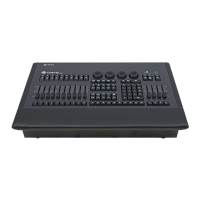
A screen asking you to enter the number DMX Channels for the first module (usually the main module
with User ID 0) is shown. When done, click Create.
Fig. 221: Select Channel Count
The Library Editor will be shown allowing you to make changes to the fixture type.
Click on Save and Close when done.



 To Next Page