154
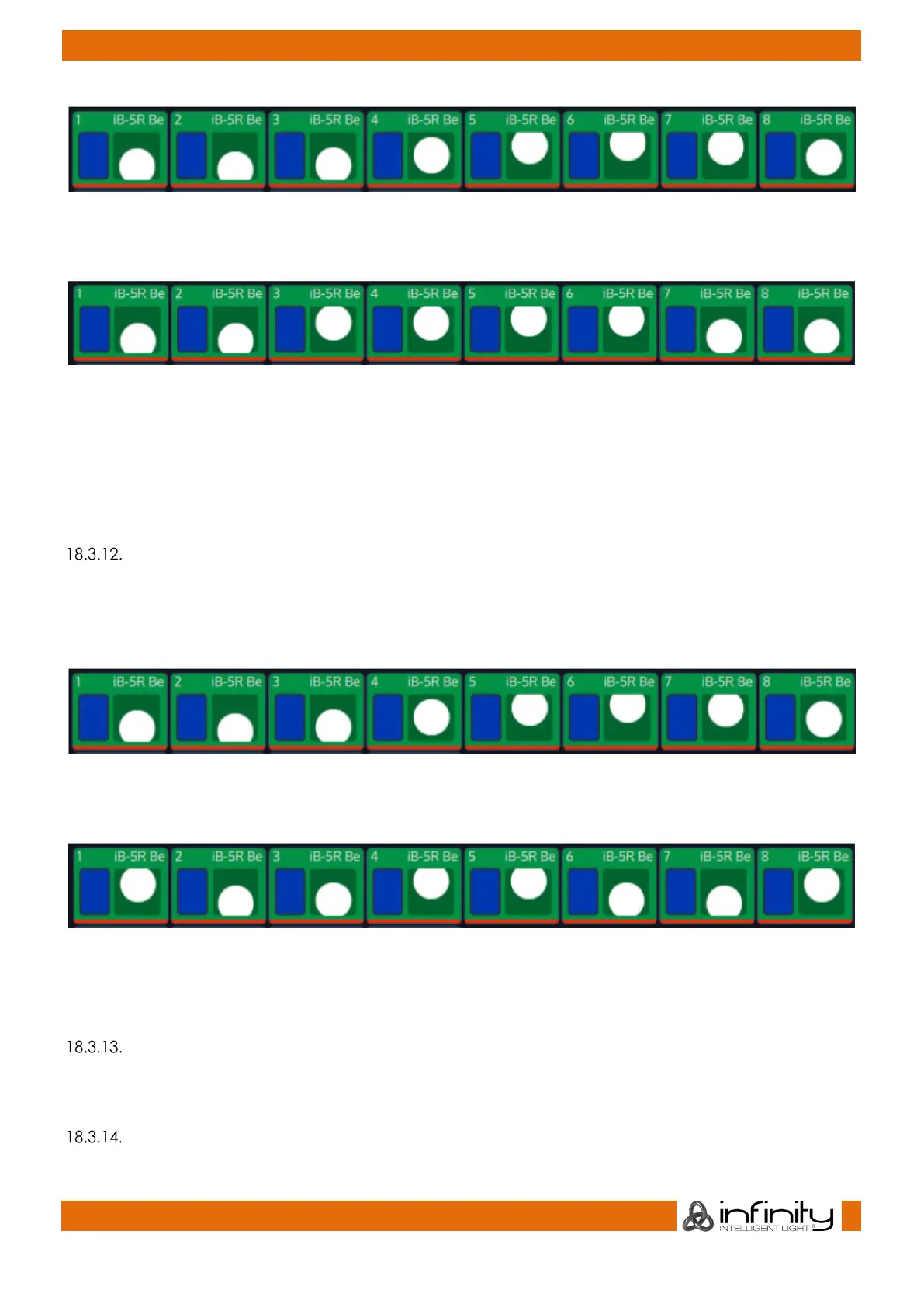
Fig. 133: Buddying Attribute - No Buddying
With Buddying set to a value of two, the effect will look like this:
Fig. 134: Buddying Attribute - Buddying of 2
As you can see, Fixtures 1 and 2 are being output with the same values, Fixtures 3 and 4 are as well, and
so on.
Selecting the Buddying Cell and and double, right or long clicking – or pressing the [Set] key will open
the Set Effect Buddying Parameter Dialog window, which can be used to define the number of fixtures
that will become “buddies”.
“Wings” Effect Attribute
The “Wings” attribute will divide the effect into multiple groups, whereas each group is mirrored to one
another. If a Pan effect is running, its direction will also be mirrored automatically per group.
For example, a tilt wave across 10 fixtures without wings may look like this:
Fig. 135: Wings Attribute - No Wings
With two Wings, the effect will be mirrored in the center and look like this:
Fig. 136: Wings Attribute - 2 Wings
Selecting the Wings Cell and and double, right or long clicking – or pressing the [Set] key will open the
Set Effect Wings Parameter Dialog window, which can be used to define the number of Wings.
“Invert” Effect Attribute
The Invert effect attribute will invert the effects min and max values. It may be changed by double, right
or long clicking – or pressing the [Set] key in an invert cell.
“Direction” Effect Attribute
The “Direction” specifies the direction of the effect.



 To Next Page