155
Forward and Reverse will result in a continues effect in either direction.
Forward Bounce and Reverse Bounce will result in an effect that starts with the specified direction,
alternating directions with each cycle.
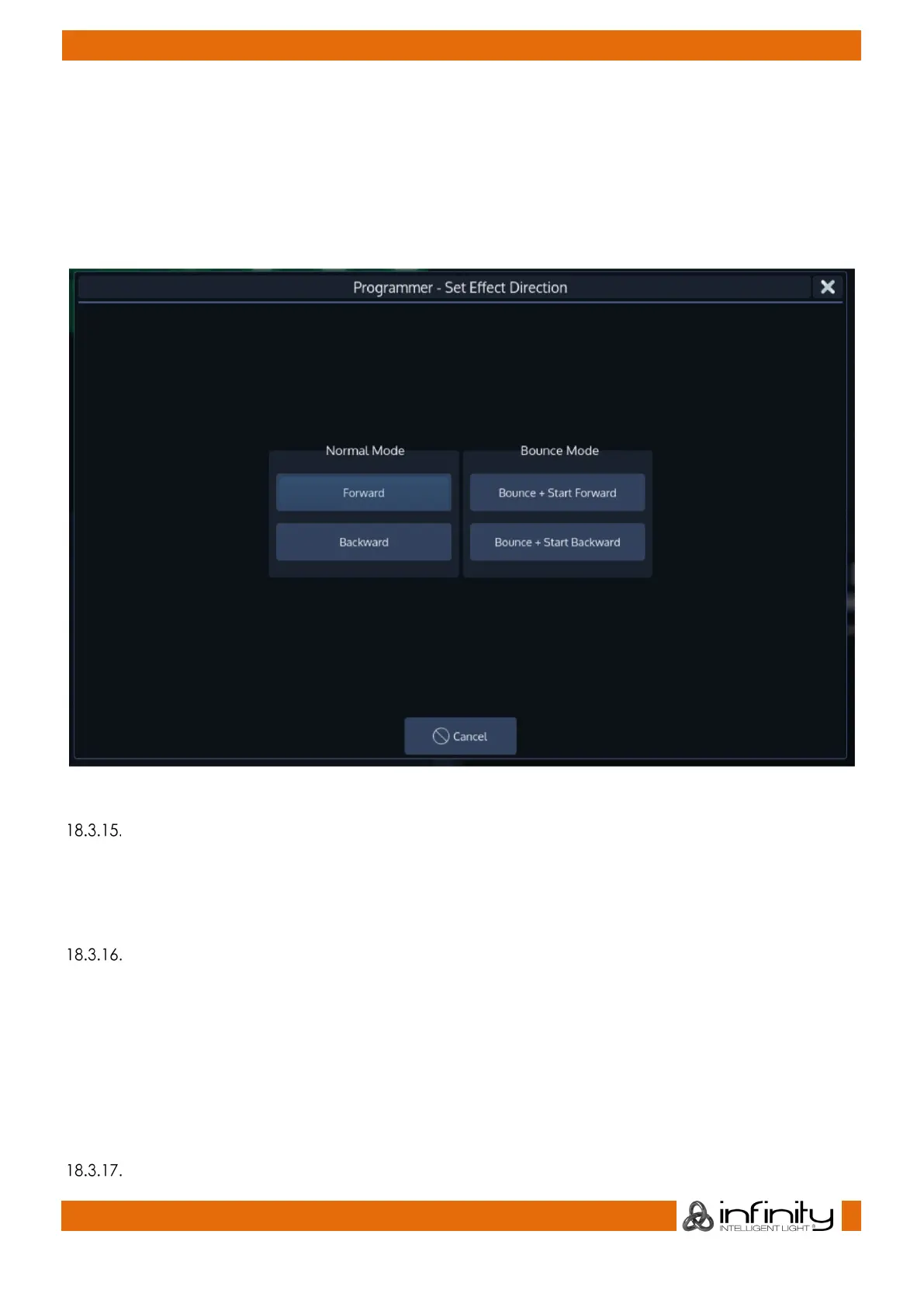
Selecting the Direction Cell and and double, right or long clicking – or pressing the [Set] key will open
the Set Effect Direction Parameter Dialog window, which can be used to define the playback direction of
the effect.
Fig. 137: Set Direction Dialog
“Shots” Effect Attribute
The “Shots” attribute specifies how many times the effect is run.
Double, right or long click – or pressing the [Set] key will open the Set Number of Shots Dialog window,
which can be used to define the number of shots.
“Attack” and “Decay” Effect Attribute
The “Attack” and “Decay” effect attributes softenes the effect curve at the beginning and end
respectively. It only works with the PWM effect type.
Each parameter attributes for half of the effect duration – so setting i.e., Attack to a value of 100% will
soften half of the pulse width. Setting Attack and Decay to a value of 100% will give you a “triangular”
effect shape, similar to the linear effect curve.
Double, right or long click – or pressing the [Set] key will open the Set Attack / Decay Dialog window,
which can be used to alter the attack and decay values.
“Infade” and “Indelay” Effect Attribute



 To Next Page