VIsualEyes 515/525 - Additional Information Page 48
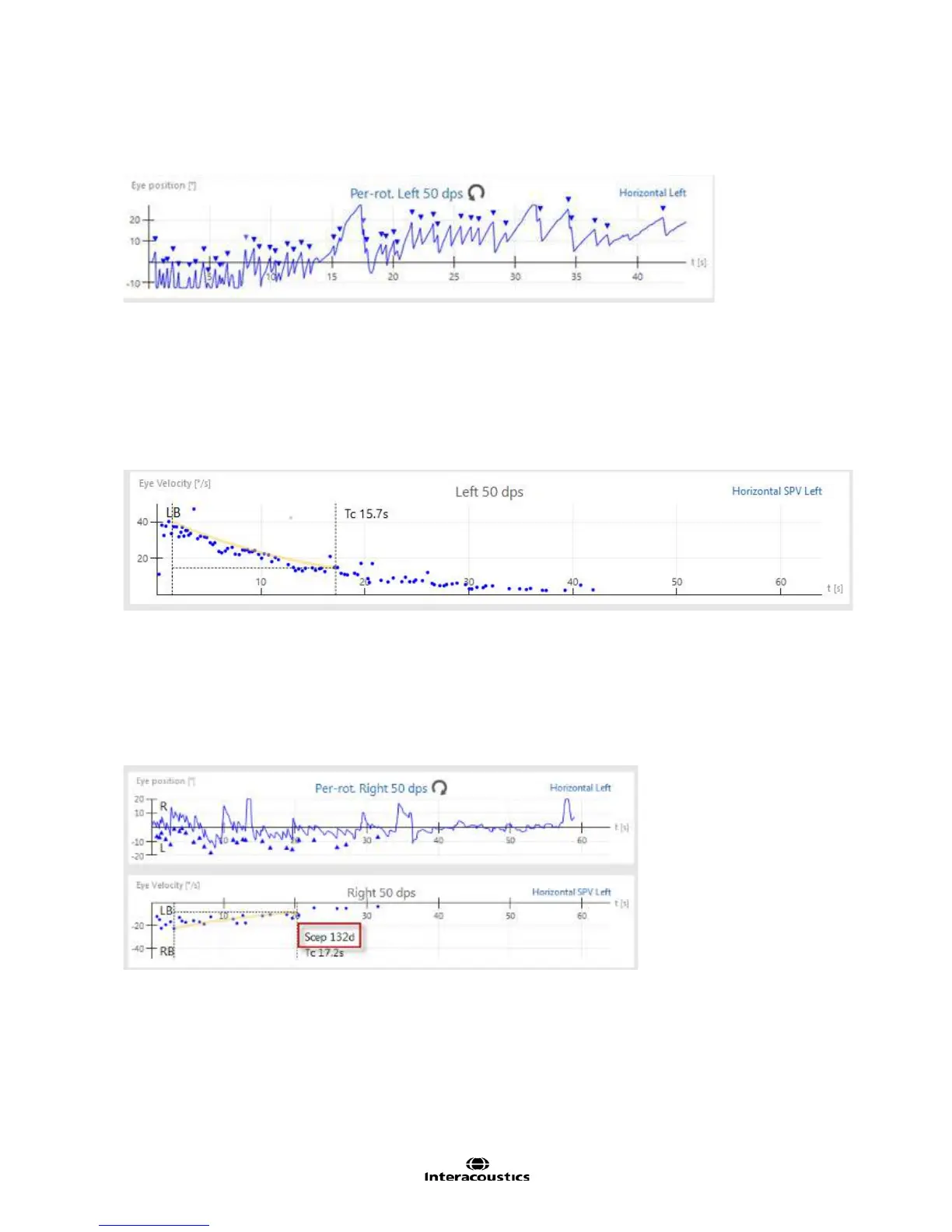
The upper portion displays the raw eye position tracing for the specific condition (per/ post-rotary and its
relative velocity). Nystagmus beats are marked with triangles to identify left/right beating nystagmus (Figure
3.6.28).
Figure 3.6.28 Raw eye movement data trace with identified nystagmus
The lower portion displays data points for the corresponding SPV values for the detected beats of nystagmus
as they reduce from a peak value to their relative time constant (Tc), or 37% of the maximum generated
response. The initial vertical dashed line represents the point at which the peak maximum response was
detected. The second vertical dashed line represents the point at which the response declined by 37% of
the maximum peak response. The horizontal dashed line represents the amount of time between the two
vertical dashed lines and indicates the time constant for that segment of the Step Rotation test. The yellow
line represents the curve fit from the peak maximum evoked response to the Tc in seconds. The Tc
numerical value is displayed next to the dashed line (Figure 3.6.29).
Figure 3.6.29 Eye velocity graph displaying peak response declining to 37% of its maximum (Tc)
SCEP calculations
Slow cumulative eye position (SCEP) information can be optionally displayed. SCEP is calculated by
numerically integrating the area under the actual slow-phase velocity of the patient's RVS response. This
integration starts from the point of initial SPV until end SCEP. Enabling this feature allows SCEP information
for each step to be available within the eye velocity graph, along with the Tc information (Figure 3.6.30).
SCEP calculation is not enabled by default, but can be enabled within Step Test setup.
Figure 3.6.30 SCEP calculation
When further details for review are needed, the examiner can select an individual velocity and direction from
the left side menu panel to see both eyes displayed together for the selected segment (Figure 3.6.31). This
view allows the examiner to review both the per- and post-rotary segments for the selected Step Rotation
test, add notes, review or delete eye video recordings, print the screen, and edit the results for a specific
segment.














 To Next Page