7.
Channel: Selects the light source from the installed LED light cubes (fluorescent channels) or from
the condenser (transmitted light). RGB Trans option outputs a color image from interlaced RGB
images in the Live mode.
•
Select a channel to turn on the excitation light and view in the Live mode. In Live mode, you
can use the brightness and focus controls.
•
Click the selected Channel button again to turn o the excitation light and exit the Live mode.
The current channel remains selected as indicated by the highlighted color around the channel
button.
8.
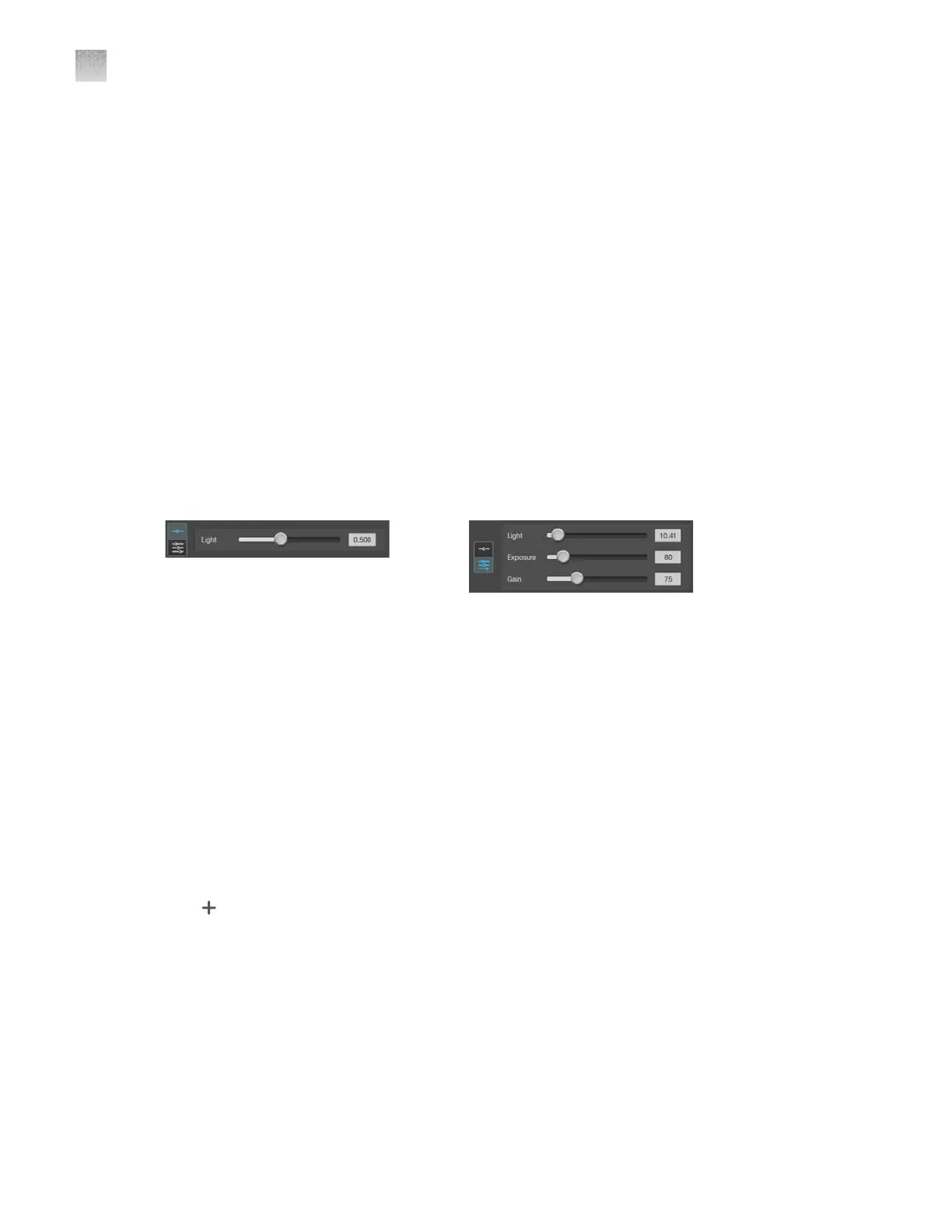
Brightness mode: Toggles between Simple and Advanced modes for brightness controls.
•
Simple mode allows you to control light intensity as a single Light parameter. The system will
automatically determine exposure and gain in order to minimize photobleaching.
•
Advanced mode allows you to adjust Light (that is, LED intensity), Exposure, and Gain
parameters individually.
9.
Brightness controls: Adjust the brightness for the selected channel using the simple or advanced
slider controls. The Exposure and Gain advanced sliders can help to optimize image details.
Simple slider control for Light adjustment. Advanced slider controls for Light, Exposure, and Gain
adjustments.
10.
Z = (µm)
: Displays the current focus position in µm along the Z-axis as controlled by the focus
knobs or focus sliders in the user interface. You can also change the Z-axis focus position by
entering the desired value into the Z = text box.
11.
Sync Z: Allows you to sync the Z-axis osets, which specify the optimal focus position for each
channel relative to the focus position in other channels.
•
When synched, movement of the Z-position in one channel changes the Z-position in all
channels, preserving their relative Z-positions.
•
When unsynched, adjusting the Z-position only aects the currently selected channel.
12.
Clear Z Osets: Clicking Clear Z Osets sets all of the channels to the same focal plane value
as the selected active channel. For example, if GFP is selected as the active channel and its focal
plane is -712, then clicking Clear Z Osets will set the other 3 channels with focal planes of -745,
-694, and -715 to be -712.
13.
Saved Settings: Allows you to save Z-axis focus positions and brightness settings for future use.
Click
to save the current settings.
14.
Stage View: Visual tool that allows precise marking of points of interest on various vessel types, as
well as the r
elocation of these points at a later time.
15.
Vessel type for Stage View: Allows selection of the vessel type being viewed. Vessel types
include, slides, petri dishes, and plates from 6 to 384 wells.
16.
Save (Quick Save, Auto Save): Saves the currently displayed image (all of the currently visible
channels) to the hard drive, USB drive, or network drive. After saving an image, the filename is
displayed in the upper-left corner of the screen.
17.
Automate: Allows you to display the controls for the Time Lapse and Z-Stack tools, and the
optional EVOS
™
Onstage Incubator.
AppendixBGraphical user interface (GUI)
Capture tab
B
118
EVOS
™
M5000 Imaging System User Guide



 To Next Page