•
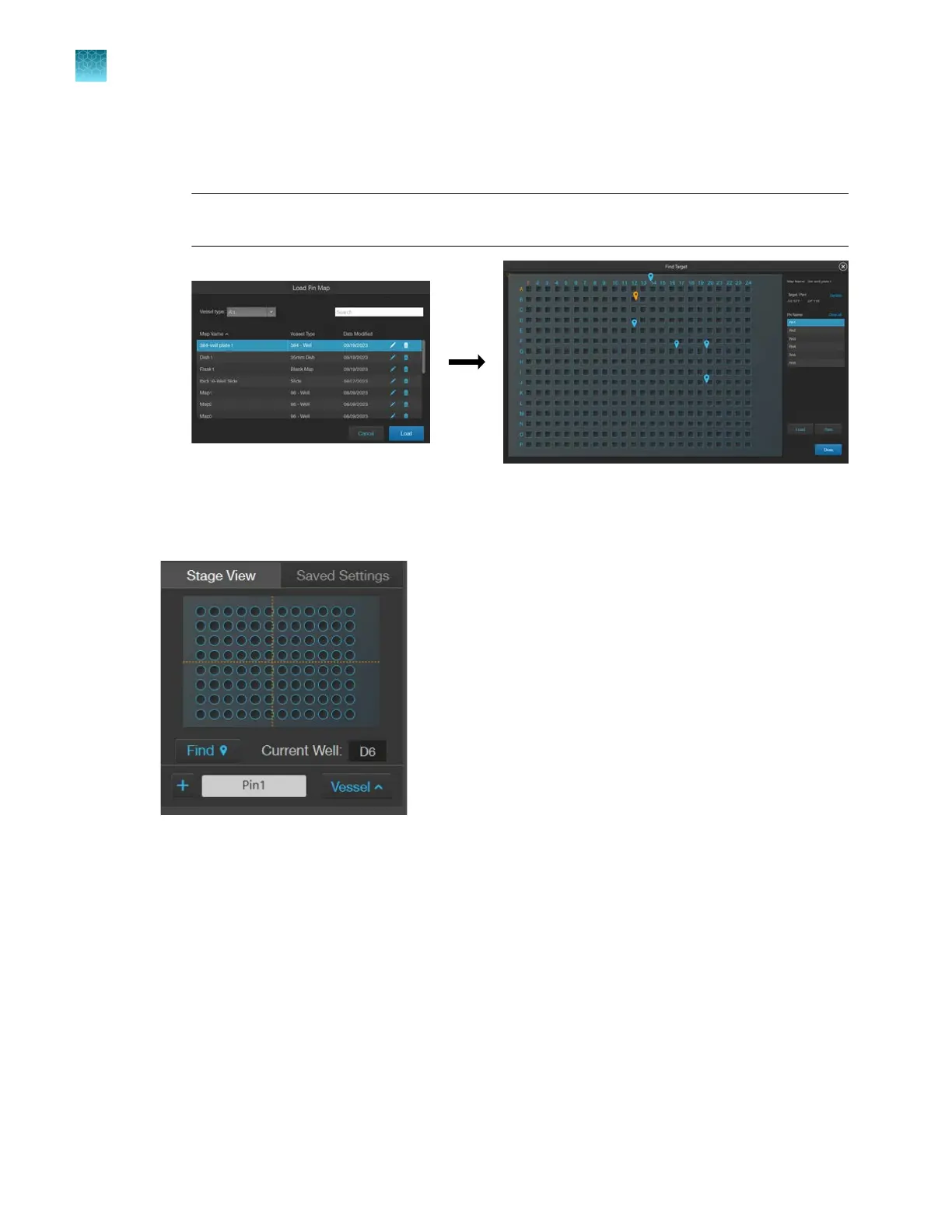
Load Pins: Loads a previous map with pins and the appropriate vessel. Click Load Pins....
Click the desired Map Name row. Click Load. The Find Target window will open. Click Done
to return to the main screen.
Note: When selecting a well plate, any captured images will automatically add the well lD to
the individual saved filename.
10.
Click
Continue to load the vessel map. A representation of the vessel layout will appear in blue in
the Stage View tab. Also visible is an amber moveable crosshairs that tracks the stage position as
the stage is moved.
11.
Insert the vessel into the holder.
Carefully seat the vessel tightly into the corner opposite the
spring clip and ensure the spring clip correctly secures the vessel. For plates, the Current Well
will display A1 and update the well ID as the stage is moved to dierent wells (other vessel types
will not have the Current Well display). You can now move the amber crosshairs around the small
vessel map by moving the stage.
Chapter9Stage View
Set Stage Origin
9
80
EVOS
™
M5000 Imaging System User Guide



 To Next Page