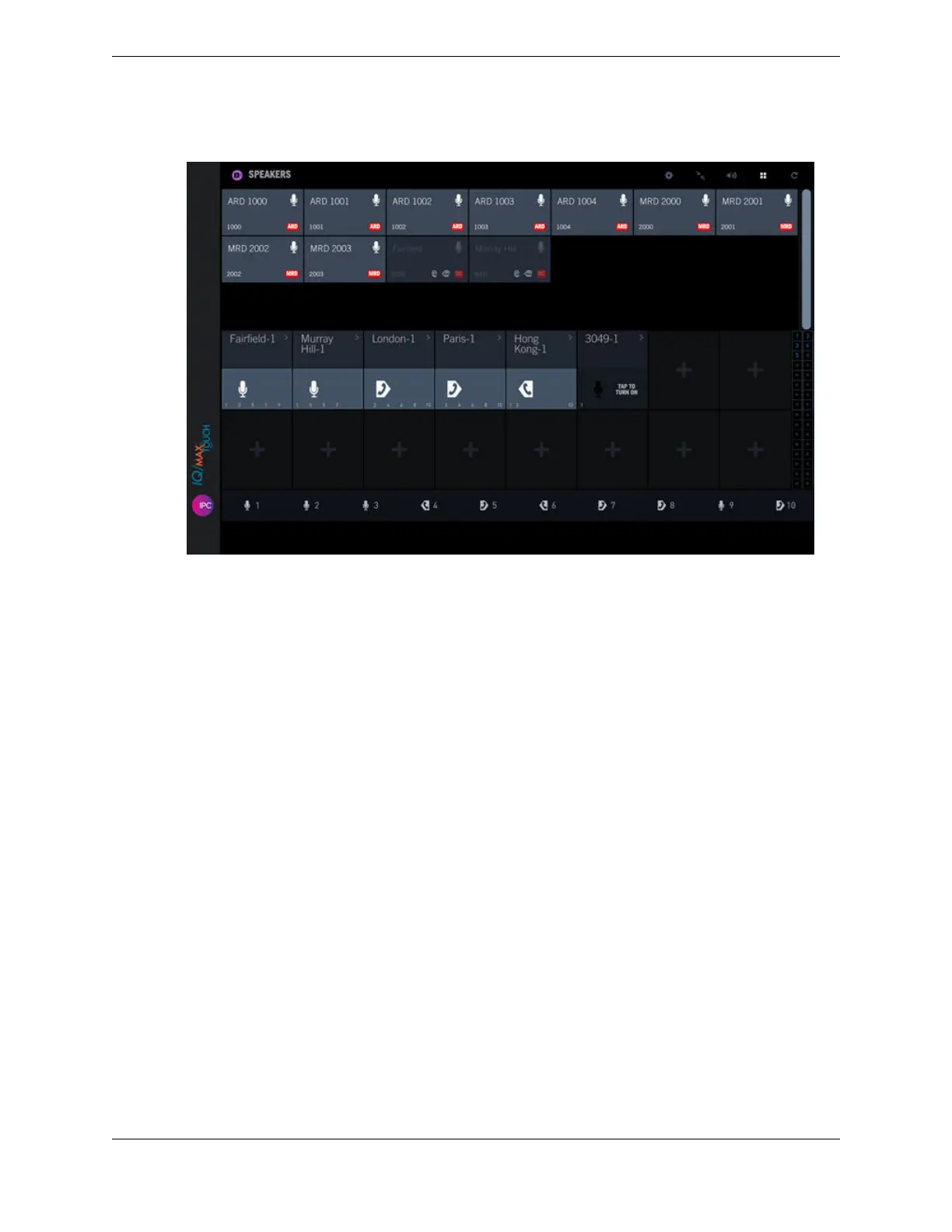
Figure 69: Speakers directory
10.6.1.2 Assign or replace a speaker channel from Speakers directory
Assign a line to an empty speaker channel or replace a speaker channel assignment from Speakers
directory. You can assign a line to the first available speaker channel or select a speaker channel to be
assigned.
For background information, see Speakers directory on page 150.
1. Tap the Speakers icon in the Navbar.
The Speakers application is displayed. See Speakers on a hard turret on page 128 for an illustration.
2. To assign a line to the first available speaker channel:
a) Tap the Speakers directory icon in the Speakers application header bar.
The Speakers directory is displayed.
b) Tap an entry in Speakers directory. Swipe to scroll through the list as needed.
The line is assigned to the first available speaker channel.
3. To assign a line to an empty speaker channel that you select:
a) Tap the + icon on a speaker channel, which denotes an empty speaker channel.
The contextual menu is displayed.
b) Tap Add from Speaker Directory.
The Speakers directory is displayed.
c) Tap an entry in Speakers directory that you want to assign to the empty speaker channel.
The line is assigned to the speaker channel.
4. To replace a speaker channel assignment:
a) Select a speaker channel to be replaced.
b) Tap the > icon in the speaker label of the selected speaker channel.
The contextual menu is displayed.
152 10.6: Set up speaker channels
August 26, 2019 IPC Proprietary



 To Next Page