MENU
Example – Record a MIDI file
• Tap on the AUDIO RECORDER BUTTON of the MENU page. The AUDIO RECORDER
window will be displayed on screen.
• Tap on the REC button to start the recording. The REC button will begin to blink.
• Press EXIT to close the recording window. The MENU button led will continue to blink
even if the window is closed.
• You can press MENU at any time during the recording to open again the AUDIO
RECORDER window.
• Play a MIDI file by selecting it with the Value Dial in the FILE BROWSER and by pressing
ENTER (see PLAY A SONG ).
• Tap again on the REC button again to stop the recording. If you want to edit the recording,
tap on the WAVEFORM to open the AUDIO EDIT page.
• Press SAVE to save the recording. A dialogue window will appear on screen.
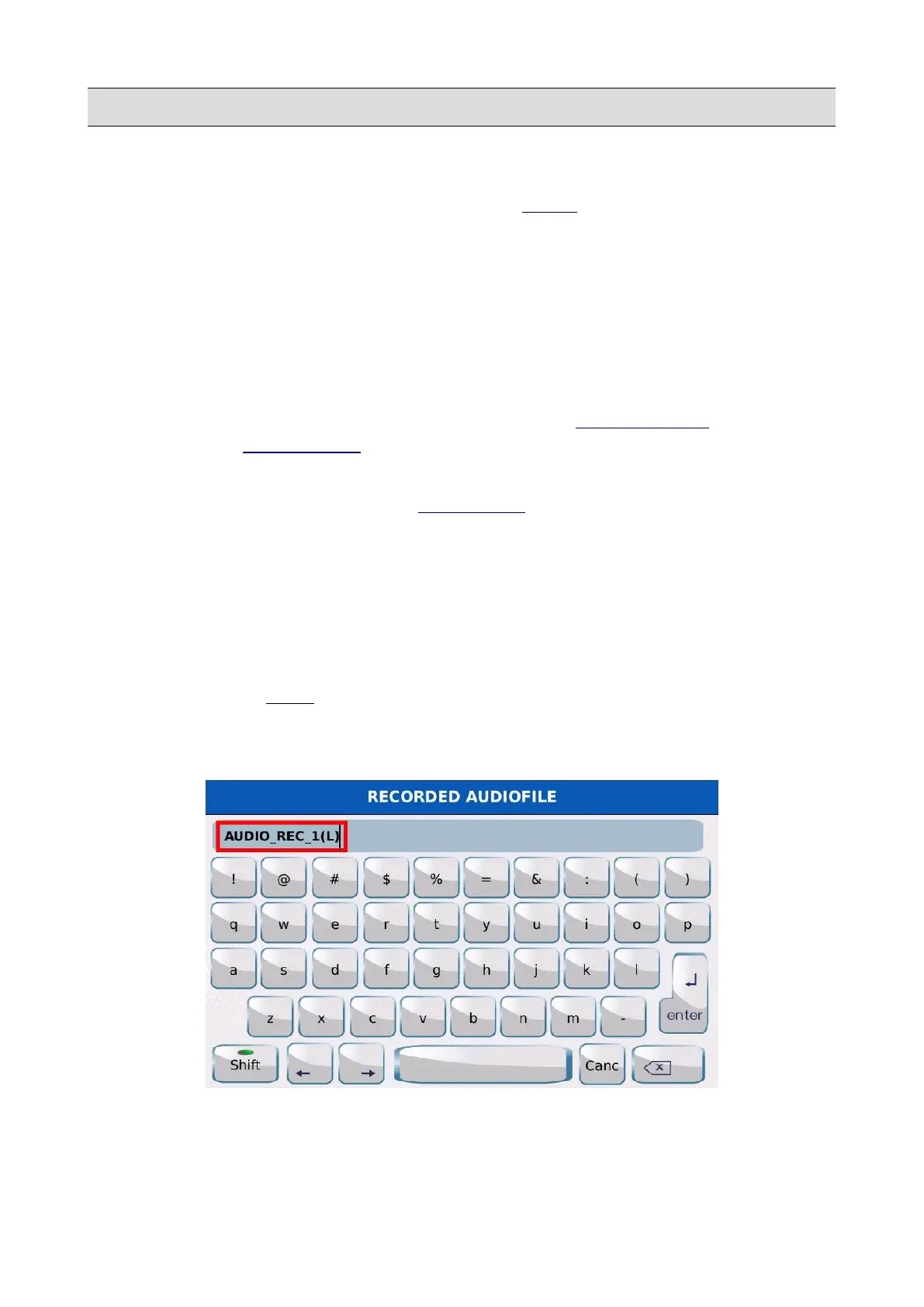
• Tap on the YES button. A virtual alphanumeric keyboard will appear on screen. Compose
the new name and then tap on ENTER. Tap on the NO button or press EXIT to discard the
recording.
• Compose the name and tap on the ENTER button to save the recording as a .wav file.
NB: start the recording before playing the MIDI file (or any other file), otherwise you won’t be able
to start the recording.
NB: When saving the recording, terminate the name with the “(L)” suffix to make the file loopable.
KETRON - LOUNGE 127


 To Next Page