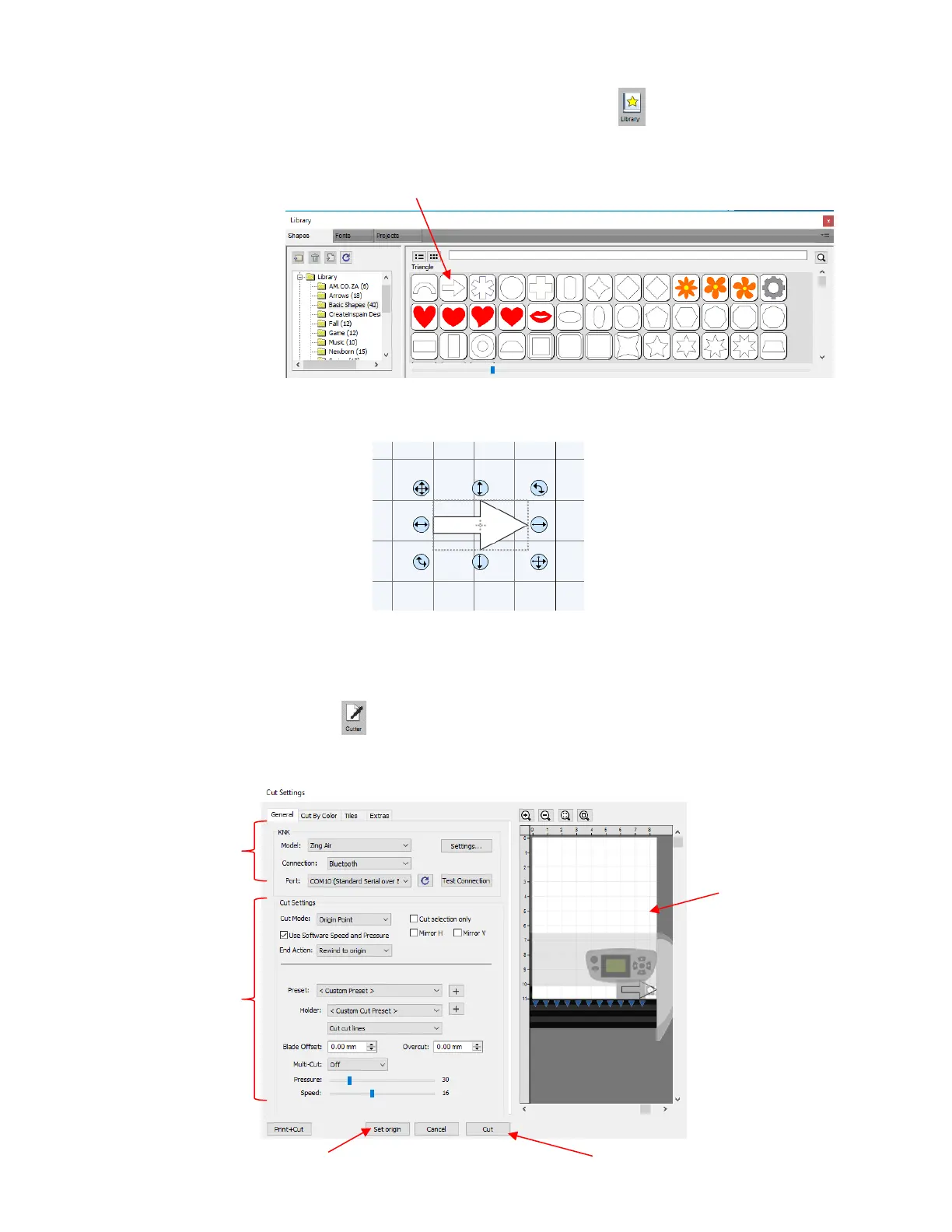
5. If you closed the Library when you opened SCAL, click on this icon at the top to reopen it. Click
on the arrow thumbnail to add that shape to your screen. An arrow will help you better compare where a
shape gets drawn versus how you see it on the screen:
6. After clicking the arrow, you should see it on the screen. In this test, it doesn’t matter where you place
the arrow on the grid, as it will be drawn at the origin you set on the machine.
7. In Section 3.01.4, you installed the KNK Zing Air in SCAL. To now open the Cut Settings window,
either:
o Go to Cutter> Cut with KNK
o Click on the Cutter icon at the top
8. The follow window opens:



 To Next Page