HCOE diverter jam service check
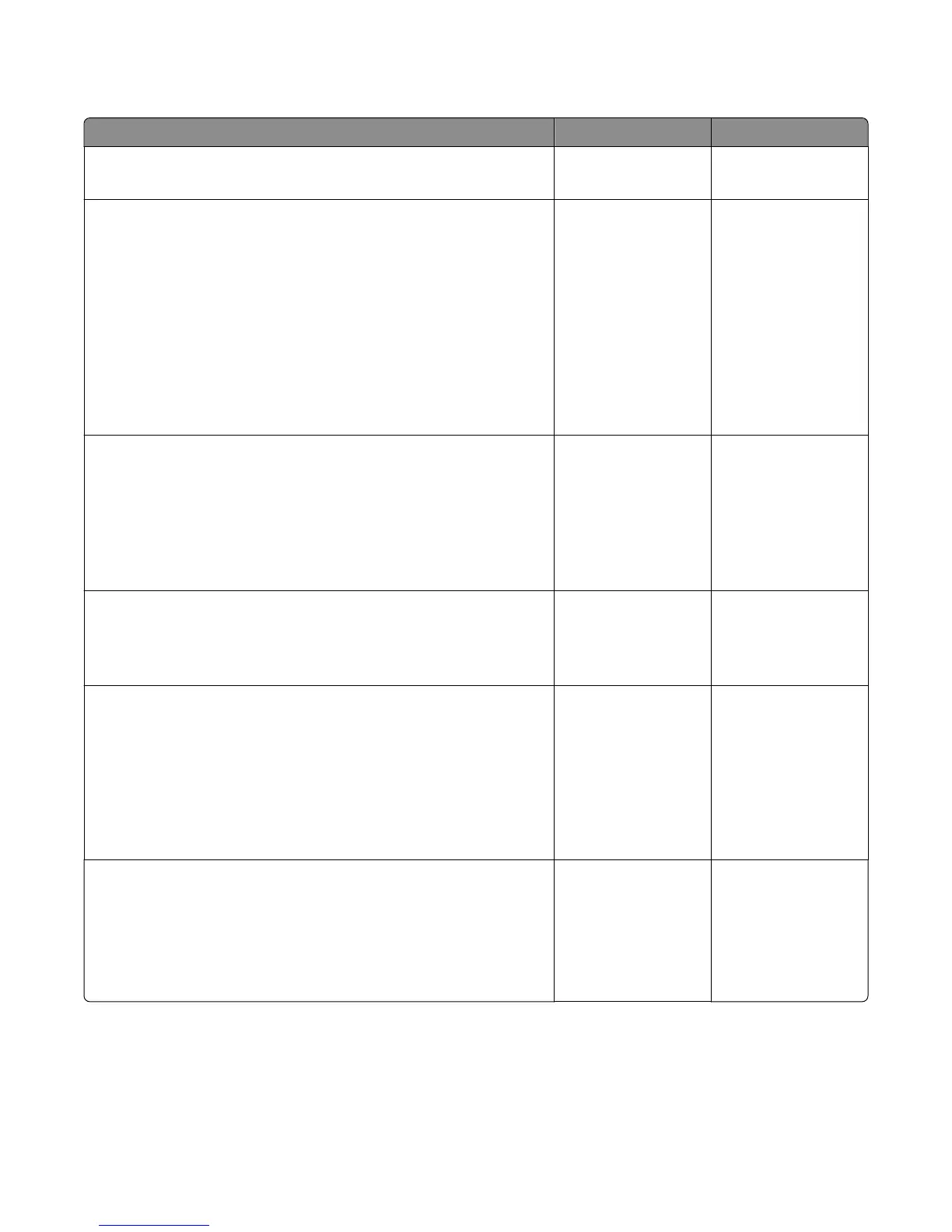
Action Yes No
Step 1
Is the high capacity output expander the only output option installed?
Go to step 3. Go to step 2.
Step 2
Remove all output options and re-install only the high capacity output
expander.
Enter Diagnostics Menu and navigate to:
Output bin tests > Feed to all bins
Does the output option feed to all bins normally?
The problem may not
be on this option tray.
Re‑install the
remaining output
options one at a time
and test each option
for errors. Proceed
with the appropriate
service check based on
the error message and
the output option
being tested.
Go to step 3.
Step 3
Check the lower interface cable. If damaged, then replace the lower
interface cable. Go to “HCOE lower interface cable removal” on
page 459.
Re-seat the connector (J1) on the controller PCBA, then POR the machine.
Does the error remain?
Go to step 4. The problem is solved.
Step 4
Check the auto connector end of the printer underneath the option.
Is it free of damage or obstructions?
Go to step 5. Replace the upper
interface cable of the
base printer.
Step 5
Check the sensor (diverter). If damaged, then replace the high capacity
output expander. Go to “High capacity output expander assembly
removal” on page 450.
Re-seat the sensor connector (J7) on the controller PCBA. POR the
machine.
Does the error remain?
Go to step 6. Replace the high
capacity output
expander. Go to “High
capacity output
expander assembly
removal” on page
450.
Step 6
Check the diverter sensor flag.
Is it free of damage?
Go to step 7. Replace the high
capacity output
expander. Go to “High
capacity output
expander assembly
removal” on page
450.
4063
Diagnostic information
172


 To Next Page