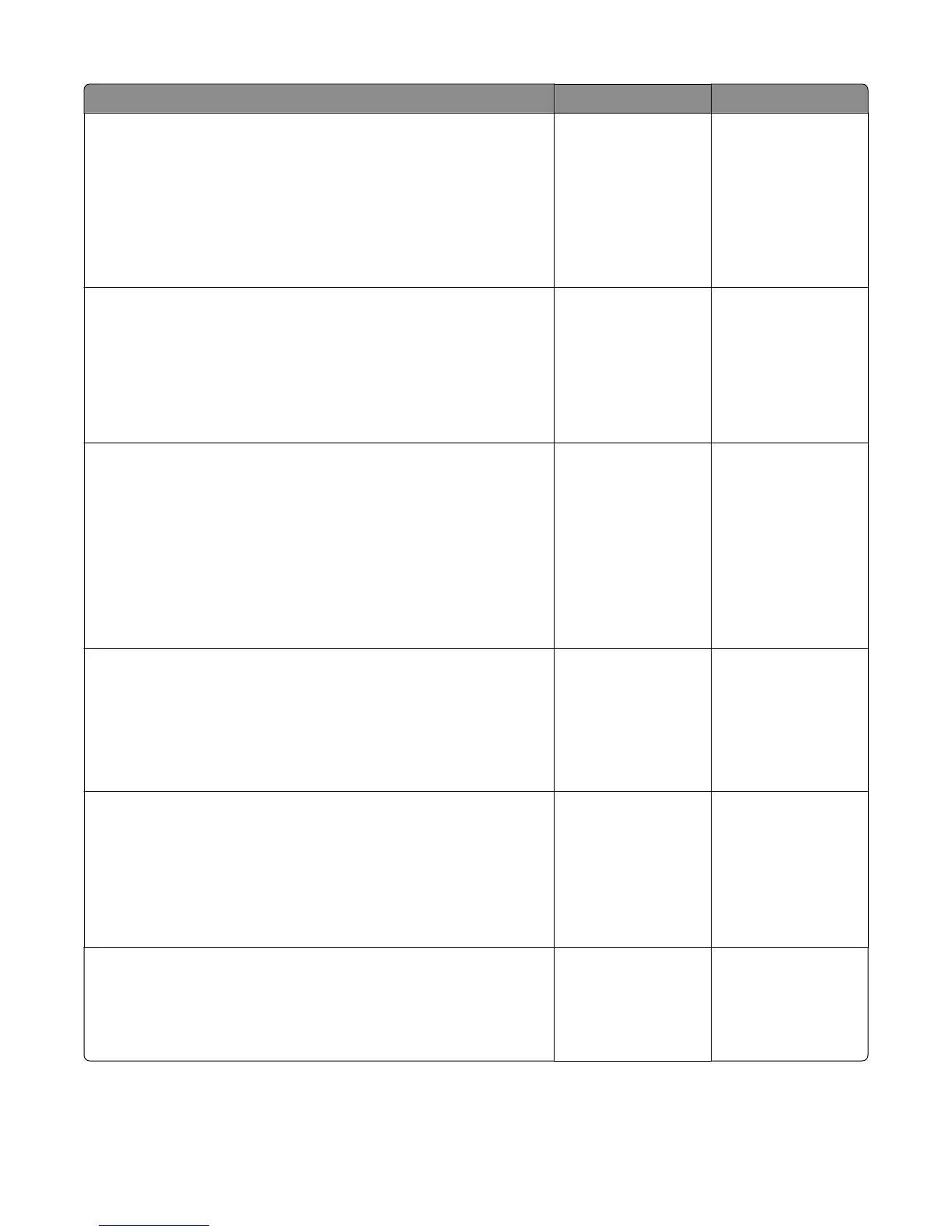
Action Yes No
Step 4
Check the lower interface cable. If damaged, then replace the lower
interface cable. Go to
“Stapler lower interface cable removal” on
page 484.
Remove the left cover. Reseat the cable (J15) on the controller PCBA, then
POR the machine.
Does the error remain?
Go to step 5. The problem is solved.
Step 5
Open the rear door and check the sensor (pass through) for proper
operation. Enter Diagnostics Menu and navigate to:
Output bin tests > Sensor test
Does the display on the operator panel change every time the sensing
area of the above sensor is interrupted or blocked?
Go to step 7. Go to step 6.
Step 6
Check the sensor (pass through):
• Make sure the sensor is properly seated
• Check the sensor flag. If damaged, then replace the staple finisher
assembly. Go to
“Staple finisher assembly removal” on page 461.
Remove the left cover, reseat the connector (J13) on the controller PCBA,
and then POR the machine.
Does the error remain?
Go to step 7. The problem is solved.
Step 7
Open the rear door, and check:
• if the rear door opens and closes properly
• the rollers for damage
Is the above component ok?
Go to step 8. Replace the rear door.
Go to “Stapler rear
door removal” on
page 462
Step 8
Open the left cover and check the feed gears. If damaged, then replace
the staple finisher assembly. Go to “Staple finisher assembly removal”
on page 461.
Reseat the connector (J3) on the controller PCBA, then POR the machine.
Does the error remain?
Go to step 9. The problem is solved.
Step 9
Remove the staple finisher assembly from the printer. Check the feed
rollers and gears under the staple finisher.
Is if free of damage?
Go to step 10. Replace the staple
finisher assembly. Go
to “Staple finisher
assembly removal” on
page 461.
4063
Diagnostic information
176


 To Next Page