4-20 PCWS 2015 Setup Guide - 2nd Edition
Installing and Operating the Workstation 2015
Operation
Revision C System Board - BIOS Version O1300
This combination of System Board and BIOS can use the BIOS Boot Menu to
start the Recovery CF. The F5 Boot Menu allows you to boot to an alternate
device such as the Recovery CF ‘one time’ then return the default boot order.
• Connect a USB Keyboard to the Workstation.
• With the Recovery CF installed, start the workstation.
• When the Blue Splash Screen with MICROS logo appears, press [F5].
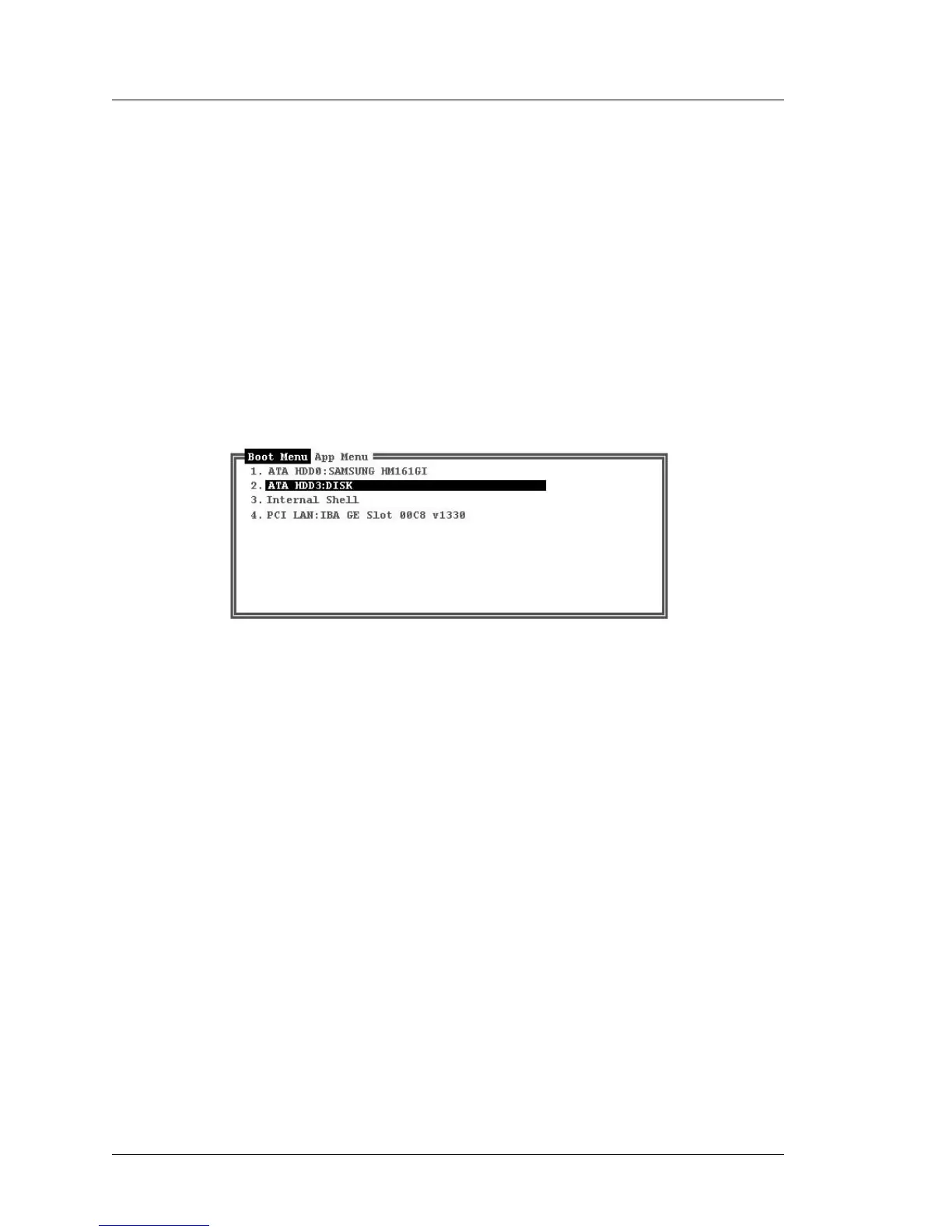
• The Boot Menu appears. It displays all devices capable of containing
an operating system. An example of the Boot Menu with a one SATA
Disk Drive and the Recovery CF installed is shown below.
• Using the keyboard, select ‘ATA HDD3:’ as shown below and press enter.
Figure 4-11: Using the Boot Menu to Enable the Optional Recovery CF
• ATA HDD3: is the CF slot on Revision C System Boards. The name
displayed may be ‘RECOVERY’ or the name of a CF Card maker.
• If the ATA HDD3: field does not appear in the Boot Menu, the
Recovery CF is not installed, is defective or the CF Riser Card may be
defective.
• After the image transfer completes, restart the workstation, but do not press
the [F5] key. The workstation should boot from the primary boot device, a
SATA hard disk or RAID.


 To Next Page