DCS Command System User’s Guide
Quick Start: Command Mode
Wait until the LCD says the engine was
added and returns to the engine menu
addressing that engine. Because M.T.H.
features the SmartRead system, your
engine tells the TIU its name and you do
not need to enter any information in
order to add the engine. The LCD will
show you the engine you have added.
If you want to add additional engines,
remove the added engine from the track,
place the new engine on the track, and
repeat steps 1 and 2. You need to
complete these steps only once per
engine, when you first add it to your
system, not each time you place a
previously added engine on the track.
Adding Many Engines
If you own several Proto-Sound 2.0
engines and anticipate buying many oth-
ers, you may find it convenient to estab-
lish a dedicated programming track
rather than removing all other engines
from your track every time you add a
new one. Please see the “Advanced
Wiring” section of this manual in the
“Universal Locomotive and Accessory
Operation” chapter for instructions.
See the System Menu/Engine Setup sec-
tion in the “Menu Operation” chapter(s)
of this book for instructions on renam-
ing, renumbering, or deleting your
engines.
18
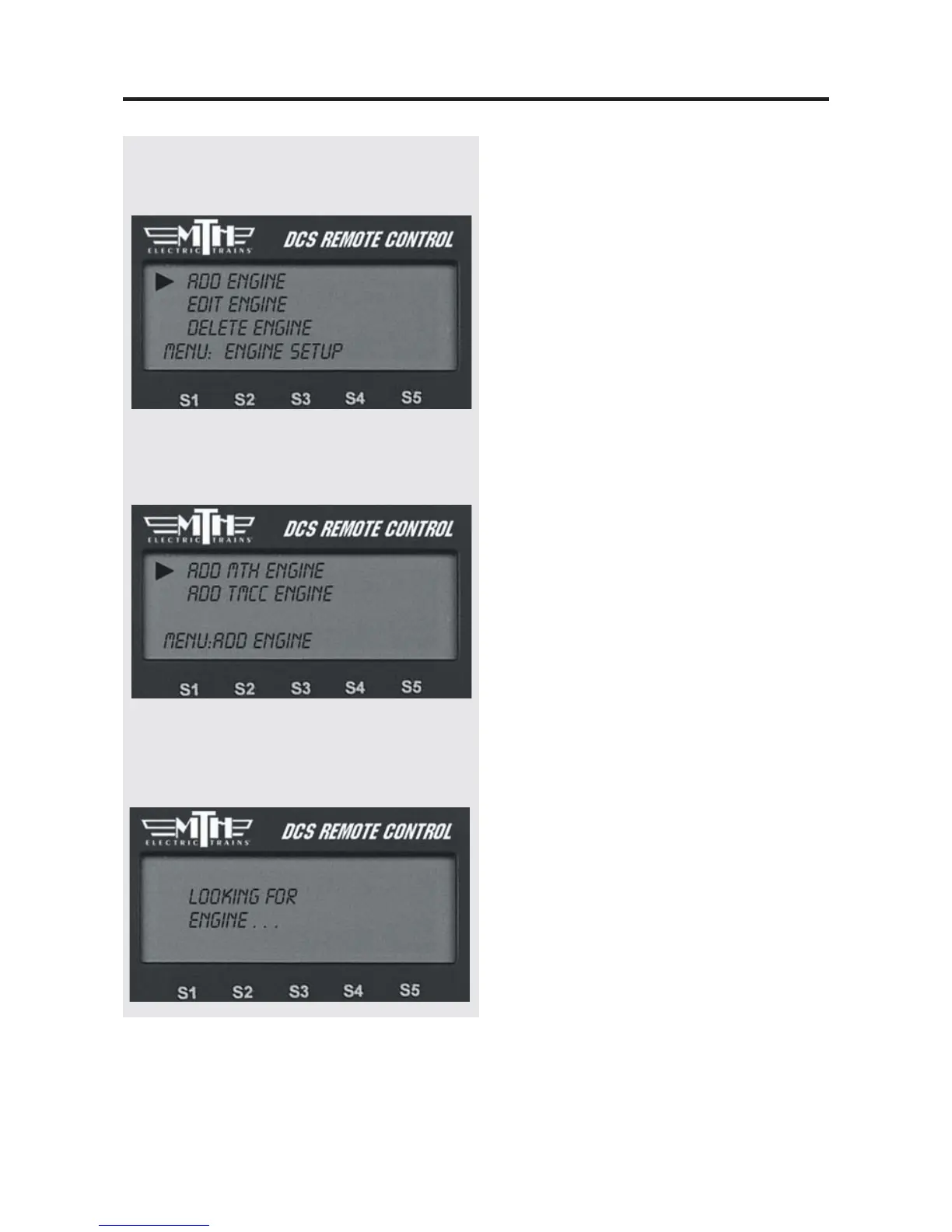
4. Scroll and select Engine Setup from the
available choices in the System Menu.
5. Scroll and select Add Engine from the
available choices in the Engine Setup Menu.
6. Scroll and select Add MTH Engine
from the available choices in the Engine
Setup Menu.


 To Next Page