DCS Command System User’s Guide
Menu Operations - Advanced
Scene Setup
Create Scene:
(cont’d)
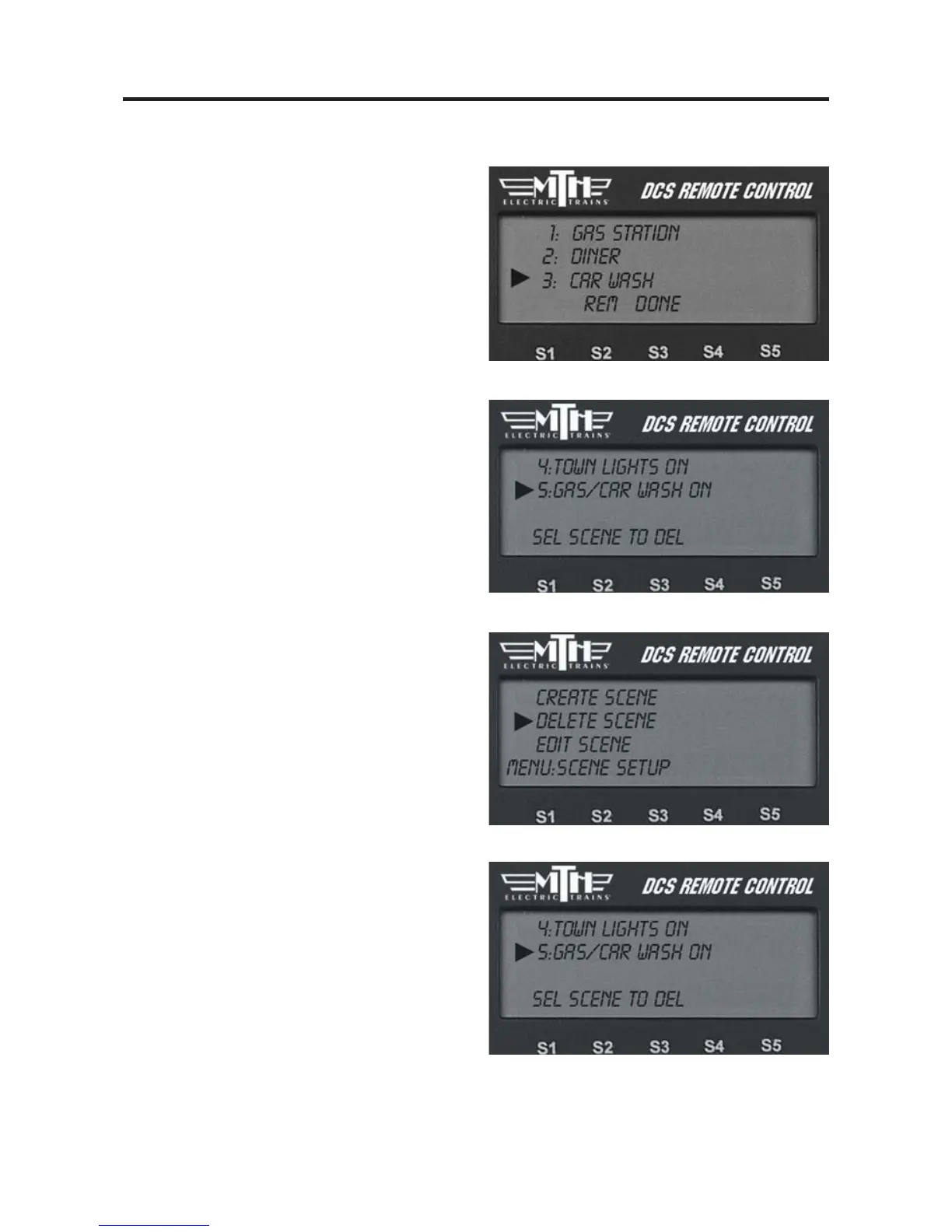
4. To remove an accessory you added by
mistake, press the softkey (S3) under
REM.
5. When you have finished adding a scene,
press the softkey (S4) under DONE.
The scene will appear in the accessory list
accessed by pressing the ACC button, just
as though it were a normal accessory.
Activate it by scrolling to it and pressing
the thumbwheel.
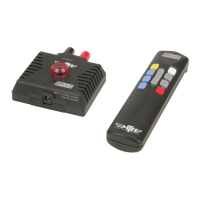
Delete Scene
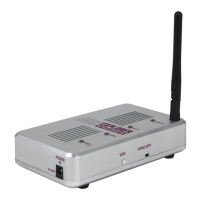
1. The LCD shows the accessory list.
Scroll to the scene you want to delete and
press the thumbwheel.
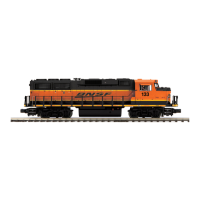
2. When prompted to confirm the dele-
tion, press the thumbwheel a second time.
Edit Scene
Edit Name
1. The LCD shows the accessory list.
Scroll to the scene you want to edit and
press the thumbwheel.
2. An alphanumeric character set is dis-
played; use the thumbwheel to scroll
through the character set, and when the
character you want to type next is bracket-
ed, press the thumbwheel to select it. You
may give the scene a name up to 16 char-
acters long. Select the “D” at the end of
the character set to signify that you are
done with this function.


 To Next Page