Copy by set
Introduction
You can use the 'Create set' option to make multiple sets of copies.
How to copy by set
1.
Feed the original face up and centred on the original feeding table.
Note:
You do not need to centre the original precisely. The exact position of the original is au-
tomatically detected by the scanner.
2.
Tap the 'Copy' tile. A window with a list of presets opens.
3.
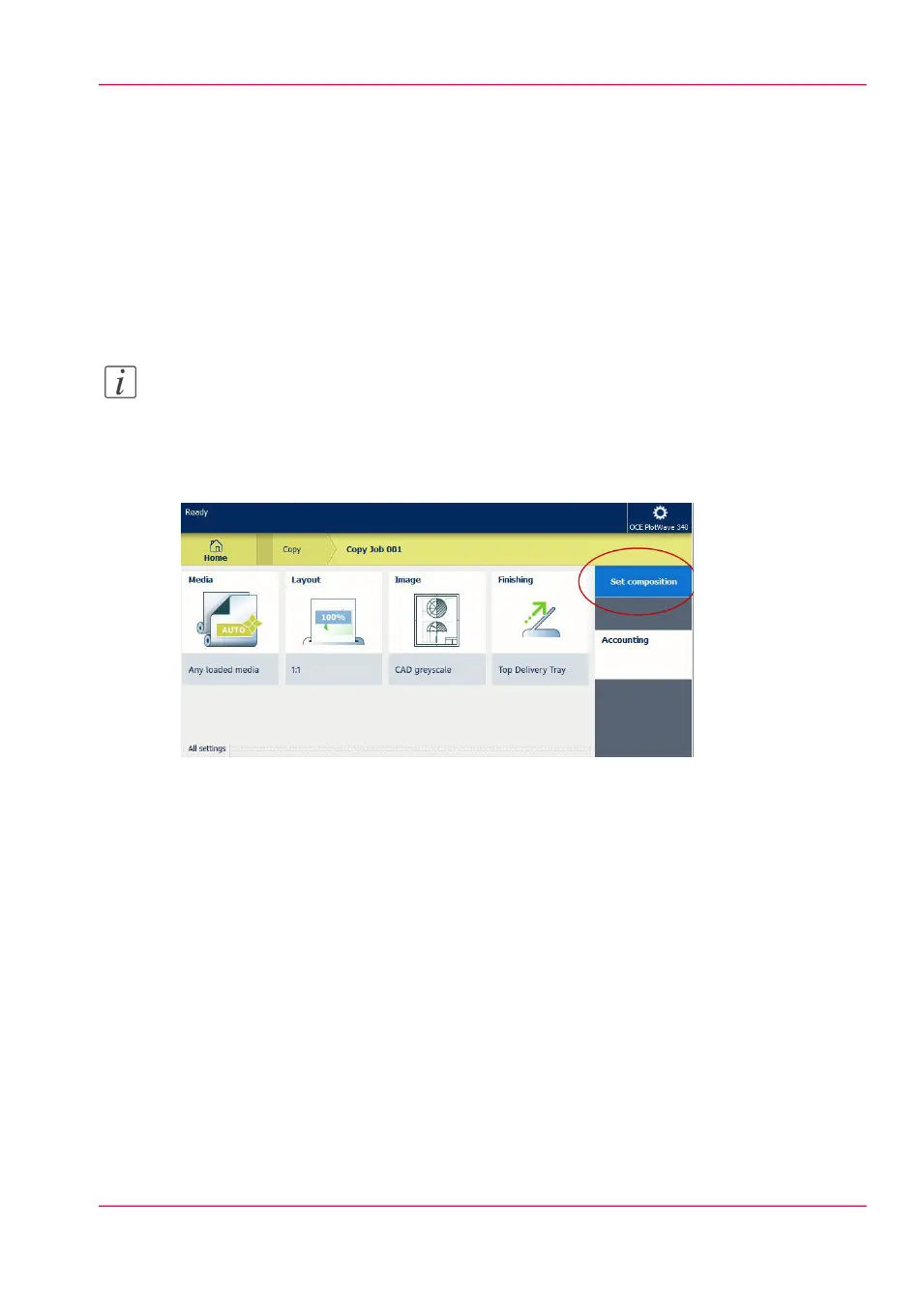
In the job pane on the right, tap 'Set composition'.
The green button changes colour and displays 'Add'.
4.
Tap the button to start scanning.
5.
When the printer releases the original, insert the next original.
6.
Tap the green button. The scan is added to the set.
Repeat this step until your set is complete.
7.
Tap the 'Finish set' tile, to finish the set.
Result
The printer copies the set of originals.
Chapter 4 - Use the Printing System 225
Copy by set



 To Next Page