EasyManua.ls Logo

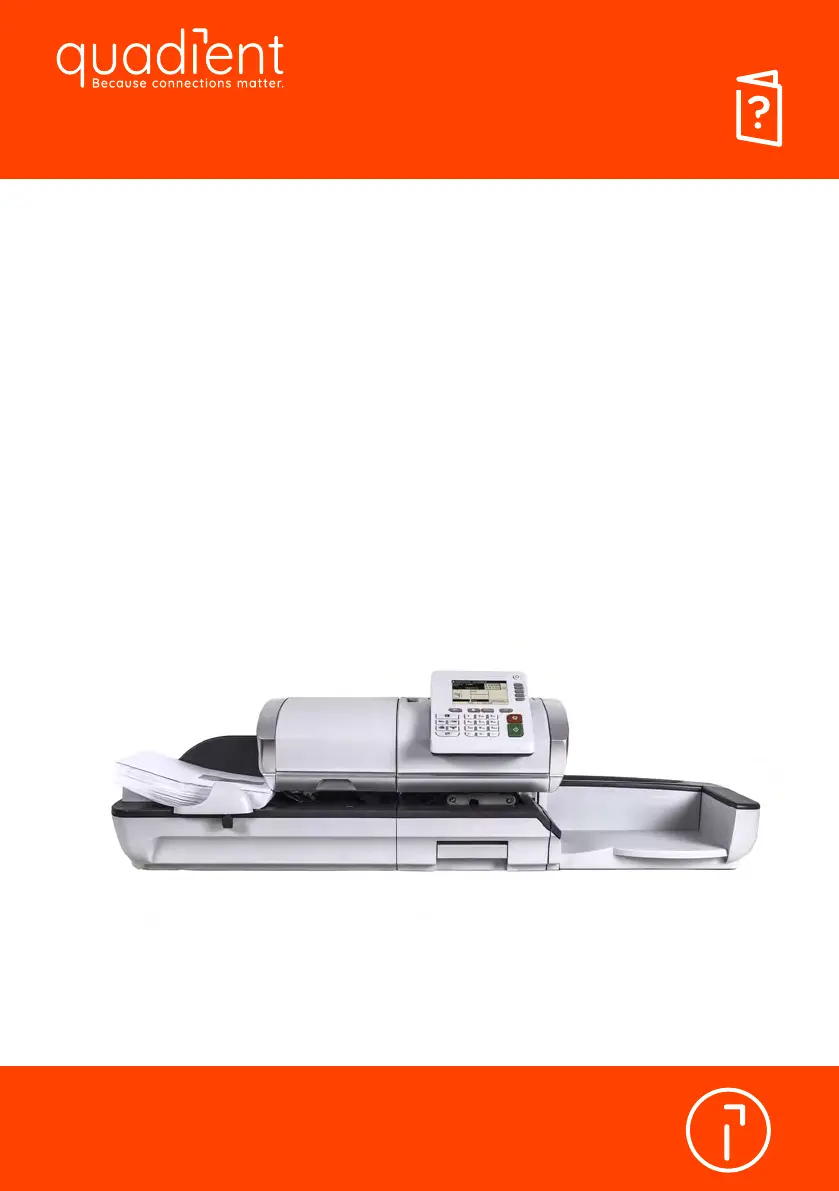
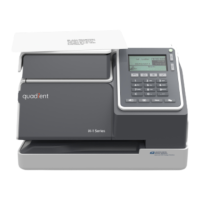
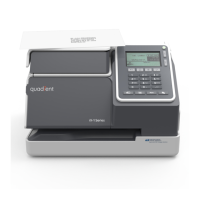
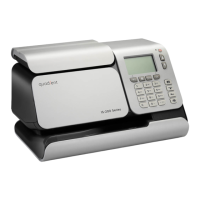
quadient IN-600 - User Manual

quadient IN-600
254 pages
Print Icon
To Next Page IconTo Next Page
Loading...
User Guide
IN-600
Mailing Systems

Table of Contents

Questions and Answers

  • A
    Anne NewmanAug 4, 2025
    What to do if quadient Postal Equipment auto-feeder is jamming?
    • E
      Erica DavisAug 4, 2025
      If your quadient Postal Equipment experiences auto-feeder jamming, it might be due to several reasons. If the mail piece is too thick, clear the Automatic Feeder. If the mail size is incorrect, consult Mail Specifications. If too many envelopes are on the feed deck, ensure the envelope stack height does not exceed 101.6mm. If envelopes are not properly inserted onto the feed deck, check Envelope stacking. If you are feeding closed envelopes with sealing ON, turn the sealing OFF.
  • B
    Bradley CrossAug 14, 2025
    What to do if my quadient Postal Equipment has weighing problems?
    • K
      Karla ReidAug 14, 2025
      If your quadient Postal Equipment shows weighing problems, make sure that the weighing area is free from vibrations or air drafts by using a solid and steady table away from doors and fans. Also, ensure nothing is touching the Weighing Platform; if something is, clear the zone and re-zero the Weighing Platform. If the weighing device is not selected, consult the weighing type selection procedures. If the Weighing Platform zero is incorrect, refer to the weighing platform zeroing procedures.
  • K
    Kevin BoydNov 23, 2025
    Why is the weighing device not working properly on my quadient Digital Mailing system?
    • E
      ebrooksNov 24, 2025
      If the weighing device on your quadient Digital Mailing system isn't weighing properly, there might be several reasons: * The weighing device may not be selected. Refer to 'Choosing a Weighing Mode on page 72'. * Vibrations or air drafts could be affecting the scale. Use a solid and steady table, away from doors and fans. * Something might be touching the Weighing Platform. Clear the weighing zone and re-zero the platform (see 'Weighing Settings on page 166'). * The Weighing Platform zero may be incorrect. See 'Weighing Settings on page 166'. * The package might be too heavy for the selected rate. Press [OK] to clear the error, then press the [Rate] key to select a rate class that accommodates the package weight. Finally, press lightly on the Weigh Platform to establish the weig...

Summary

Read this First

What you will find in this Manual

Overview of manual content and structure, including acronyms and symbols.

Safety Requirements

Essential safety precautions for power connection, grounding, and general operation.

Symbols Used

Explanation of symbols used in the manual for warnings, attention, notes, and tips.

Glossary of Terms

Definitions of acronyms and terms used throughout the user guide.

Meet Your Mailing System

System Layout

Diagram and description of the mailing system's components and their functions.

Accessories

Details on optional accessories like report printers and barcode scanners.

Control Panel Features

Explanation of the display areas and their functions on the control panel.

Connections

Information about the system's ports and how to connect external devices.

Power Management

Details on Energy Star compliance, Sleep Mode, and system power-off procedures.

Processing Mail

How to Choose a Meter Impression

Guide to selecting and customizing meter impressions for different mail types.

Preparing and Starting your Job Run

Steps for preparing mail, sorting, logging in, and starting a mail processing job.

Processing [Standard] Mail

Instructions for setting postage and processing standard mail pieces.

Printing [Permit] Mail

Procedure for setting postage and processing mail using permit impressions.

[Date Correction] Mode

How to use the date correction mode for processing mail with an adjusted date.

[Postage Value Correction] Mode

Instructions for correcting postage values or adding postage to printed amounts.

Printing a Manifest [Statement of Mailing]

Steps to generate and print a manifest or statement of mailing.

Printing Incoming Mail with [RECEIVED;RECU] Mode

Guide to using the system for incoming mail, printing dates and 'RECEIVED/RECU'.

Running [Seal Only] Mail

Instructions for sealing envelopes without printing postage.

Settings Details

Details on various system settings like accounts, postage rates, and slogans.

Advanced Operations

Covers advanced operations like emergency stop, batch counters, and label dispenser.

Postage Funds Management

Overview

Introduction to the Postal Security Device (PSD) and managing postage funds.

Managing Your Postage Funds

How to check available postage funds and add new funds to the meter.

Unlocking the PSD (Postal Inspection)

Procedure for manually connecting to the Postal Server for inspection or audit.

Managing Accounts and Assigning Rights

Overview

Introduction to postage tracking, access control, and the accounts function.

Account Modes

Details on different account modes and their functional access control settings.

Guidelines to Setup an Account

Information on setting up accounts, including changing PIN codes and account modes.

Managing Accounts

Procedures for creating, viewing, editing, activating, deactivating, and deleting accounts.

Managing Operators

Guide to creating, modifying, activating, deactivating, and deleting operators.

Reports

Reports Overview

Overview of available reports, including system cycle counts and postage usage.

Generating a Report

Instructions on how to generate and display reports as a user or supervisor.

Processing Activity Data

Details on the Batch Report for outgoing mail processing activity.

Mail Processing Data

Information on Daily and Monthly Usage Reports for mail processing.

Postage Funds Data

Details on Postage Funds Usage Report and Adding Postage Report.

Account Data

Information on Account List, Single Account, and Multi Account reports.

System Data

Details on System Configuration Report and Base/Postage Meter Events.

myEquipment E-Services

E-Services Overview

Overview of value-added services like ink management, diagnostics, and rate downloads.

Connecting to E-Services

Guide to automatic and manual calls for E-Services, and testing the connection.

Uploading Statistics

Instructions for uploading system data to the E-Services server for reporting.

E-Services available on your System

Details on Ink Management Service and Rate Protection features.

Configuring your Mailing System

Settings Overview

Distinguishes between user settings and supervisor settings for system configuration.

Logging in; out as the Supervisor

Procedure for logging into and out of supervisor mode for system configuration.

Changing Languages

How to change the current system language and set the default language.

Enabling;Disabling Sounds

Instructions to enable or disable key sounds and alert sounds for the system.

Display Settings

How to adjust the display contrast for optimal viewing.

System Time-outs and Settings

Configuration of system time-outs for start, stop, and sleep modes.

High Value, Low Funds Warnings and PIN Codes

Setting up warnings for high postage values, low funds, and account PIN codes.

Weighing Settings

Configuration of default weighing mode, automatic detection, and zeroing the platform.

Default Impression Settings

Setting default postage rates, permit impressions, slogans, and printing offset.

Impression Memories

Creating, editing, and deleting preset meter impression configurations.

Connection Settings

Configuring network connections for postage and E-Services servers.

Time and Date Management

How to check and adjust the system time and date, including Daylight Saving Time.

Options and Updates

Overview

Overview of system updates, adding new options, and managing postage rates/slogans.

Using the Mailbox

How to read and delete messages received from the Customer Service Centre.

Managing Options

How to display and load new optional functions for the mailing system.

Managing Slogans

Instructions for displaying, modifying, deleting, and downloading slogans.

Managing Postage Rates

How to check for rate file updates and download new postage rate files.

Managing Permit Impressions

Displaying, adding, and deleting permit impressions.

Maintaining your Mailing System

Maintaining the Ink Cartridge

Procedures for checking ink level, aligning print heads, and cleaning heads.

Filling and Adjusting the Feeder Sealer

How to fill the sealer bottle and adjust the sealing fluid flow.

Cleaning the Mail Path

Steps for cleaning sealer brushes, sponge, feeder belts, rollers, and sensors.

Maintenance Processes

Details on installation, disconnection, meter withdrawal, and registration updates.

Troubleshooting

Paper Jamming

Troubleshooting steps for clearing mail jams in the base and auto-feeder.

Label Jamming

Procedure for clearing label jams in the automatic label dispenser or base.

Weighing Problems

Solutions for when the weighing device does not display correct weights.

Diagnostics and System Data

How to access diagnostic tests and view system data like software and hardware info.

Specifications

Mail Specifications

Detailed envelope dimensions and weight specifications for the mailing system.

Recommended Operating Conditions

Specifies ideal temperature, humidity, and table stability for optimal operation.

Technical Specifications

Technical details including dimensions, weight, and power requirements of the system.

Operating Specifications

Envelope dimensions, weights, label specs, and storage recommendations.

quadient IN-600 Specifications

General IconGeneral
TypeDigital Mailing System
Number of Feed Stations1
Ink ColorsBlack
Feeder CapacityUp to 150 envelopes
User InterfaceTouchscreen
Printing TechnologyInkjet
Print ResolutionUp to 600 dpi
Media WidthUp to 9.5 inches (241 mm)
Power Requirements100-240 VAC, 50/60 Hz
Folding TypesC-fold, Z-fold, half-fold
ConnectivityLAN

Related product manuals