[Date Correction] Mode3.5
In [Date Correction] Mode Section
This section describes the system settings to be selected and the mail preparation steps
to be completed in order to print a [Date Correction] Meter Impression.
This type of Meter Impression corrects or advances the date the Meter Impression was
printed on the item. Date Correction can be used to process items today that are to be sent
to your recipients at a later date.
See also
• How to Change a Meter Impression on page 33.
Setting [Date Correction] Mode
The instructions below outline the steps that you need to complete to set up your system
to print a Date Correction Meter Impression.
• As mail requirements differ from day to day, some of the Impression Options may
not be necessary, or their order may vary.
• Begin by selecting a Meter Impression to gain access to the Impression Options that
you may need to process your mail.
Make sure you have completed the preparation steps mentioned
in Preparing and Starting your Job Run on page 29.
How to Set [Date Correction] Mode
Required settings:
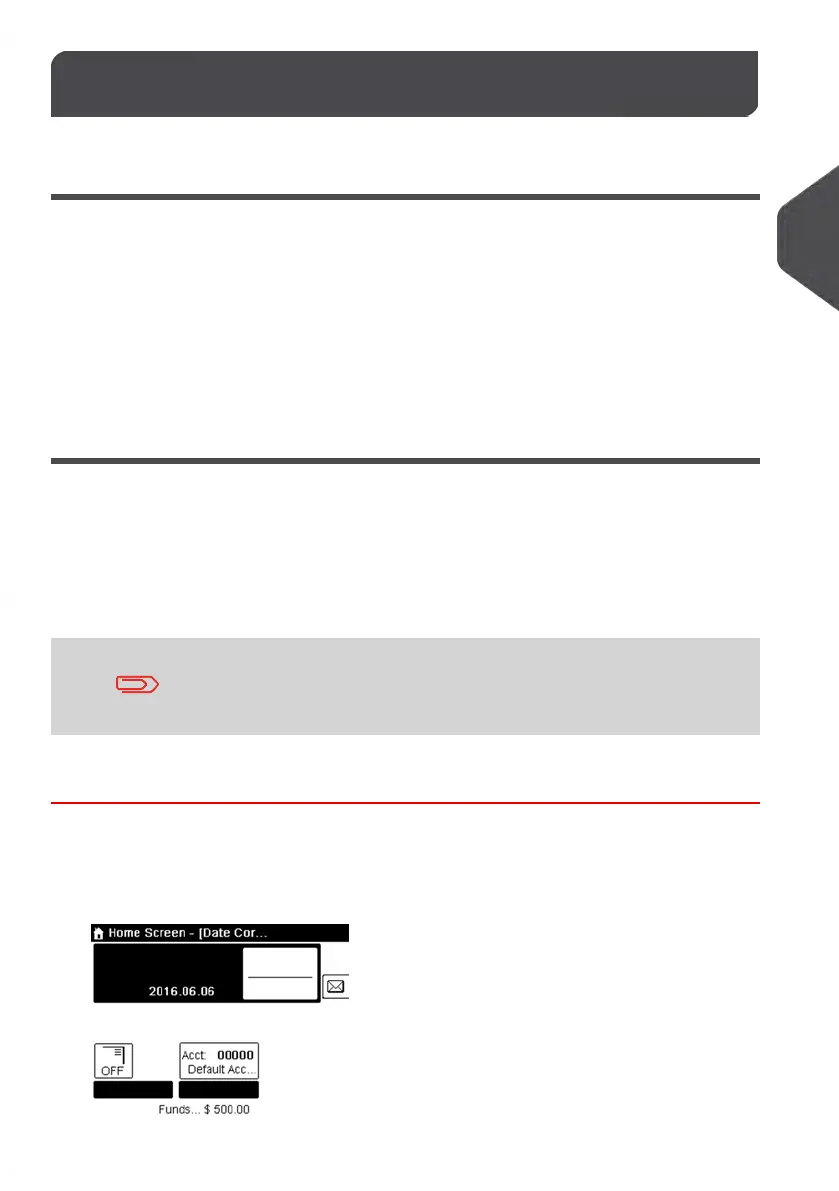
1. Make sure you are on the home screen of the [Date Correction] type of
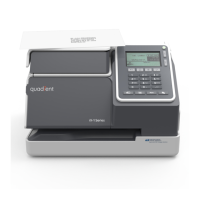
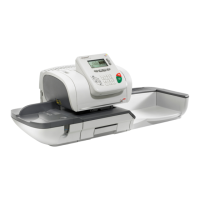
impression as illustrated below.
51
| Page 51 | | Jan-13-2017 10:45 |
3
Processing Mail


 To Next Page