Default Permit Impression
This setting defines the Permit Impression that is automatically activated by your system
each time a User begins to set up a Permit Mail Job Run.
How to Change the Default Permit Impression
To change the default permit impression:
1. As supervisor (see How to Log in as Supervisor on page 154):
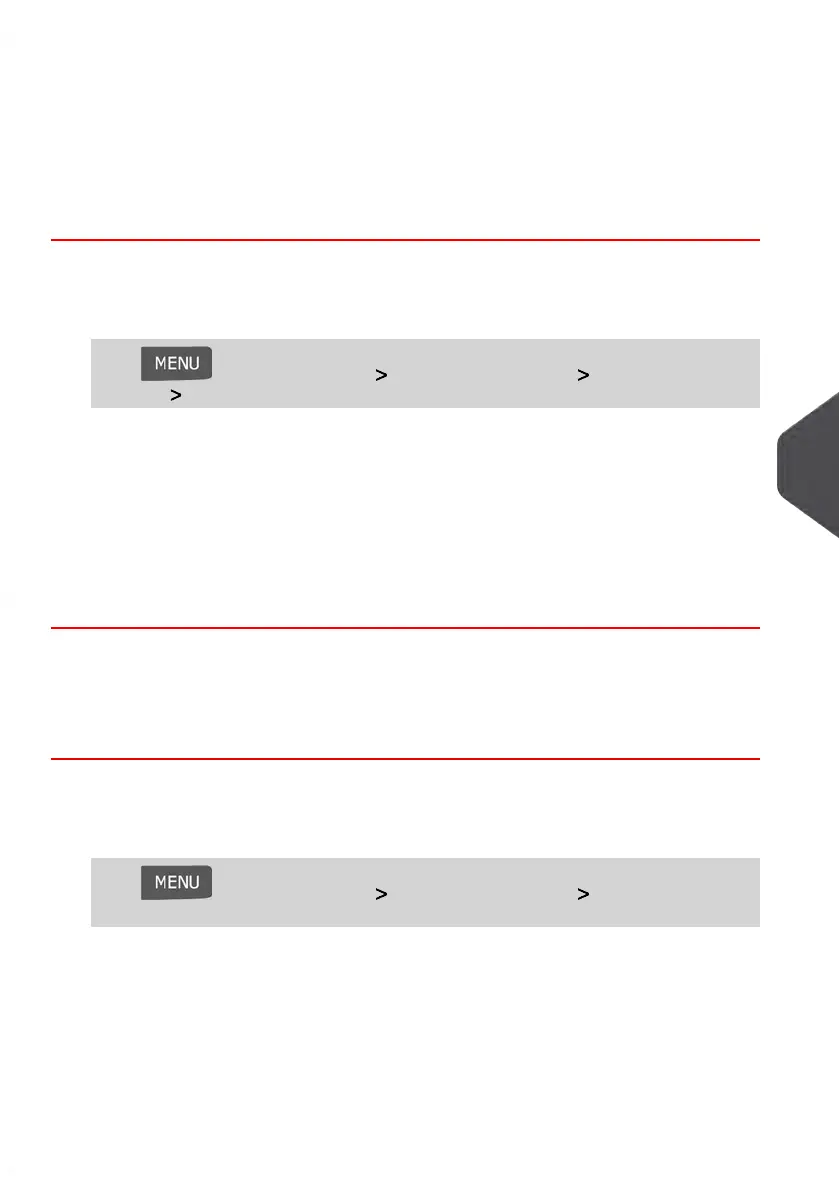
Press and select the path: Default User Settings Default Impression
Settings Permit mail
2. Select the default permit impression in the list.
3. Press [OK] to validate the change.
See also
• To manage the Permit Impression, see Managing Permit Impressions on page 197.
• To change the current Permit Impression, see How to Select a Permit Impression
on page 71.
Changing the Default Slogans
How to Change the Default Slogans
To change the default Slogans:
1. As supervisor (see How to Log in as Supervisor on page 154):
Press and select the path: Default User Settings Default Impression
Settings
2. Select Imprint Left or Imprint Right.
3. Select the default slogan from the list, or None for no slogan.
4. Press [OK] to validate.
8
Configuring your Mailing System
175
| Page 175 | Jan-13-2017 10:45 |


 To Next Page