Adding or Deleting Permit Impressions
You can add or delete Permit Impressions to the system using a USB memory key as
follows.
How to Add or Delete a Permit Impression
To add a Permit Impression:
1. Display the Permit Impressions list (see How to Display your Permit Impressions List
on page 197).
2. Select Add new and connect the memory device to an USB port of the base (on your
left hand side at the rear of the base: see Connectors on page 18).
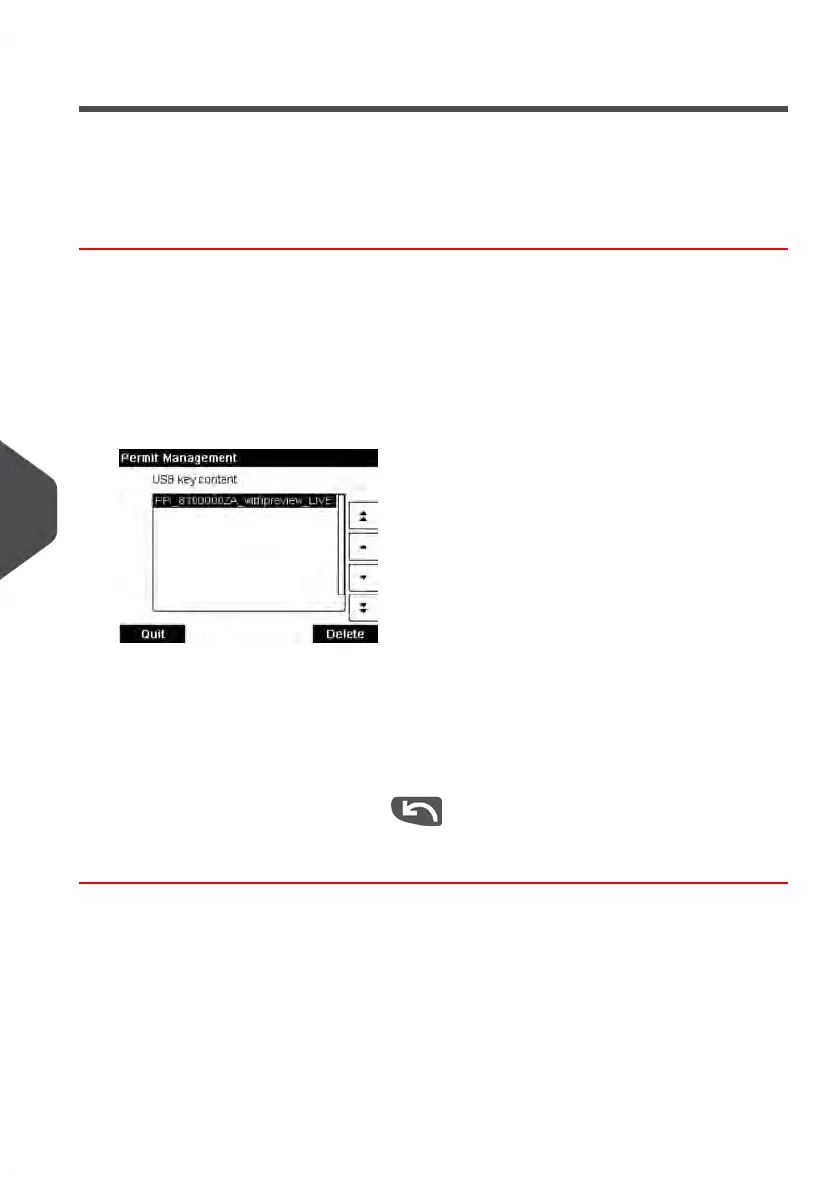
3. Press [OK].The USB memory key content is displayed.
4. Select a Permit Impression to load into the system and press [OK].
The Permit Impression list is updated with the new Permit Impression.
To delete a Permit Impression:
1. Select the Permit Impression to delete and press [OK].
2.
Confirm deletion, otherwise press .
The system updates the Permit Impression list.
198
| Page 198 | Jan-13-2017 10:45 |
9
Options and Updates


 To Next Page