See also
• Managing Slogans on page 192.
You can order custom Slogans. Please contact Neopost Customer
Service.
Automatic Date Advance
The Automatic Date Advance function automatically changes the date printed on mail
pieces at a preset time to the next 'working day' date.This is useful if you process mail
after the last mail pickup for the day.This ensures that the proper Date of Mailing is printed
for the next day’s mail pickup.
Example:You can set the system to change dates at 17:00 hours and set Saturdays and
Sundays to be non-working days. From Friday 17:00 hours to Sunday 23:59, the system
will print Monday's date on the envelopes, after a confirmation message to the user.
How to Set the Automatic Date Advance Time
To set the auto date advance time and days:
1. As supervisor (see How to Log in as Supervisor on page 154):
Press and select the path: Default user settings Default Impression
Settings Automatic Date Advance
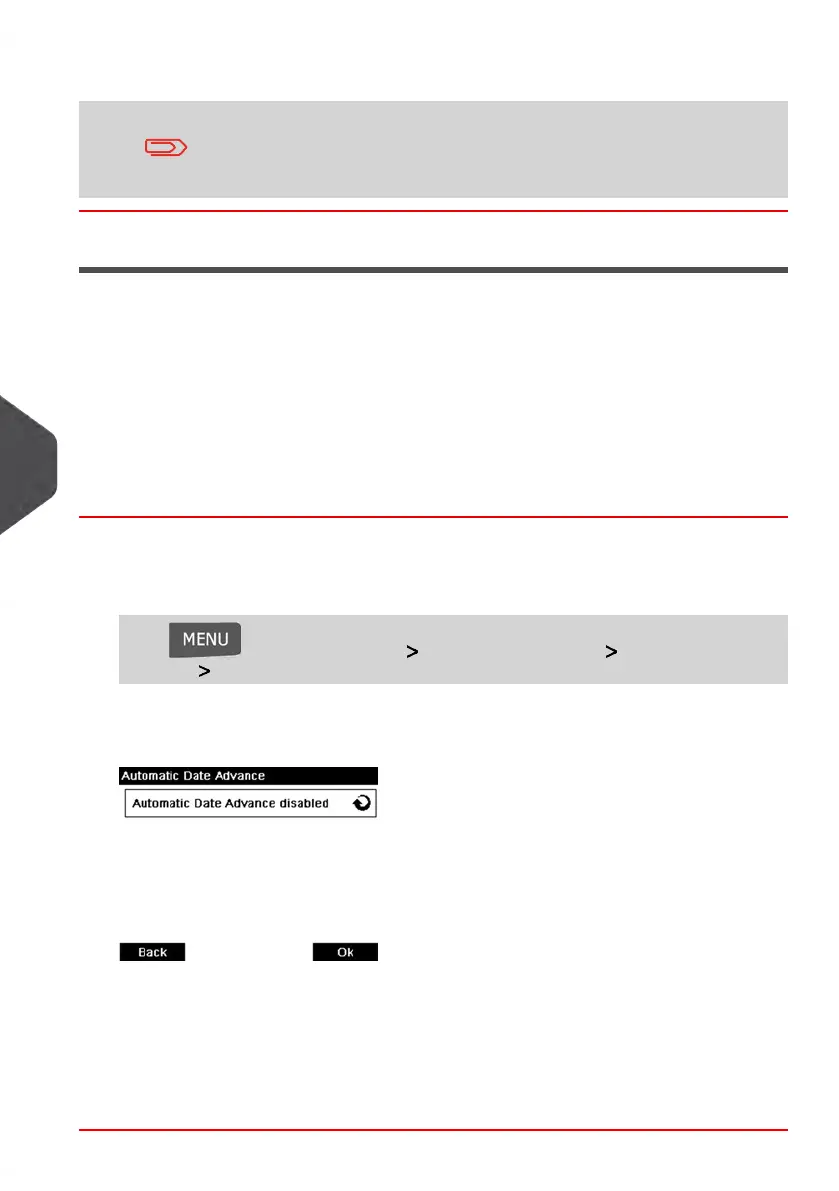
The Automatic date advance configuration window appears:
2. Press the Auto Date Advance button to Enabled status.
3. Enter the Automatic Date Advance time (00:00 hours is not allowed).
4. Select Working Day to gain access to working days selection screen.
5. Select the day and press Select/Deselect to select or deselect each day.
6. Press [OK] to exit.
176
| Page 176 | Jan-13-2017 10:45 |
8
Configuring your Mailing System


 To Next Page