Enabling/Disabling Sounds8.4
You can enable or disable the following sounds:
• Keys Sounds
• Alert Sounds for warnings and errors.
How to Enable / Disable Sounds
To enable or disable the sounds:
1. As a user:
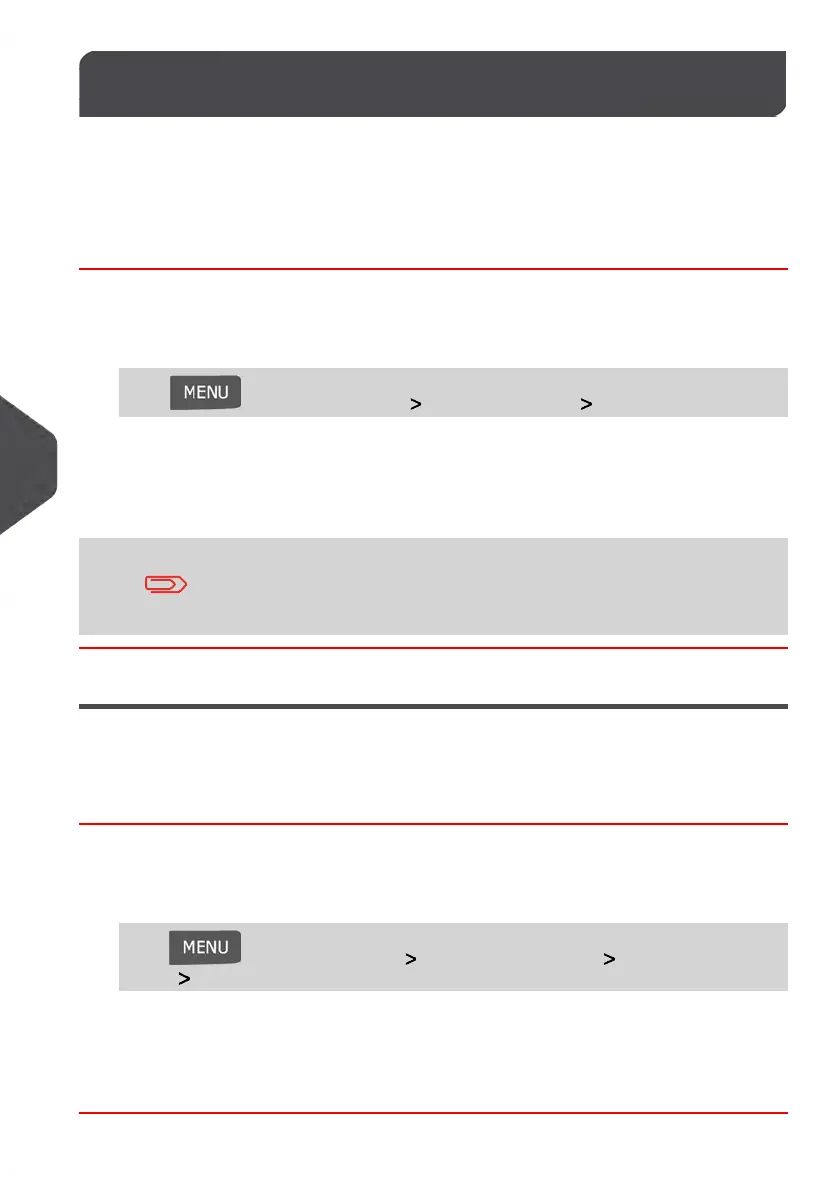
Press and select the path: User Preferences Sounds
2. Select Key Sounds/Error Sounds to ON/OFF.
3. Press [OK] to validate.
This is a User Setting that will only be active as long as you are
logged in as a User. Once you log out, the Default Sound Settings
will be re-activated.
Setting Default Sounds
You can set the default sound state for user sessions.
How to Change the Default Sound Settings
To change your Default Sound Settings:
1. As supervisor (see How to Log in as Supervisor on page 154):
Press and select the path: Default user settings Default user prefer-
ences Sounds
2. Select Key Sounds/Error Sounds to ON/OFF.
3. Press [OK] to validate.
158
| Page 158 | Jan-13-2017 10:45 |
8
Configuring your Mailing System










 To Next Page