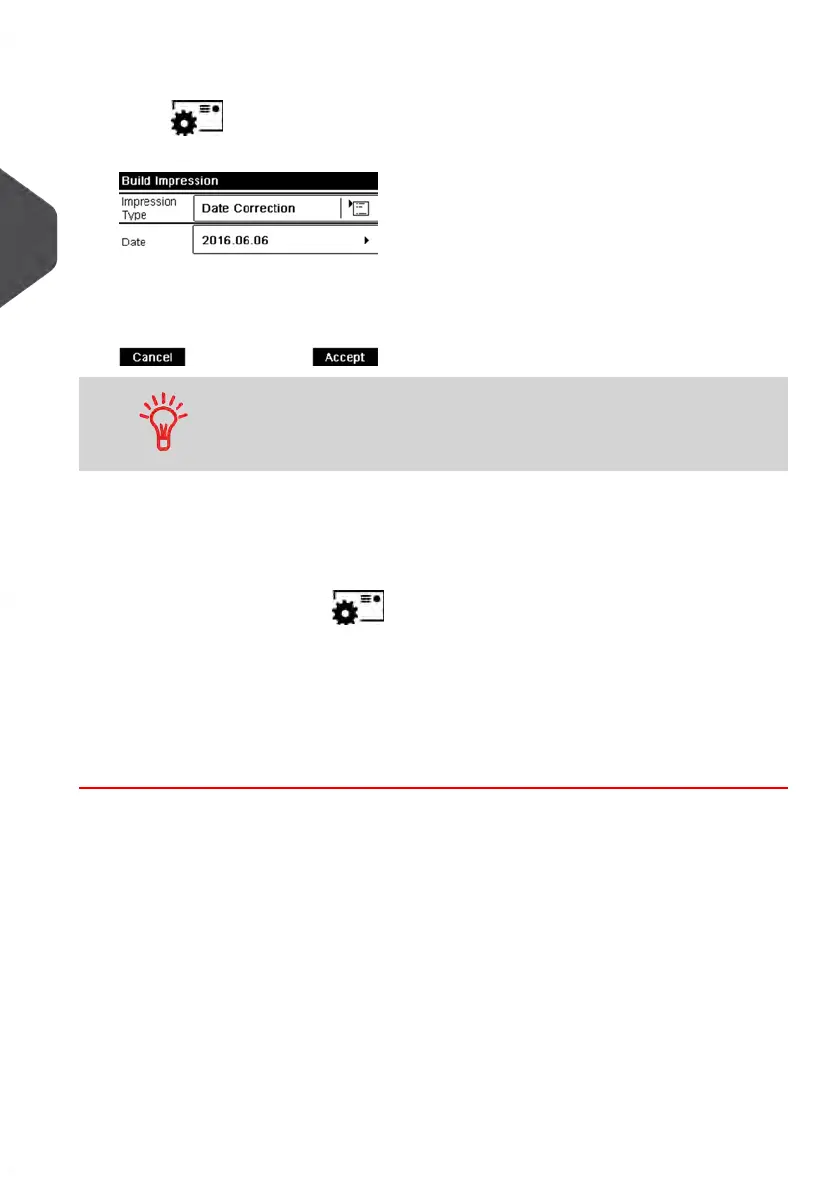
2. To change the type of impression, if you are not in [Date Correction] mode.
Press to access the Build Impression screen, and then press the Impression
Type button to display the Type of impression screen.
To select an option in the screen: Use related keys located on
right hand side of display.
Select [Date correction] and press [OK] to validate.
3. Change the postage date.
Today's date is printed by default.
To change the date, press to access the Build Impression screen, and then
select Date to display the Date Advance Screen.
Select a date.
Press [OK] to return to the home screen.
For details, see How to Change the Date on page 77.
You are now ready to print the envelopes.
52
| Page 52 | Jan-13-2017 10:45 |
3
Processing Mail


 To Next Page