P3 - Pakscan Master Station Technical Manual
110 of 136 Publication PUB059-002-00 Issue 06/15
7.5.21 General
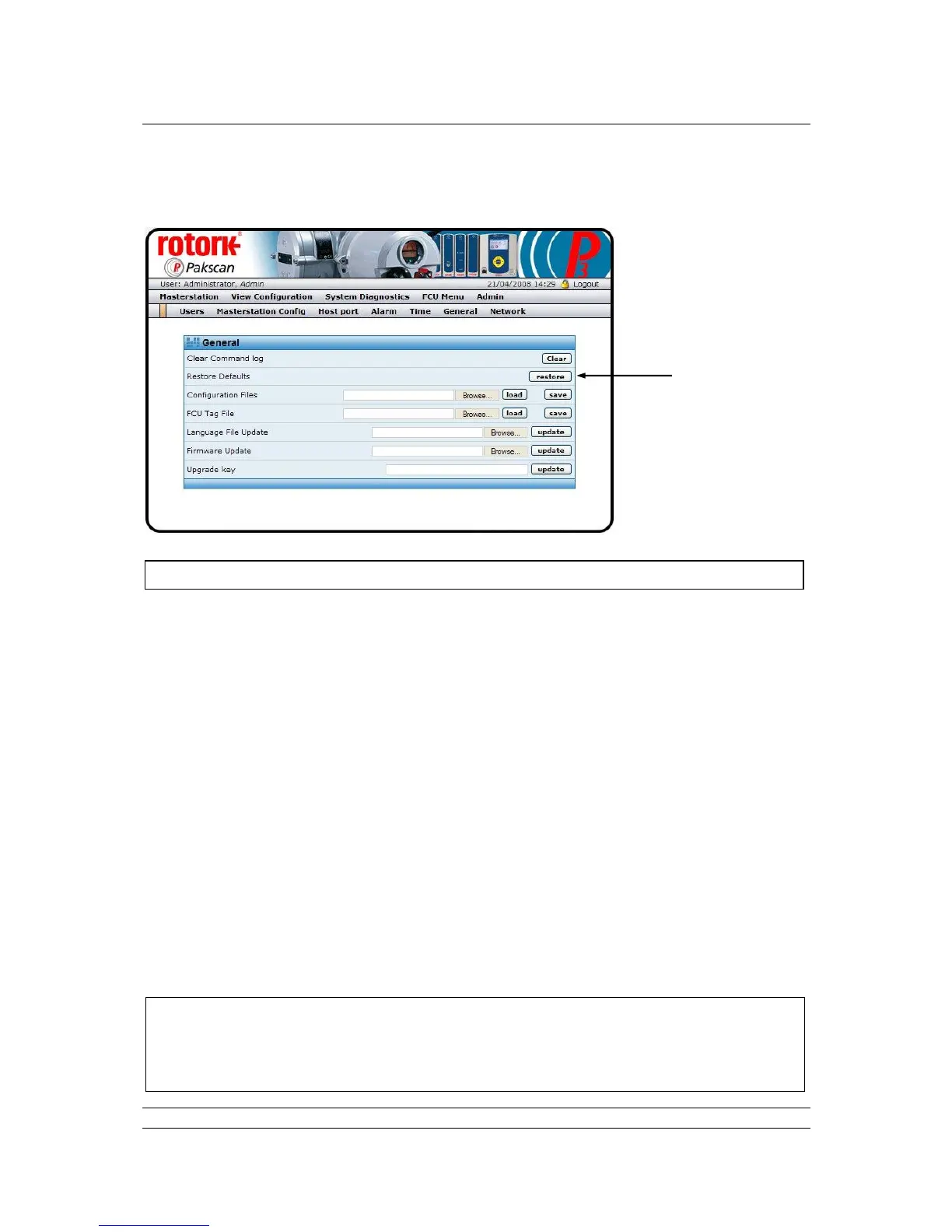
Fig 81: General web page
The General screen contains facilities for upgrading and maintaining the master station.
General
Clear Command : The master station data logger (which can be found under System
Log Diagnostics, ms datalogger) creates a file for all the recorded events. The
Clear Command button empties this file. If required, the file can be saved
before this process by going to the ms datalogger page and using the
‘Save’ facility.
Restore Defaults : All the default settings can be restored by clicking the ‘restore’ button. This
facility can help in setting the master station and option modules to a
known state before altering the settings for a particular system.
Configuration : The system configuration file can be saved by using the ‘save’ button.
Files As default, the file will be named ‘backup.nbb’, but can be altered to a more
meaningful name. It will be filed in a location chosen during the save
routine. A previously saved file can be restored by browsing to the nbb file
location and using the ‘load’ button.
FCU Tag File : The list of tag names for the field units can be saved by using the ‘save’
button. The saved file name is fcuconfig.xml as default and is filed in a
location chosen during the save routine. A previously saved file can be
restored by browsing to the file location and using the ‘load’ button.
Modifications to the tag file can be made using a web browser and
selecting the source view.
Language File : To update the language files, browse to the location of the new file and
In some cases the web browser will open the fcuconfig.xml file instead of saving it. Save the file
by using the ‘save as’ facility under the File menu on the web page. When naming the file, it will
appear as fcuconfig_xml and the option of file type is presented. Ignore the options and change
the file name and extension to fcuconfig.xml, then click on save. The resulting file will be in the
desired xml format.


 To Next Page