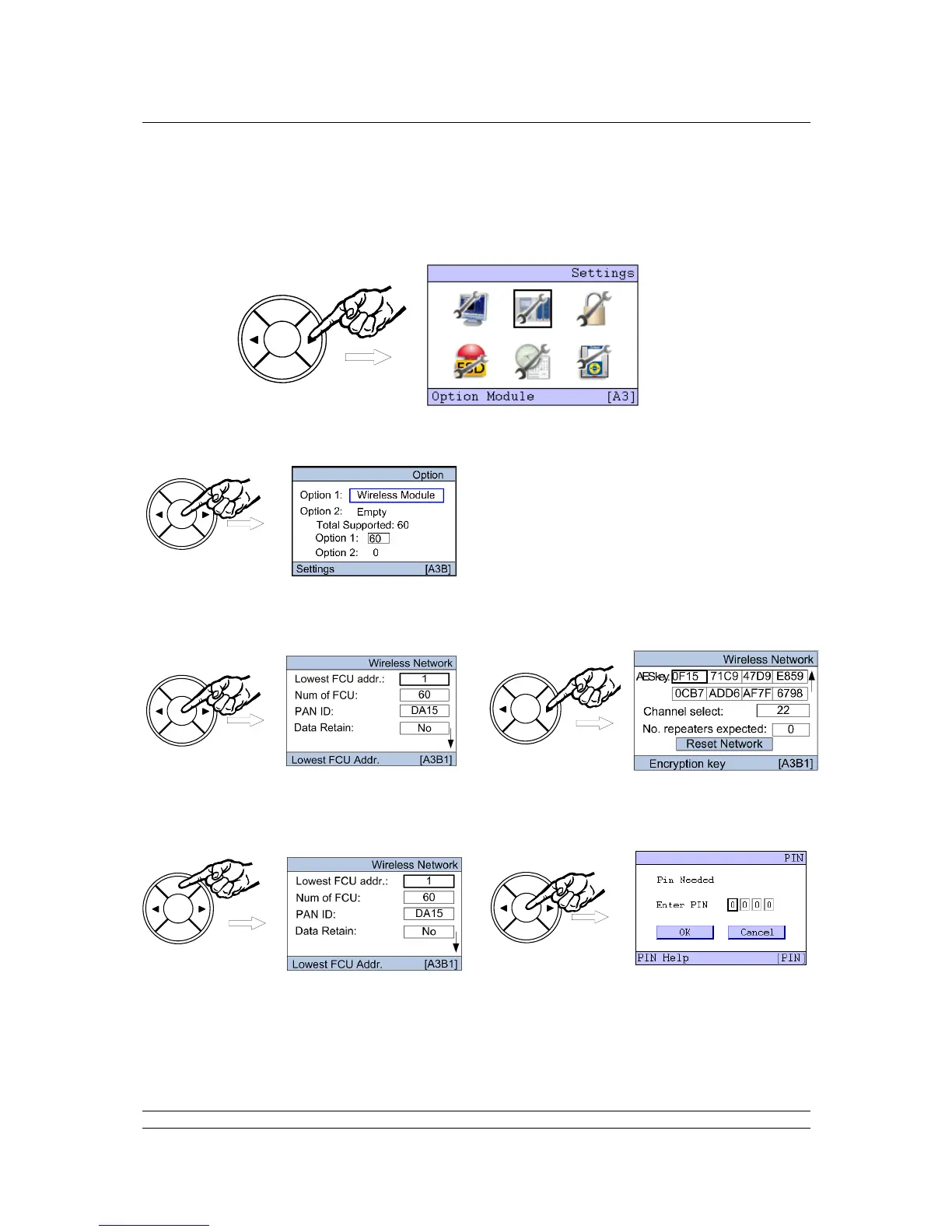
6.4 Setting the Wireless Option Module Parameters
On the ‘Settings’ menu, select the Option Module Icon by pressing the right arrow key () followed by
the ENTER key.
The Option choice screen appears where the module to be set can be selected. The Pakscan
Wireless is always in the Option 1 slot and this is highlighted as the page is entered.
The Wireless network Settings screen is split over two pages, as indicated by the small arrow () on
the right side of the screen, so the NEXT and BACK buttons are used to jump between the two.
Once a setting box is highlighted, by using the left () or right () arrow key, press the ENTER key to
make a change to the value. This will make the security screen appear for the PIN number entry. The
default value for the system security requires a PIN to be entered before any settings can be changed.
This setting can be altered from the Security Setting menu.
The default PIN number is 0000. To enter a PIN, or accept the number, press ENTER and the first
digit will flash. The value can be changed by using the left or right arrow keys ( or ). Once the
number is correct, press ENTER once more. When all 4 digits of the PIN are entered correctly, select
the OK button with the arrow keys ( or ).


 To Next Page