Loading Material Connecting Material Coil Box To Printer
Page 104
© Copyright 2020 Stratasys. All rights reserved.
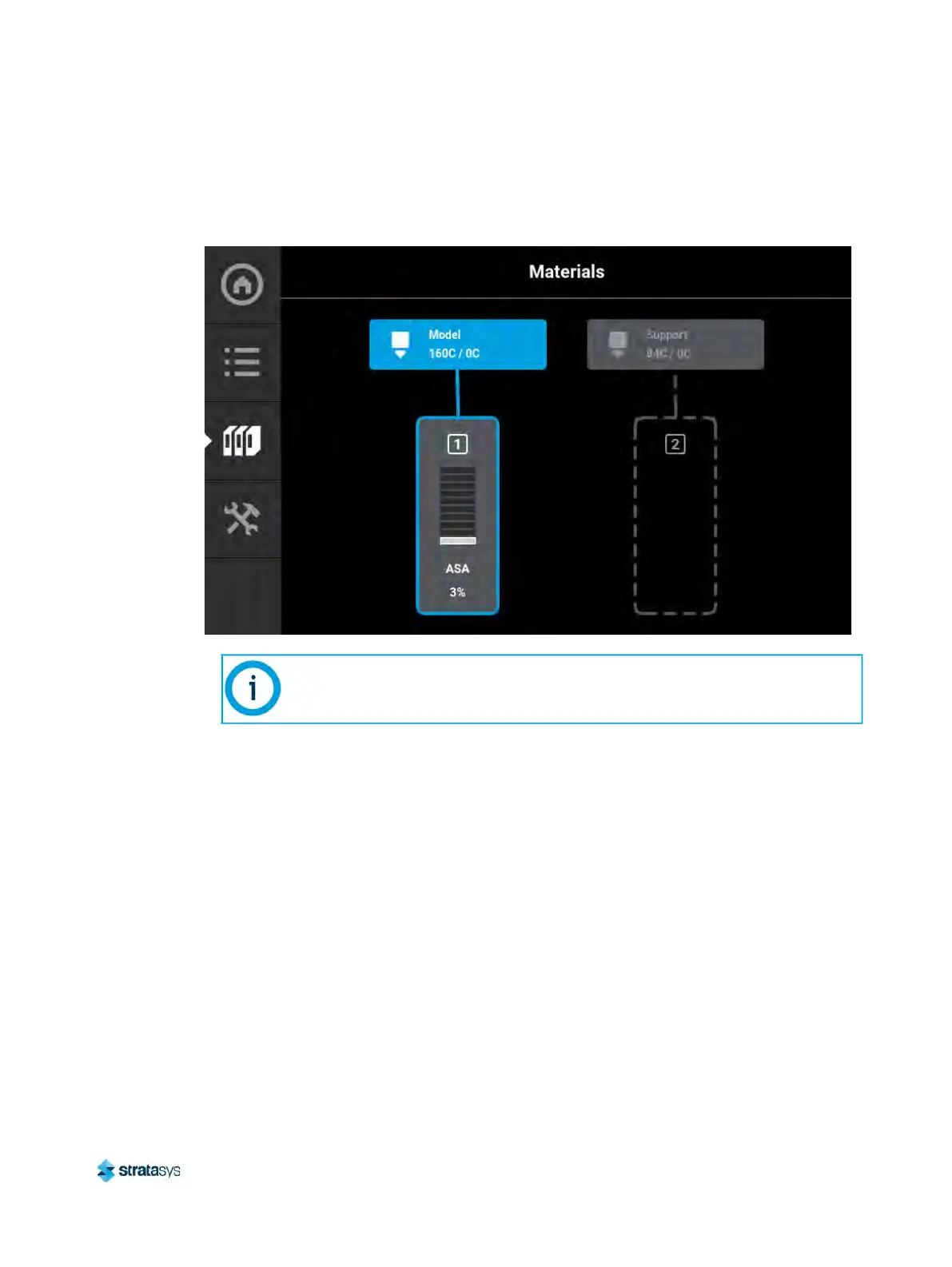
10. When the load process is complete, a screen similar to the one shown below will display.
Material is now loaded to the print head.
Figure 11: Material Loaded
11. Press the B
ack button within the Material Details page to exit and return to the Materials
page.
12. If necessary, perform this procedure for the support material
1
3. Once material is loaded, the filament pathway between the Material Status Icon and the
c
orresponding Head Status Icon will be solid blue, the Head Status Icon will turn from gray
to blue, and the Material Status Icon will display a solid blue border.
You are now ready to select a job to build, see “Basic Job Build Tasks” (page 110) for
information on selecting and starting a job.
Only one material can be loaded at a time.













 To Next Page