Updating Controller Software USB Flash Drive Method
Page 146
© Copyright 2020 Stratasys. All rights reserved.
7 MAINTENANCE
This chapter describes various maintenance tasks that will routinely need to be performed on
the F120 Printer.
Updating Controller Software
Controller Software can be updated using one of the following three methods:
• Installing from a USB Flash drive that contains the software update file
•
Navigating to the update file on your workstation PC; After placing the printer into upgrade
m
ode (see “Update Software” (page 85)), navigate to and install the upgrade file from its
saved location on your workstation PC.
• Selecting push notifications automatically sent via GrabCAD Print;
A
fter receiving a notification from GrabCAD Print that a software upgrade is available,
fo
llow the on-screen prompts and instructions to install the upgrade.
You have the option of updating Controller Software via any of these methods; however, the
US
B Flash drive method is the preferred method.
USB Flash Drive Method
1. Save the software upgrade file to a USB flash drive.
2. Insert the USB flash drive into one of the available USB ports on the F120 printer.
3
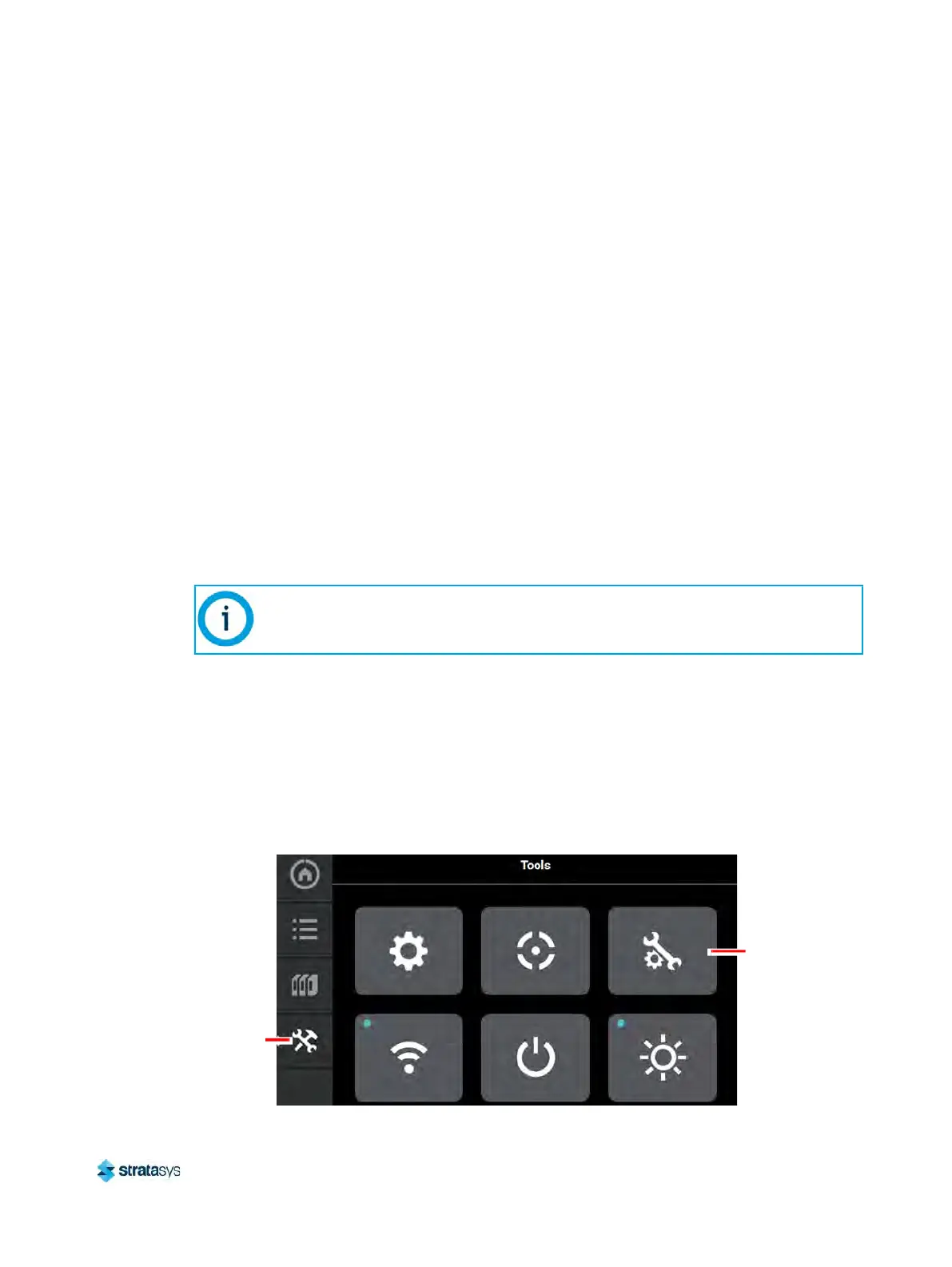
. On the printer touchscreen, open the Tools page by pressing the T
ools button within the
Navigation Menu.
Figure 1: Tools Page
Updating Controller Software will erase all job files from the Job Queue (files within the
Sample Queue (Internal Storage) will be retained). After completing the software
upgrade, you will need to resend jobs to the printer.
Maintenance
button
Tools
button













 To Next Page