Exporting System Configuration (.CFG) File GrabCAD Print Method
Page 149
© Copyright 2020 Stratasys. All rights reserved.
GrabCAD Print Method
To update Controller Software via GrabCAD Print, navigate to http://help.grabcad.com/article/
196-printer-firmware-management and follow the procedure for “Updating the printer’s
firmware”.
Exporting System Configuration (.CFG) File
If your system is receiving fault determination codes, you may need to export a configuration
(.cfg) file from your system to send to Customer Support. System configuration files can be
exported using one of the following three methods:
• Saving to a USB Flash drive directly from the F120 printer
•
Saving to a location on your workstation PC
•
Saving via GrabCAD Print
Y
ou have the option of exporting system configuration files via any of these methods; however,
th
e USB Flash drive method is the preferred method.
USB Flash Drive Method
1. Insert the USB flash drive into one of the available USB ports on the F120 printer.
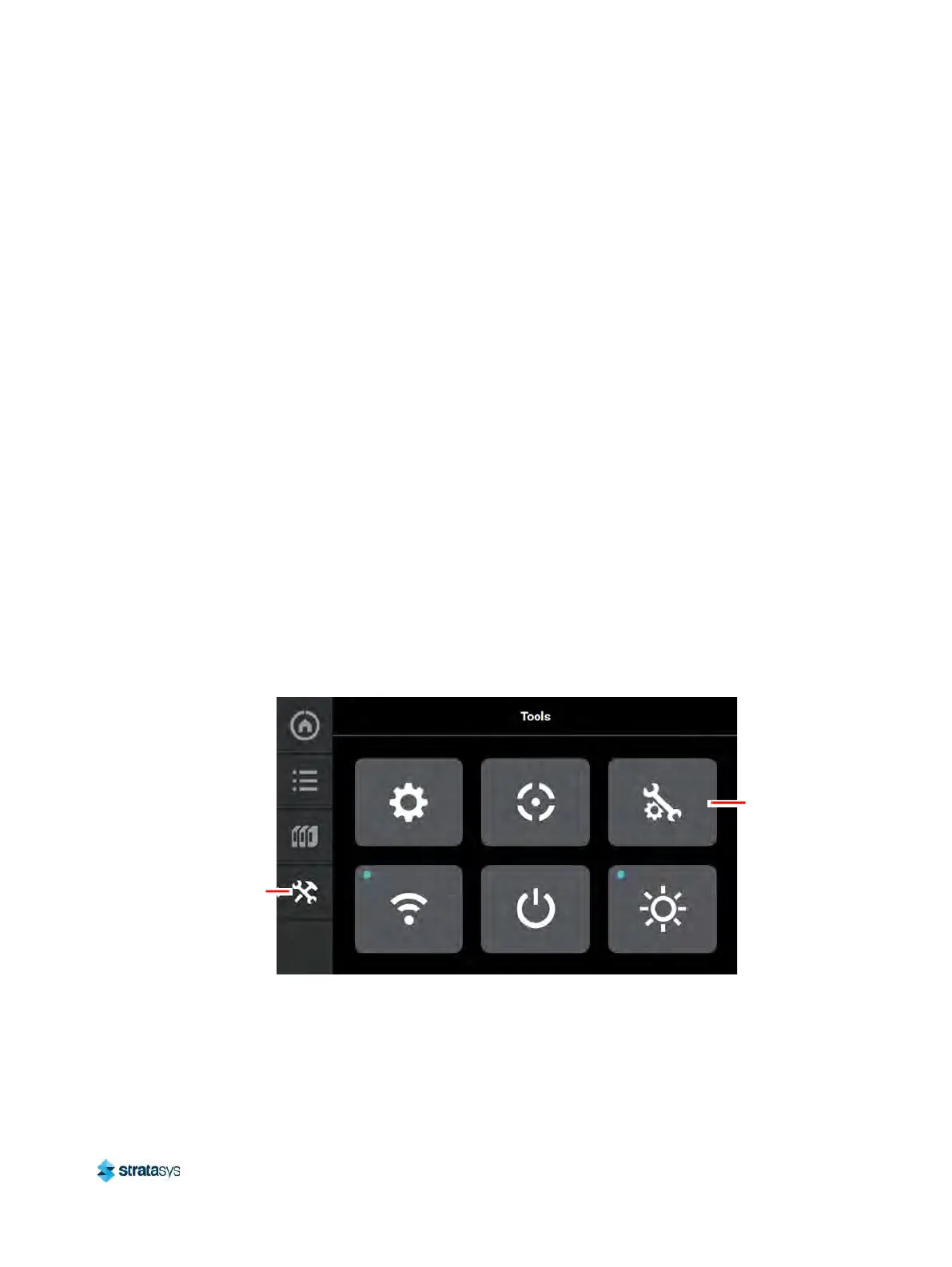
2. On the printer touchscreen, open the Tools page by pressing the T
ools button within the
Navigation Menu.
Figure 6: Tools Page
3. Open the Maintenance page by pressing the M
aintenance button within the Tools page.
Maintenance
button
Tools
button





 To Next Page