Working with the Materials Page Viewing Head Details
Page 57
© Copyright 2020 Stratasys. All rights reserved.
Viewing Head Details
To view additional details regarding the printer’s model or support head, select the desired
head by touching its Head Status Icon on the screen. Doing so will open its Head Details page.
If the head is in a warning or error state additional information pertaining to the warning/error
will be displayed within the page (see “Head Warnings” (page 203) and “Head Errors”
(page 203) for details).
The right portion of the screen displays status information pertaining to the selected head:
• State: displays the load status of the corresponding head.
•
Last Material: displays the type of material last loaded to the head.
•
Date Loaded: displays the date that material was last loaded to the head.
E
rror (head unloaded)
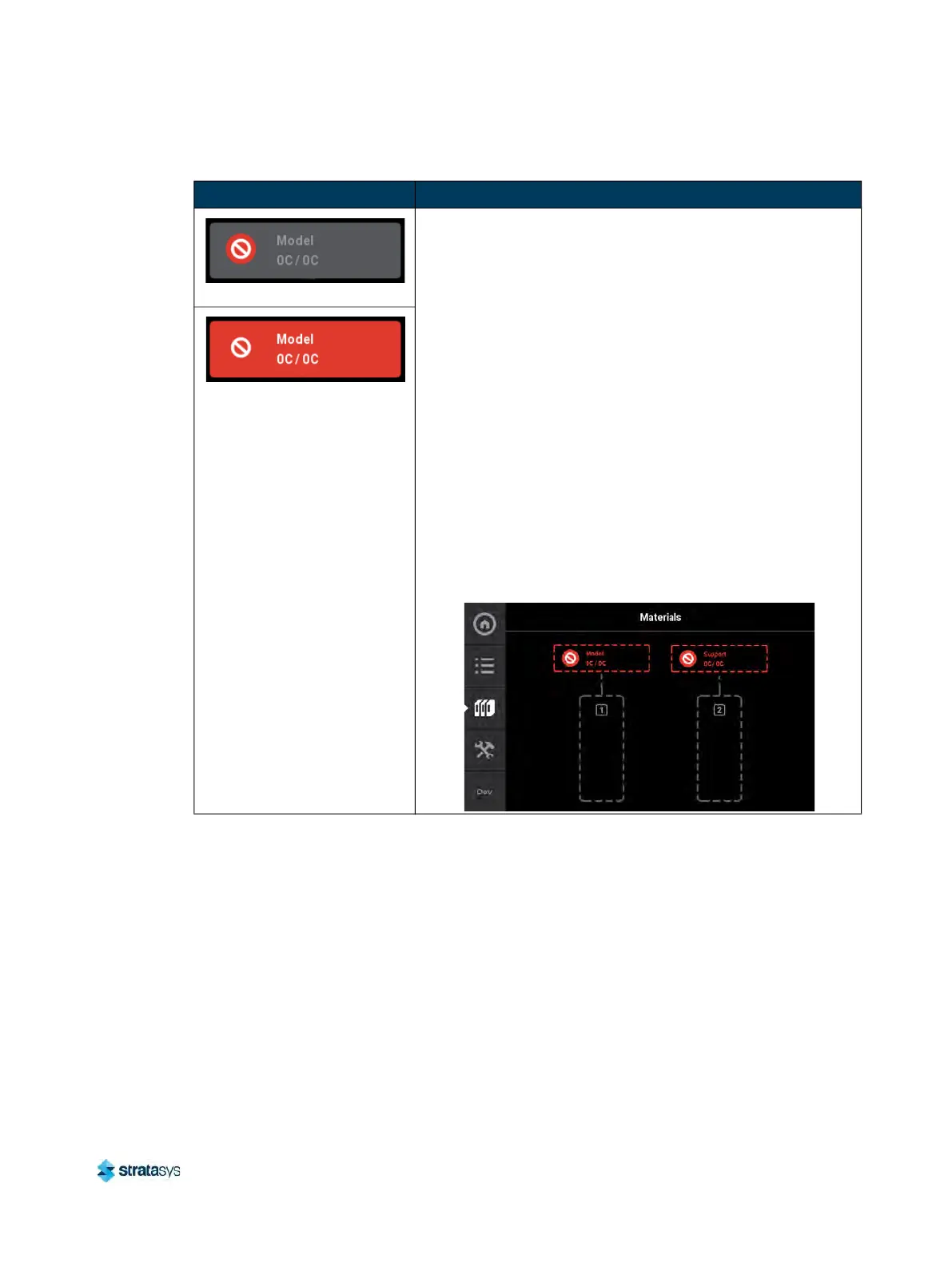
• Red coloring and an associated notification badge indicates
a
head related error (see “Head Errors” (page 203)).
• Additional information regarding the error and possible
c
orrection information is displayed by opening the
associated head’s Head Details page (see “Viewing Head
Details” (page 57)).
• When the head’s odometer reaches 1500 build hours an
e
rror will be displayed. The printer is still able to build with
this head, but you will be reminded before starting each build
that the head’s odometer limit has been reached and part
quality may be negatively affected. User action is required to
replace head. See “Head Replacement” (page 108) for
instructions.
• If the associated head is incompatible with the location
w
here it is installed (i.e. if the model head is installed in the
support head location), an error will be displayed. After
clicking on the error icon, a message will display with
instructions to replace whichever head (model or support)
was incorrectly installed.
Error (head loaded)
Table 6: Head Status Icons - Icon States (Continued)
Icon State Description













 To Next Page