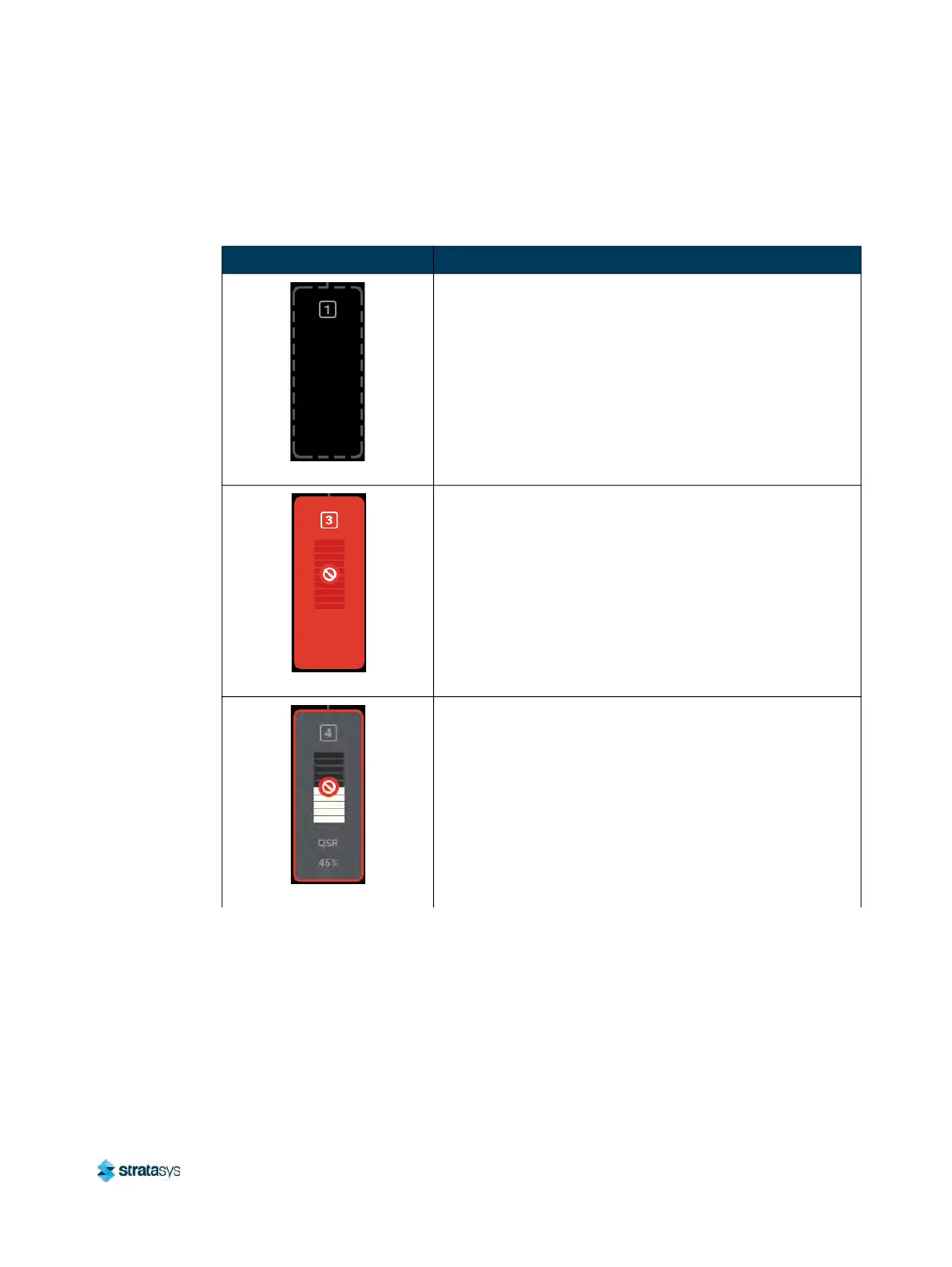
Working with the Materials Page Material Status Icons
Page 61
© Copyright 2020 Stratasys. All rights reserved.
will be displayed within the center of the Material Status Icons, depending on the state of the
material coil box. The Material Status Icons can appear in the following states (color usage,
highlighting, and descriptions apply to all icons):
Table 7: Material Status Icons - Icon States
Icon State Description
Empty (gray dashed border)
• Indicates the filament key is not inserted.
•
User action required to load material and insert the
f
ilament key. See “Loading Material” (page 97) for
instructions.
• Touching the icon in this state will display the Material
D
etails page.
Unusable (semi-solid red)
• Indicates that an error occurred when checking the data
o
n the material coil box’s memory chip. The material coil
box is unusable.
• User action required to replace the current material coil
b
ox with a valid one. See “Handling/Storing Materials”
(page 108) and “
Connecting Material Coil Box To Printer”
(page 98) for instructions.
• Touching the icon in this state will not display the
m
aterial’s Material Details page.
Invalid (red border)
• Indicates that the material coil box is invalid. Invalid
m
aterials are materials not licensed or not compatible
with the associated head type.
• Material from the invalid material coil box cannot be
l
oaded. User action required to replace the current
material coil box with a valid one. See “Handling/Storing
Materials” (page 108) and “Connecting Material Coil Box
To Printer” (page 98) for instructions.













 To Next Page