Objet1000 Plus User Guide 5 Using Objet Studio
DOC-06810 Rev.B 5-84
SchedulingJobs
Youcanschedulejobstobeprintedatafuturetime.Forexample,youcan
configureObjetStudiotostartlongprintingjobsinthelateeveningandearly
morninghours.
Toscheduleajob:
1. SelectajobintheJobs Queue,andclick onthepop-uptoolbar.
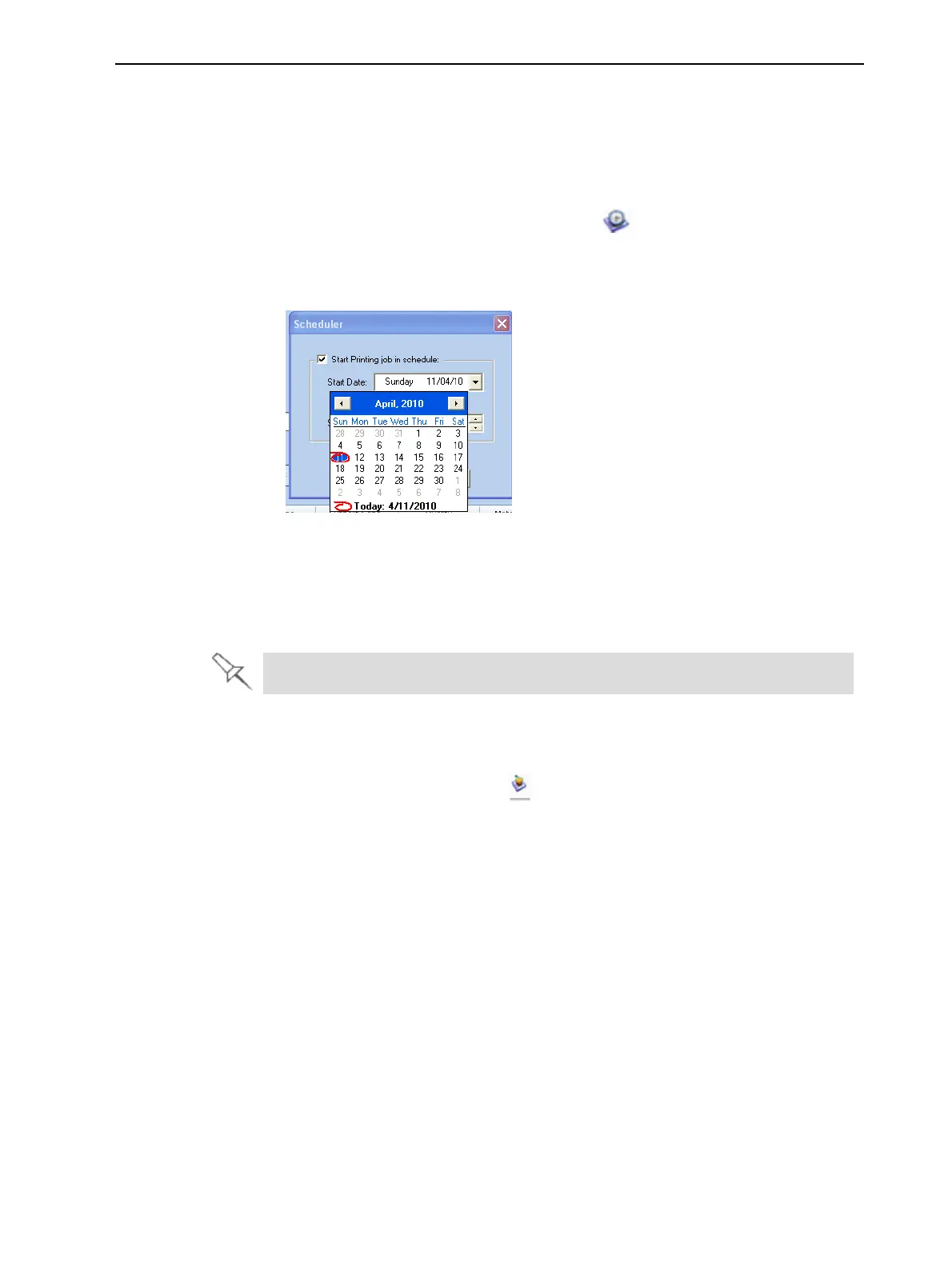
2. IntheSchedulerdialogbox,settheStartDateandStartTimeforthejob.
ClickontheStart Date arrowtoopenacalendar.
Figure5-112Schedulerwithcalendardisplayed
3. ClickOK.
ExportingJobs(objzf)
Youcansaveprintjobsascompressedfiles.
Foranexplanationofobjzffiles,see"SavingBuildTrays"onpage5-62.
Toexportaprintjob:
1. Selectajob.
2. Onthepop-uptoolbar,click .
3. IntheSave Asdialogbox,selectafolder.
4. ClickSave.
ModifyingtheJobManagerScreen
YoucanchangethesizeofthesectionsoftheJob Managerscreen,by
draggingthepaneledges.Thisappliesto:
•theJobs Queuepanel
•theTimepanel
•theHistorypanel
Similarly,youcanchangethewaythescreenareaisdividedbetweenthe
mainsection(Jobs Queue/Time/History)andthepanelsontherightsideof
thescreen.
Youcancollapse(hide)therightpanels(Available Resources/Material
Consumption/Tray View)byclickingthetopofthepanel.
•Clickagaintodisplaythepanel.













 To Next Page