ptg
89
Note
You can choose among a number of similar formats for exporting from
Acrobat. Many are composed of document, text, and code formats for
use in Word, document processing, Web, and data exchange applications
and programs—read about them in the sidebar “Pick a Format—Any
Format.”
Acrobat 9 Pro includes options to save an ordinary PDF le according
to a specic standard. That’s right—you don’t have to run Preight on the
le rst! Here’s how it works:
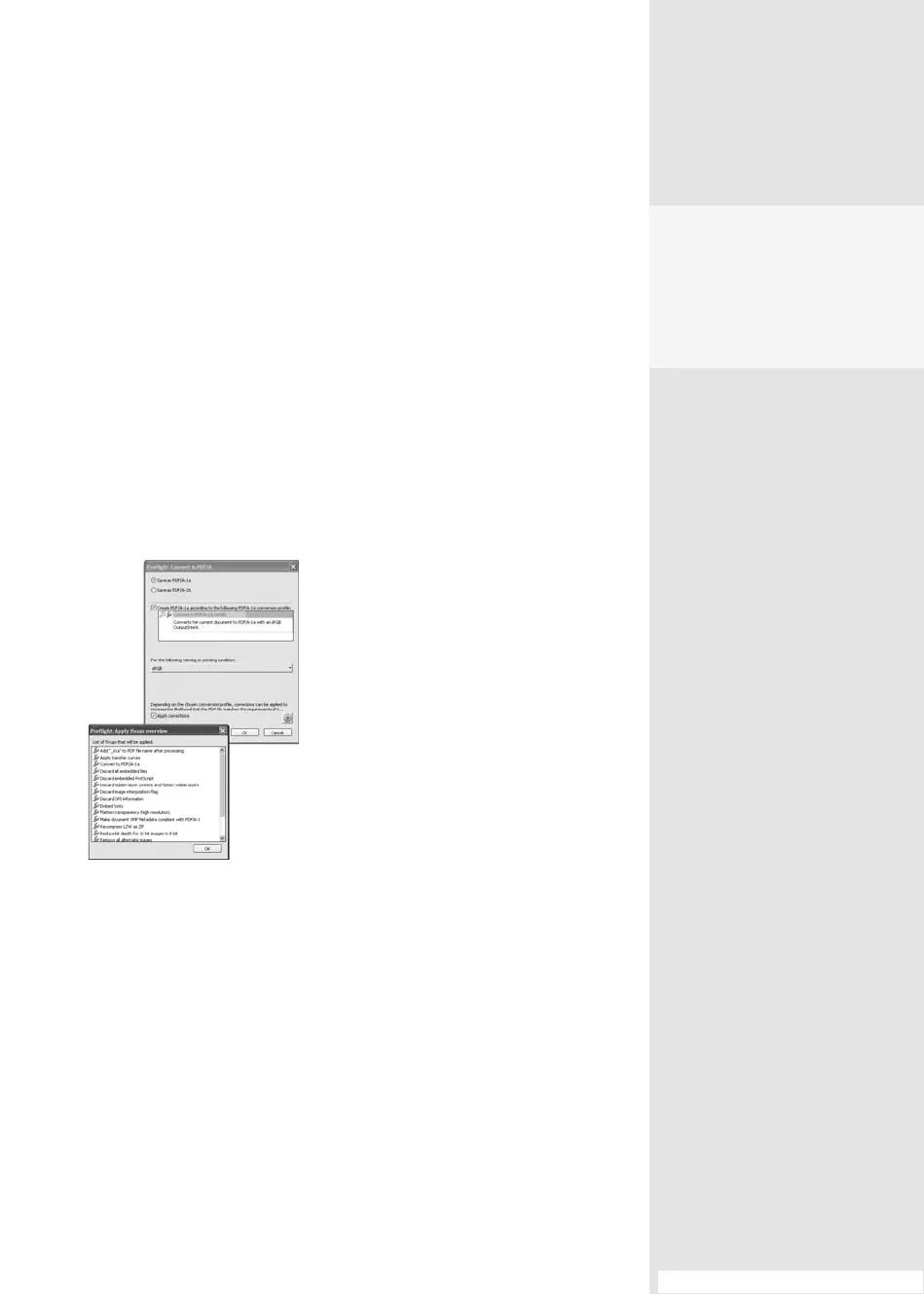
1. Choose File > Save As and choose a standards format (PDF/A, PDF/E,
or PDF/X) from the “Save as type” pull-down list. Click Settings to open
the Preight: Convert to PDF/[standard] dialog. The dialog name varies
according to the standard selected (Figure 34b).
Figure 34b Export settings vary according
to the type of file you are producing; the
example is for exporting a Word DOC file.
2. If there are multiple standard choices, choose a standard from the
options. For example, PDF/A may be either PDF/A-1a or PDF/A-1b,
while PDF/E has no optional conditions; PDF/X has four choices.
3. To ensure that your document is up to standards, select “Create PDF/
[standard] according to the following PDF/[standard] conversion
prole.” In the case of PDF/X conversions, you can also choose from
multiple conversion proles.
4. Choose a viewing or printing condition from the drop-down list, or
leave the default.
#34: Exporting PDF Documents in Other Formats
•
Choose the accessible
or plain text option for
output when you don’t
want any applied styles
or formatting.
(continued on next page)
From the Library of Daniel Dadian



 To Next Page