ptg
73
One important feature of Portfolio is the ability to arrange the les in logi-
cal and meaningful ways. You can coordinate the portfolio les using a
folder system, organize and sort the le details, and view an individual
le to manage its content.
Here are some tips for organizing your Portfolio component les:
•
If you import a folder, its contents—including any subfolders—are
preserved in the portfolio.
•
You can’t select more than one folder at a time from the Browse for
Folder dialog to add them to the portfolio. Either locate and select the
parent folder (and then delete any subfolders you don’t want to main-
tain), or repeat the Browse for Folder process until you have the folders
you want.
•
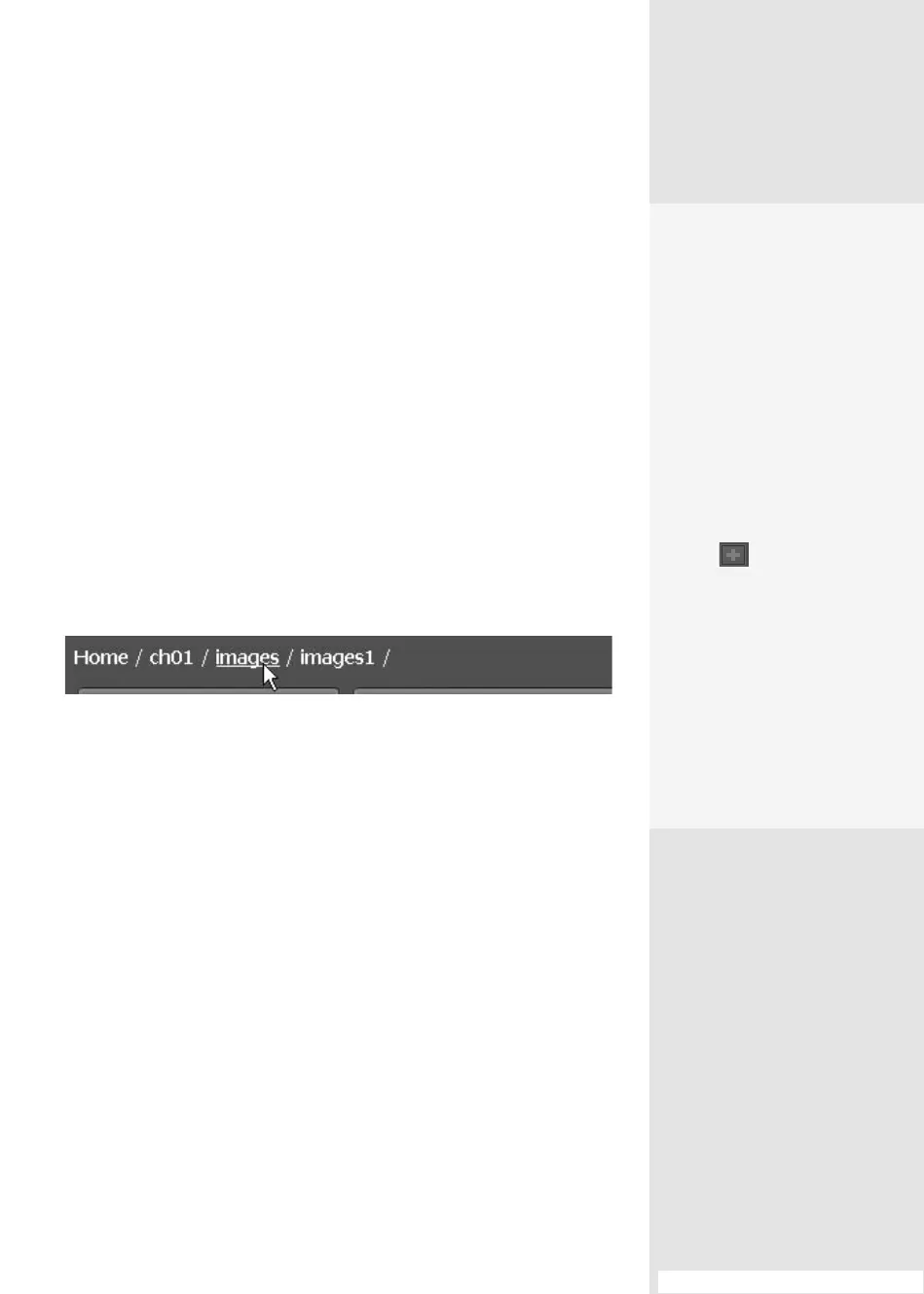
The folder hierarchy in a portfolio is shown as a breadcrumb menu
(Figure 28a). In the example shown in the gure, there are three
nested levels of folders from the Home mode.
Figure 28a Use the menu to move through folder levels.
#28: Organizing and Modifying Contents
Organizing and
Modifying Contents
#
28
Add Your
Own Columns
If you need to track data
other than that offered in the
default list in Details mode,
add your own column. Here
are some tips for working
with custom columns:
•
To add another column,
type the label in the “Add a
column” field, choose Text/
Date/Number from the
pop-up menu, and click
Add to move the new
column to the list.
•
Double-click the name of
an added column to acti-
vate the text to change
it—the default columns
can’t be renamed.
•
Like the default columns,
deselect the check box to
hide your custom column
in Details mode.
From the Library of Daniel Dadian



 To Next Page