ptg
C H A P T E R F O U R Producing a PDF Portfolio
72
3. Insert an image if you’ve selected an image option; insert and cong-
ure text in the elds inserted on the page.
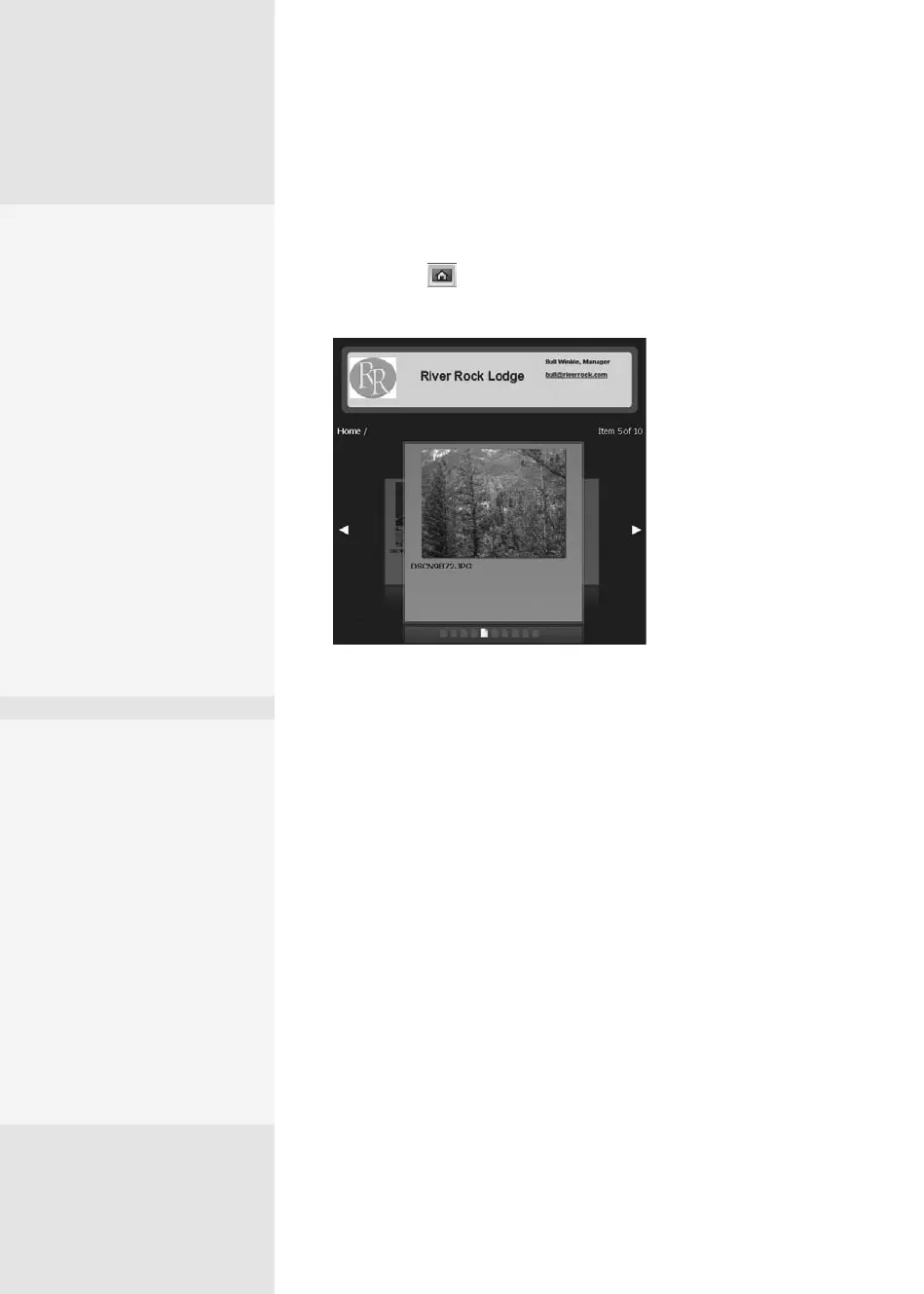
4. Click Home to return to the default mode, where you see your
header displayed above the presentation content (Figure 27b).
Figure 27b Use
combinations of image
and text displays for
the portfolio header.
More Personalization
The features available in the
Navigator are simplistic. That
is, you are limited in the
number of images you can
use, the text display, and
background choices.
Plan ahead: If you want to
customize the Portfolio
interface more extensively
than what is allowed by the
program, compose a custom
image containing the fonts,
colors, logo, and other fea-
tures on your desired layout,
and add it as a single image
to the welcome page.
The same planning advice
applies to the header display.
There Are Differences
While a portfolio can be
designed in all Acrobat 9 ver-
sions, not all offer the same
customizations:
•
Acrobat 9 Standard
includes one default
Navigator, while Acrobat 9
Pro versions offer five
Navigators.
•
Acrobat 9 Standard
doesn’t include multiple
or custom color schemes.
•
Adobe Reader 9 can view
all Navigators.
From the Library of Daniel Dadian



 To Next Page