ptg
321
Creating a Digital
ID Prole
#
120
Acrobat—along with numerous document and process management
systems—uses a digital signature (also known as a digital ID or digital
prole) to secure content. A digital signature, like a handwritten signa-
ture, represents you.
A digital signature has two parts: a public key and a private key. For-
tunately, you don’t have to decide which key to use when. Here’s how it
works.
You use your private key to apply your digital signature to a le, which
encrypts the data using the public key. The public key is contained in a
certicate that you exchange with your colleagues and contacts to verify
your identity. Others use your public key to create encrypted information
to share with you. This two-way exchange of certicates and keys is the
basis for building trusted identities, the subject of the sidebar “Sharing
and Importing Digital IDs.”
The visual signature applied to a document, either a default or custom
signature, is referred to as an appearance. The appearance is composed
of combinations of information elds (such as dates or text), the Acrobat
logo, or imported graphics.
You can create both default and custom signatures. To create a new
signature, follow these steps:
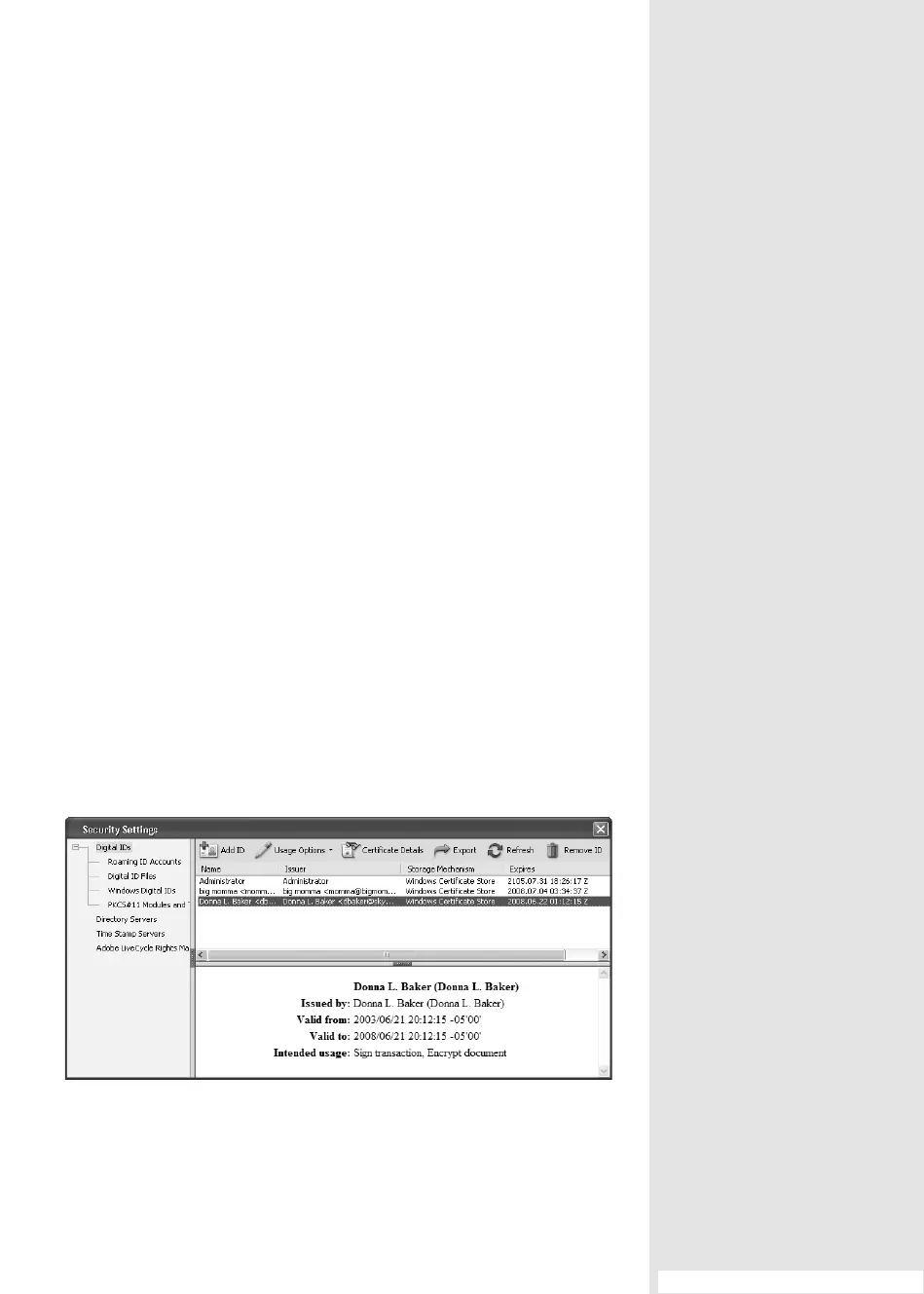
1. Choose Advanced > Security Settings to open the Security Settings
dialog. Click Digital IDs in the left of the dialog to display your existing
ID les in the upper-right pane of the dialog (Figure 120a).
Figure 120a Digital ID files, along with other types of security servers and IDs, are listed
in the Security Settings dialog.
#120: Creating a Digital ID Prole
(continued on next page)
From the Library of Daniel Dadian



 To Next Page