ptg
293
Acrobat 9 Pro Extended (Windows) oers two new features for dealing
with georeferenced maps, that is, maps that have longitude/latitude, coor-
dinate systems, and other mapping data embedded in them. As you’ll see
in this technique, you can mark geographic locations, search for a map
location, and add georeferenced measurement markups.
You can open a PDF map in Acrobat 9 Pro Extended and add geospa-
tial referencing data to it—read how in the sidebar “Building a PDF Map.”
To add a point of interest on a georeferenced map, follow these
steps:
1. Select the Geospatial Location tool
on the Analysis toolbar—the
pointer changes to crosshairs.
Tip
If you don’t see crosshairs, the map you are using hasn’t been georefer-
enced, and you won’t be able to identify or mark locations as described
in these steps.
2. Move the cursor over the map, using the Latitude and Longitude val-
ues shown in the Info widget at the bottom of the document window
to help pinpoint a location.
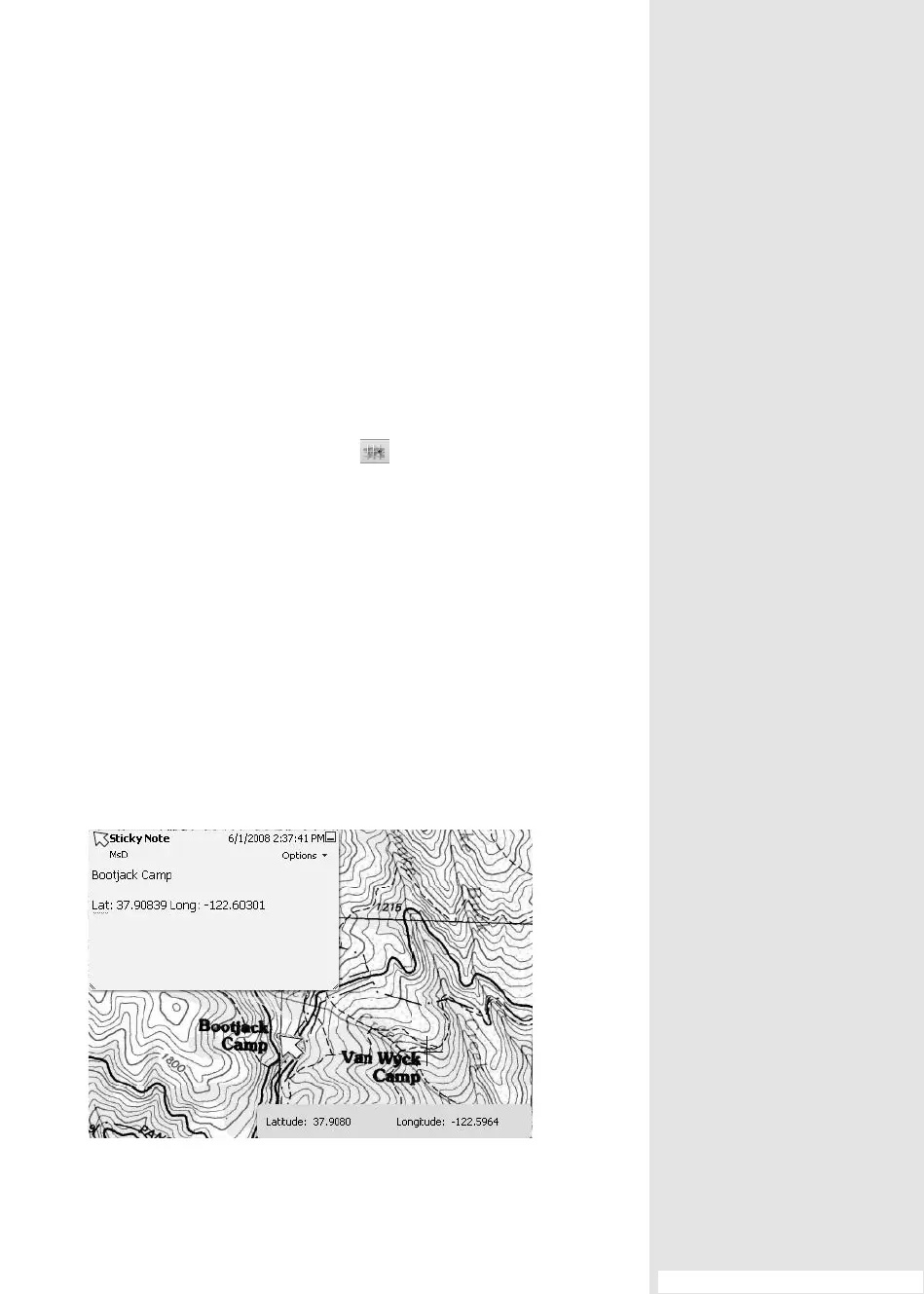
3. Right-click the tool at the point of interest to open the shortcut menu
and choose Mark Location. A Sticky Note comment is added at the
map location you click, and the latitude and longitude values are auto-
matically added to the comment (Figure 109a).
Figure 109a Identify geographic locations that are stored in a comment.
#109: Commenting and Measuring on a PDF Map
Commenting and
Measuring on a PDF Map
#
109
From the Library of Daniel Dadian



 To Next Page