ptg
C H A P T E R F I F T E E N Controlling Action and Interaction
300
The greatest convenience of using links in a PDF le is that you don’t have
to prepare anything in advance, like a button shape or underlined text.
Instead, use the settings in Acrobat to make a link appear distinctive on a
page following these steps:
1. Choose Tools > Advanced Editing > Show Advanced Editing Toolbar to
display the tools.
Tip
If you’re working with several editing activities, it’s easier to have the tool-
bar open.
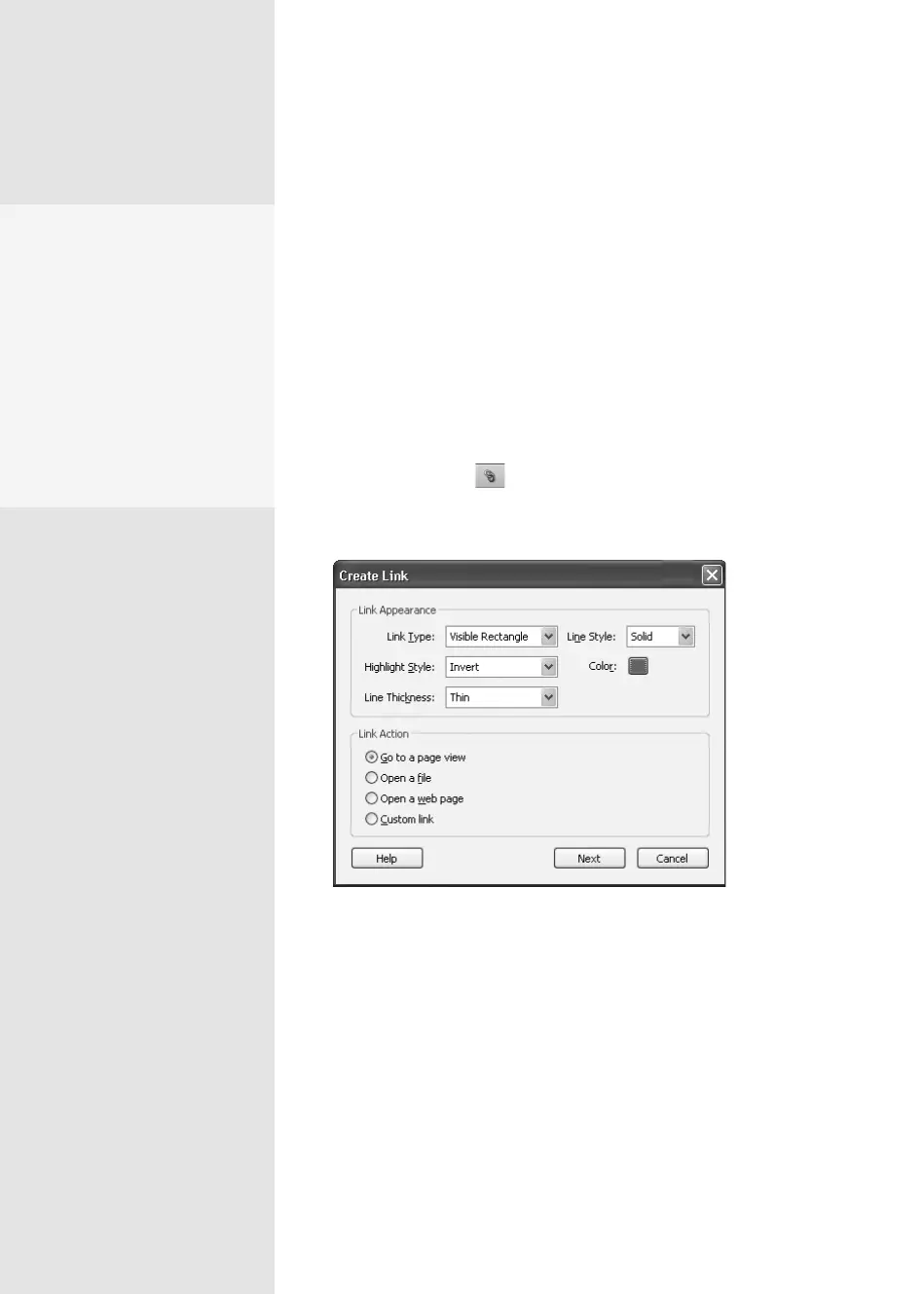
2. Click the Link tool to select it, and then draw a marquee around
the text you want to associate with the link. The Create Link dialog
opens (Figure 111a).
Figure 111a Specify how you want the link to look and function
in this dialog.
3. Choose whether you want the link to be visible or invisible, and specify
characteristics for the link’s frame. You can draw a dashed or solid rect-
angle around the text, like the example in Figure 111a, or underline
the text.
4. Choose an action by selecting one of the radio buttons at the bottom
of the dialog and click Next. The dialog that appears depends on the
option you choose:
Linking Content
in a Document
#
111
Linking to a PDF Page
from a Web Site
You can specify that a hyper-
link on a Web page open a
particular page in a PDF file
by using an open param-
eter along with the URL.
For example, if I want a
user to view page 3 of my
report, the link is written as
mreport.pdf#page=3.
From the Library of Daniel Dadian



 To Next Page