ptg
301
•
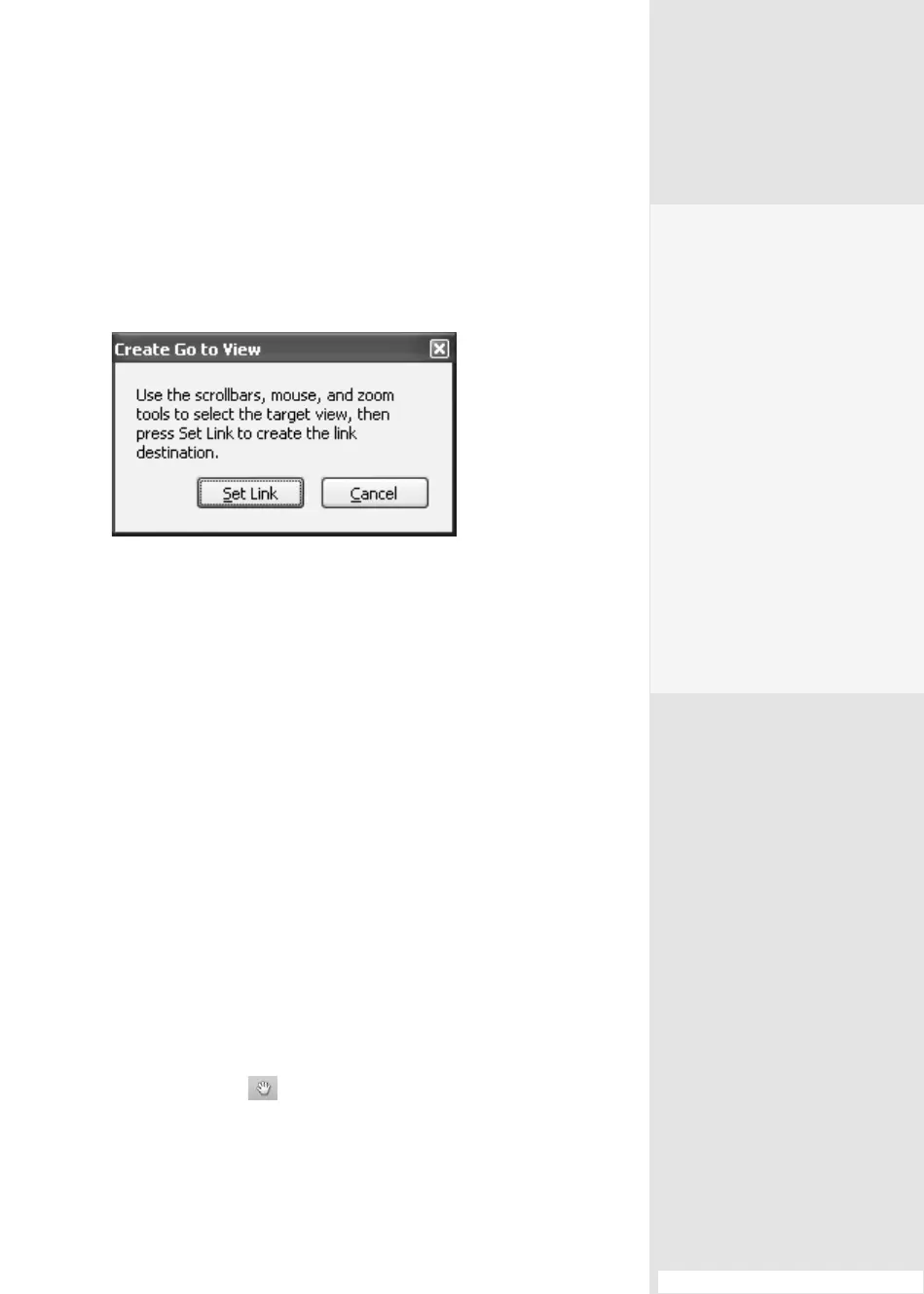
“Go to a page view” opens the Create Go to View dialog in place of
the Create Link dialog (Figure 111b). Use the scroll bars and Zoom
tools to set the view. Once you have the view set, click Set Link to
close the dialog and nish the link.
Figure 111b Follow the instructions in the dialog to
position the content you want to display when the user
clicks your link.
•
“Open a le” opens a browse dialog for you to select the le you
want to display. If you choose a PDF document, the dialog closes
and another one opens for you to choose a window open prefer-
ence. Select “Window set by user preference,” New window, or
Existing window, and click OK to nish the link. If you’re linking to a
non-PDF le, when you click Select, the dialog closes and the link is
nished.
•
“Open a web page” opens the Edit URL dialog. Type the Web address
you want to open from the link and click OK to close the dialog and
nish the link.
•
“Custom link” opens the two-tab Link Properties dialog, and shows
the options selected earlier in the Appearance tab. Click Actions to
display the tab, and choose an option from the Select Action pop-
up menu. Congure the action, which is displayed in the bottom
area of the dialog. Links have only one state—that is, the action
occurs when the link is clicked.
5. Click the Hand tool on the Select & Zoom toolbar to deselect
the Link tool—you can’t see your link in action as long as the tool is
selected. Click to test the link.
#111: Linking Content in a Document
The Perfect Link
You can apply Acrobat’s
Link tool function to a fea-
ture that serves as a button
in another program to pro-
duce a custom appearance.
For example, you may have
converted a document to
PDF and want to use the
logo in your footer as a link
in Acrobat. Draw the link box
over the logo image. From
the Link Type pop-up menu
in the Create Link dialog,
choose Invisible Rectangle.
You then get the link action
without any lines or frames
detracting from the beauty
of your logo.
From the Library of Daniel Dadian


 To Next Page
 Loading...