ptg
287
#106: Using Data Embedded in a Document
A number of programs produce PDF les that contain metadata con-
verted from custom information embedded in the source les.
To view custom metadata embedded in a PDF le, choose Tools >
Analysis > Object Data Tool, or select the Object Data tool on the
Analysis toolbar.
Move the Object Data tool over the page. When you mouse over an
object that contains metadata, the pointer changes to crosshairs. Click
to select all the objects containing data in the drawing; double-click to
select just the object beneath the tool.
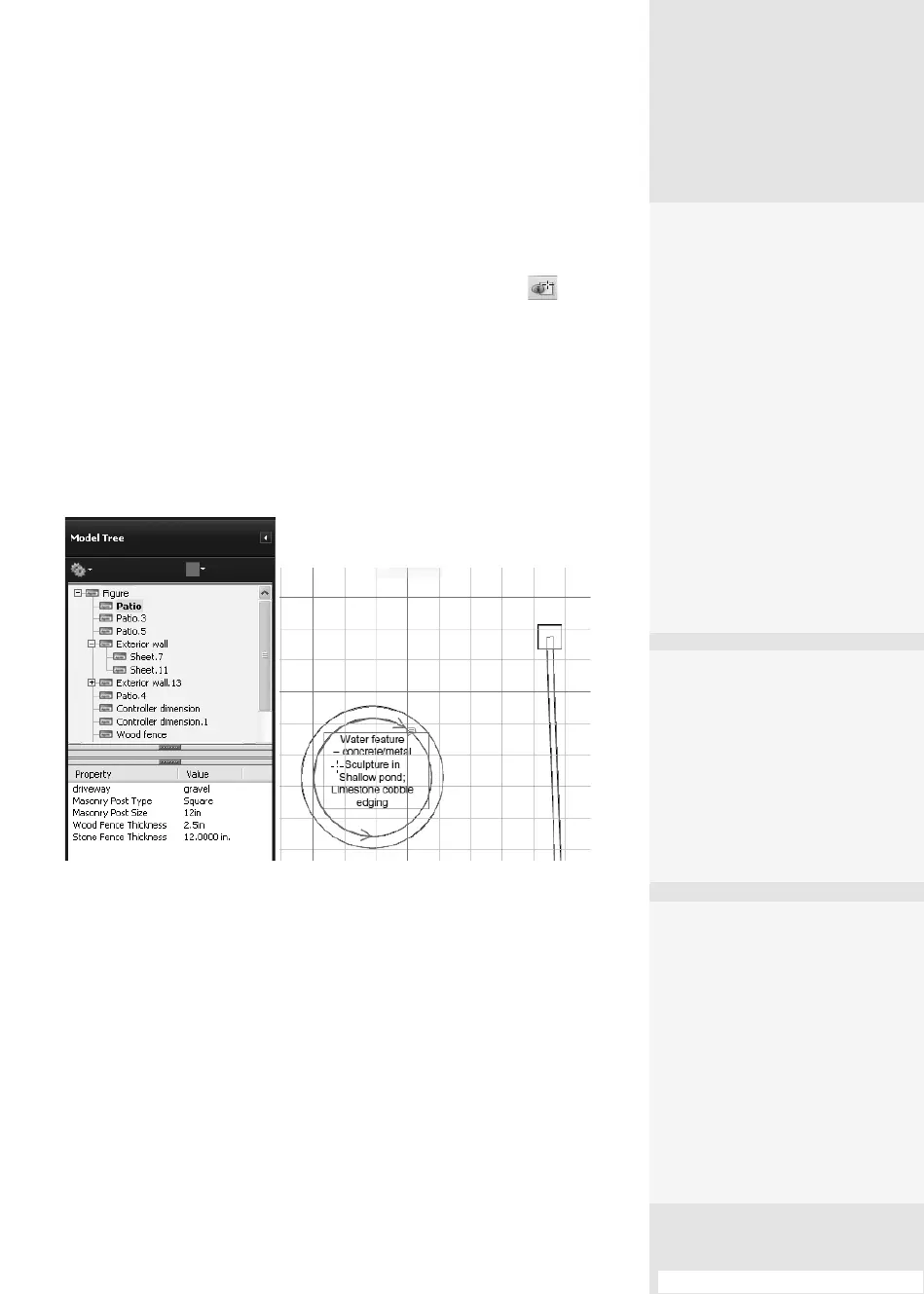
The Model Tree pane opens once the object selection is complete,
and the content of the embedded data is shown in the lower section of
the pane (Figure 106).
Figure 106 Display an object’s data embedded into the document.
Tip
If you are using a document that also contains layers, you are in luck—
open the Layers pane and hide the layers you don’t need to work with at
the moment. That way, there are fewer objects to select using the Object
Data tool.
From the Options menu in the dialog, you can choose dierent ways
to use the data, including the following:
•
Export the data as XML from either the selected node or the entire
model tree.
•
Copy the content of an object’s data to the clipboard.
More Object Actions
Here are some more ways to
work with the object data in
a drawing from the Model
Tree pane:
•
From the Highlight Color
pop-up menu, you can
open a color picker and
choose another color to
highlight or identify a
selected object.
•
Choose Previous View
from the Options menu
to go back to content
viewed at the previous
magnification.
Using Data Embedded
in a Document
#
106
Up Close and Personal
To check out an object close
up, select it from the Model
Tree pane and choose Zoom
to Selection from the Options
menu. The Document pane
shows just the selected
object.
How Many?
Choose an object from the list
at the top of the Model Tree
pane and then choose Count
from the Options menu. The
resulting information dialog
lists the number of objects
that have the same data
associations. Some objects are
single objects, whereas others
are created in multiples.
From the Library of Daniel Dadian



 To Next Page