ptg
C H A P T E R F O U R T E E N Using Drawings, Maps, and Layers
288
If you have worked with image, illustration, or layout programs, you know
about grids and guides. Acrobat 9 Standard and up includes both these
handy features, along with rulers to help you position content precisely,
and to assist in measuring and examining drawings.
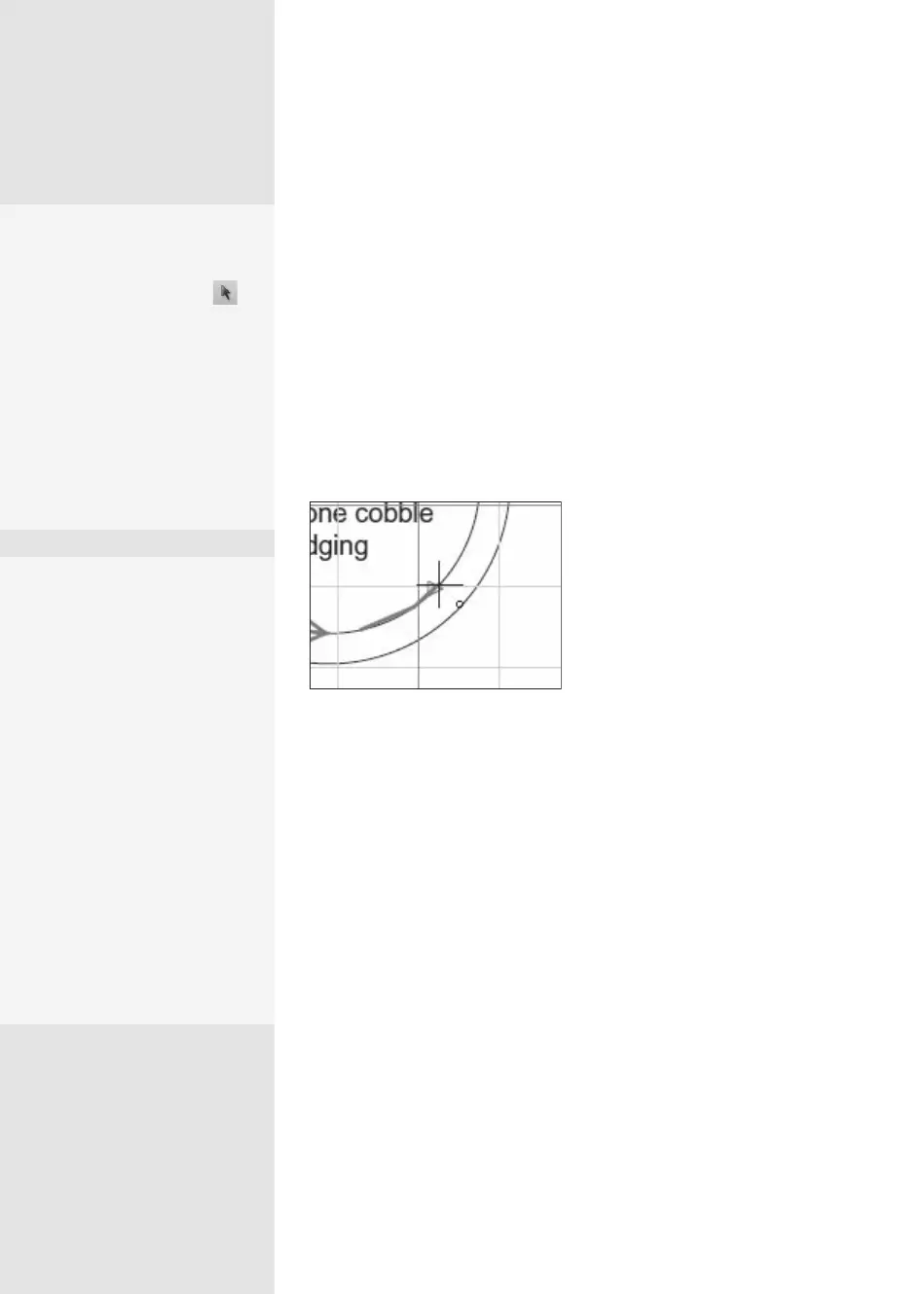
Grids are sets of vertical and horizontal lines that overlay a document.
The lines of the grid, which use spacing that you specify, aren’t printed.
Choose View > Grid to display the grid. If you want to be able to move
an object and have it “snap” to the grid (align itself automatically with the
grid lines), choose View > Snap to Grid. As you drag an object or click with
a Measuring tool, you see it jump to align with the grid lines horizontally
or vertically (Figure 107a).
Figure 107a Use the grid lines to assist
in placing content or for measuring.
Guides are custom lines that you can add either vertically or horizon-
tally to help with positioning. Before using the guides, turn on the rul-
ers by choosing View > Rulers. Click the horizontal ruler at the top of the
Document pane with any tool and drag downward to place a horizontal
guide; drag right from the vertical ruler at the left of the Document pane
with any tool to place a vertical guide.
Both grids and guides can be customized in the Preferences dialog.
Choose Edit > Preferences (Acrobat > Preferences) and then choose the
Units and Guides option in the list at the left of the dialog to display the
Applying Positioning
Features
#
107
Moving Guide Lines
To reposition your guide,
click the Select Object
tool on the Advanced Editing
toolbar and drag the guide
line. Toggle the guides on and
off using the View > Guides
command. Use the Select
Object tool and drag hori-
zontal guides up to the ruler
or drag vertical guides left to
the ruler to remove them.
Making the Grid
Work for You
In many documents, the Off-
set preferences may be the
most important setting. For
example, if you have 1-inch
margins on a page and set
the grid to 0.4 inches verti-
cally, there is no grid line that
aligns with your left margin,
as the grid lines show at
0.4, 0.8, and 1.2 inches. If
you instead set the Offset
at 1 inch, the grid lines are
offset by the amount you
specify in the preferences,
and a grid line is sure to line
up with your margins.
From the Library of Daniel Dadian



 To Next Page