ptg
119
Basic Document Tagging
#
47
Checking for Tags
Check for preexisting tags by
choosing Advanced > Acces-
sibility > Quick Check. The
Accessibility Quick Check
looks for a document struc-
ture (tags). An untagged
document displays a mes-
sage stating that the lack of
structure may cause a prob-
lem with reading order.
A Structure and Tags
Aren’t Equal
Some programs create a
structured document that
often is fine for reading in
Acrobat. For example, creat-
ing a Word document using
styles in a heading hierarchy
is an example of a structure.
A structure doesn’t provide
some of the qualities in an
accessible document such
as word spacing; you must
tag a document to make it
compliant with accessibility
standards.
Planning Documents for PDF Accessibility
The key to successful tagging of a document as well as making it comfortable
for a user working with a screen reader is to use your source programs’ features
efficiently. Plan ahead:
•
Configure the document pages correctly. For example, don’t add blank lines
to make a space.
•
Check the styles attached to inserted material such as images and charts.
•
Group tables and charts or convert them to an image to prevent creating indi-
vidual tags for each line and word segment.
#47: Basic Document Tagging
Some program features that are used to enhance accessibility don’t work
properly or predictably unless a document is tagged, which means it has
a logically dened structure. Tags are a part of the document’s informa-
tion that denes relationships among elements in the document, includ-
ing tables, lists, images, and text.
Tagging can be done in the source document (if you’re using a PDF-
Maker) or in Acrobat. To tag a document using a PDFMaker, choose Adobe
PDF > Change Conversion Settings. In the Settings tab, select “Enable
accessibility and reow with Tagged PDF” and then click OK. The tags
are created when the PDF le is generated.
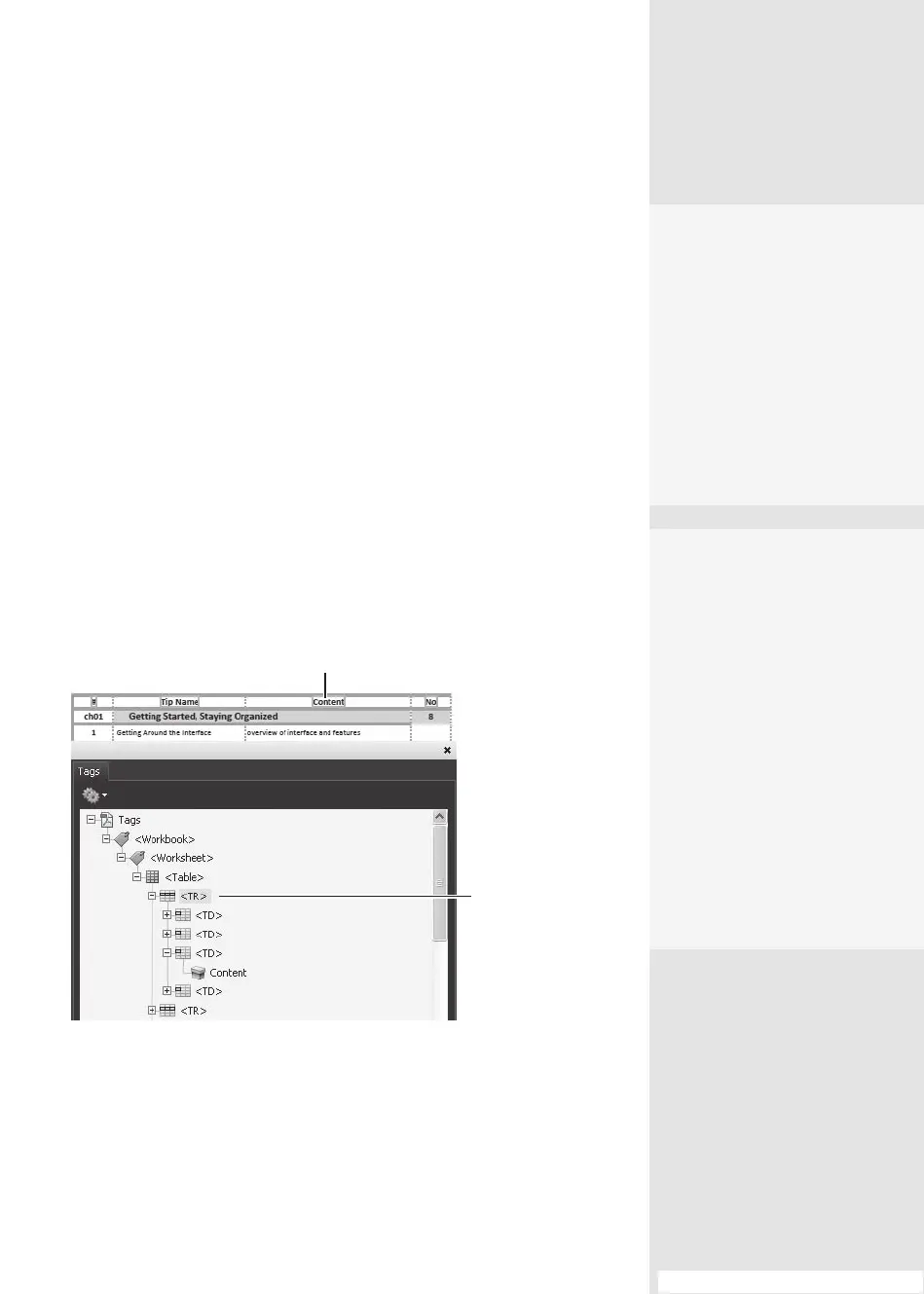
Open the document in Acrobat and choose View > Navigation Panels >
Tags. Click the Tags icon to display the document’s tags in a hierarchy
(Figure 47). The gure shows a section of the Tags pane for an Excel
spreadsheet. The parent tag <Workbook> holds a <Worksheet> that con-
tains a <Table>, which contains tags for the table rows <TR>, which in
turn contain tags for table cells <TD>, which contain the cell’s <Content>,
which are text objects.
Selected tag
Highlighted content
Figure 47 The tags in a document are listed in a hierarchy.
In the gure, notice that the top row of text is highlighted—a useful
behavior for locating content on the page quickly. Choose Highlight Con-
tent from the Options menu. Selecting a parent tag, such as the <TR> tag,
automatically selects the child <TD> tags.
From the Library of Daniel Dadian



 To Next Page