ptg
237
Add more elds and change existing ones in Form Edit mode during the
form creation process, or by choosing Forms > Add and Edit Fields. In
Acrobat 8, you’d have to congure a form eld using its multi-tabbed
Properties dialog. Now, in Acrobat 9 Extended and Extended Pro, elds
are placed almost like a stamp on the page, and you can do most of the
conguration right on the page in the small pop-up dialog that displays
as you add elds.
In this example, see how a set of radio buttons is added to a sample
le.
Follow these steps to add and congure a new eld:
1. On the Form Edit toolbar, click Radio Button and move the pointer
over the page. You’ll see crosshairs and an outline of the eld.
2. Click when the eld outline is at the right location to place the eld on
the page. In the example, the eld overlays the rst radio button image
included in the form document.
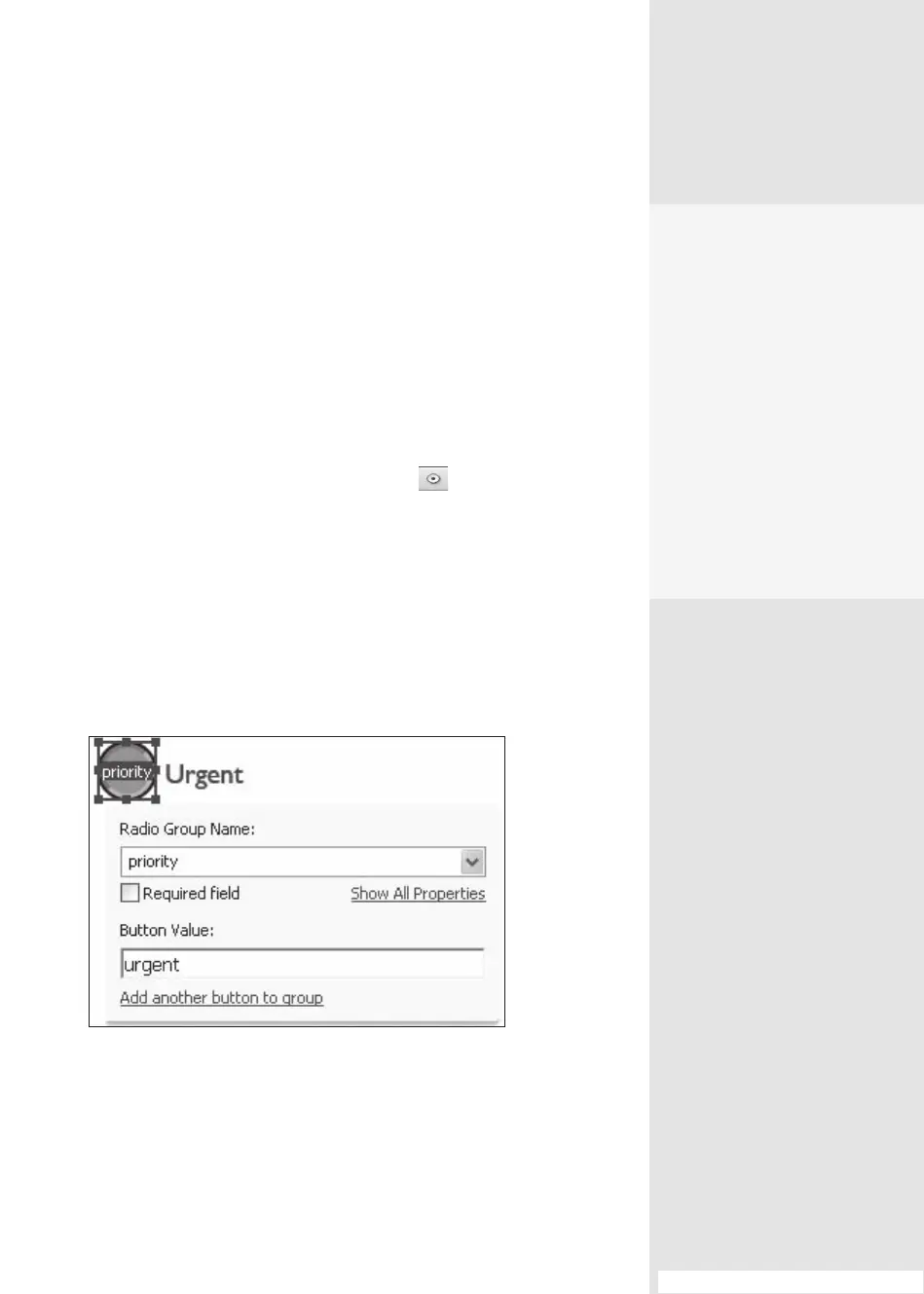
3. In the pop-up dialog that opens when you placed the eld on the
page, click to select the default name “radio” in the Radio Group Name
eld, and type a new name for the button group—“priority” is used in
the example (Figure 88a).
Figure 88a Name the radio button group and specify the button’s
value.
4. Type a new value in the Button Value eld in the pop-up dialog, such
as “urgent” in the example. The default is “yes.”
#88: Drawing and Customizing Form Fields
Drawing and Customizing
Form Fields
#
88
Batching a Change
You don’t have to select and
change properties for one
field at a time. To make some
changes to a collection of
fields, select the fields in the
Fields pane or on the form
and then open the Proper-
ties dialog. You won’t be able
to do some tasks, such as
assigning actions, but you
can make changes such as
modifying the appearance
or format selections that are
applied to all.
(continued on next page)
From the Library of Daniel Dadian



 To Next Page