ptg
C H A P T E R E L E V E N Live Reviewing and Collaboration
228
Initiating and tracking multiple reviews, participating in others, and trying
to keep it all straight isn’t simple. Fortunately, Acrobat oers the Tracker to
help you keep tabs on the process.
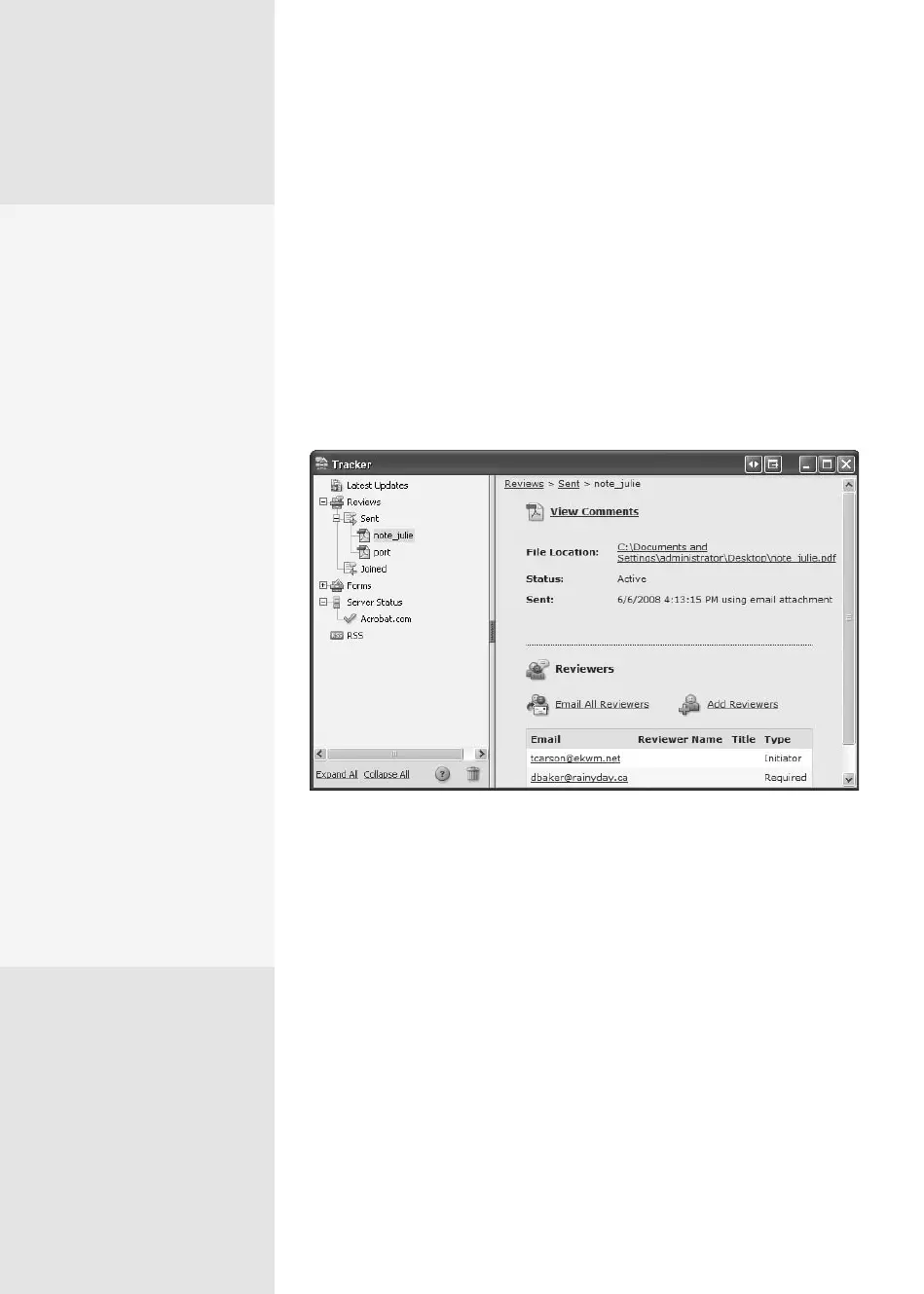
In Adobe Reader 9, choose View > Tracker. In Acrobat 9, choose Track
Reviews from the Comment task button pop-up menu. All your current
reviews—those you have initiated and others you are participating in—
along with any servers you are working with—are listed in the left column
of the window (Figure 85). Open or collapse categories in the Tracker by
clicking the corresponding icons to the left of the category name.
Figure 85 Use the Tracker to keep up with your ongoing reviews.
The range of activities and checks you can perform in the Tracker
include the following:
Updates. Click Latest Updates to display information about your
reviews. You can also access links for managing and creating more reviews.
If the name of a review is shown in bold in the left pane, the review has
been updated in some way—new reviewers or comments were added,
or the deadline has been updated. If you like, turn on notications that
display icons and pop-ups when an update occurs.
Note
Read about setting update times and preferences in the sidebar “Checking
for Comments” in #79, “Starting a Shared Review,” earlier in this chapter.
Tracking a Review
#
85
Sort It Out
Suppose you are involved in
one large project with one
group, and another project
with another group. In the
course of your usual work-
day, you participate in a
couple of reviews for each
project. Each review adds
another line to the list in the
left pane of the Tracker. To
stay organized, follow these
steps:
1.
Right-click (Control-click)
the Sent or Joined labels
in the Reviews section of
the Tracker and choose
Create New Folder. In the
dialog that opens, name
the folder and click OK.
2.
Right-click (Control-
click) a review’s name to
open the shortcut menu,
choose Send To Folder,
and select the new folder
you added. The review is
added to the folder.
3.
Repeat as necessary until
your Tracker structure is
simplified and organized.
From the Library of Daniel Dadian



 To Next Page