ptg
146
Suppose you want to combine a couple of pages from one document,
a table from another, and a block of text from another. You could go
to the source documents and programs and rebuild the content, import
dierent formats from document to document, and export a PDF le. Or
you could try combining the content in Acrobat, which is often the more
ecient approach.
Use the Select tool, located on the Select & Zoom toolbar, to select
text, images, and tables, and to perform object-specic actions available
from the tool’s pop-up menu of options. Select is an intelligent tool that
behaves dierently depending on what you’re selecting on a document.
Note
Don’t confuse the Select tool on the Select & Zoom toolbar with the Select
Object tool located on the Advanced Editing toolbar. The Select Object
tool selects items like links and form elds.
Here are your options:
•
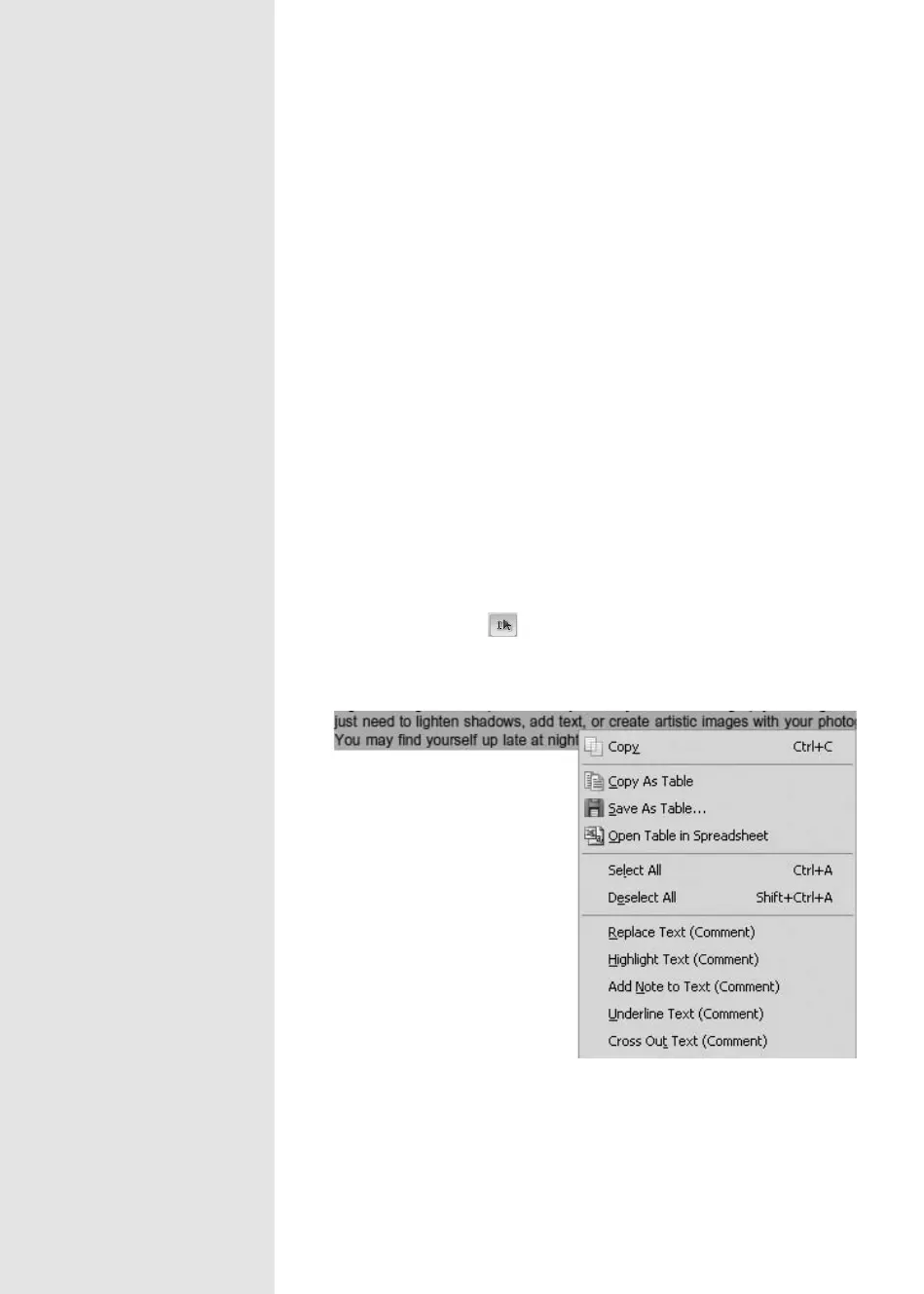
Click the Select tool on the Select & Zoom toolbar and then click
and drag over some of the text you want to select; the text is high-
lighted in the document (Figure 56).
Figure 56 Select text in the document using the Select tool and choose content-
specific commands.
Selecting and Editing
Text in a PDF
#
56
C H A P T E R E I G H T Touching Up and Modifying a PDF Document
From the Library of Daniel Dadian



 To Next Page