ptg
C H A P T E R S I X Complying with PDF and Accessibility Standards
108
Not only is preight one of the most powerful features in Acrobat 9, but
it’s also one of the more misunderstood and underutilized features.
To help make preight work for you, here are some ideas to keep in
mind:
•
Filter the list of proles to decrease confusion. There are literally hun-
dreds of proles, checks, and xes. To start, click the Select proles,
“Select single checks,” or “Select single xups” button on the Preight
toolbar to choose the area you want to work in. Then, click the Show
All button and select a category.
Tip
In the Preight dialog, the Select proles, “Select single checks,” and
“Select single xups” buttons are all referred to as Preight proles, even
those that deal with a single issue.
•
If you need to reuse a prole that you applied last week, click Show All,
and choose “Most recently used”; for a prole that you use regularly,
choose “Most frequently used.”
•
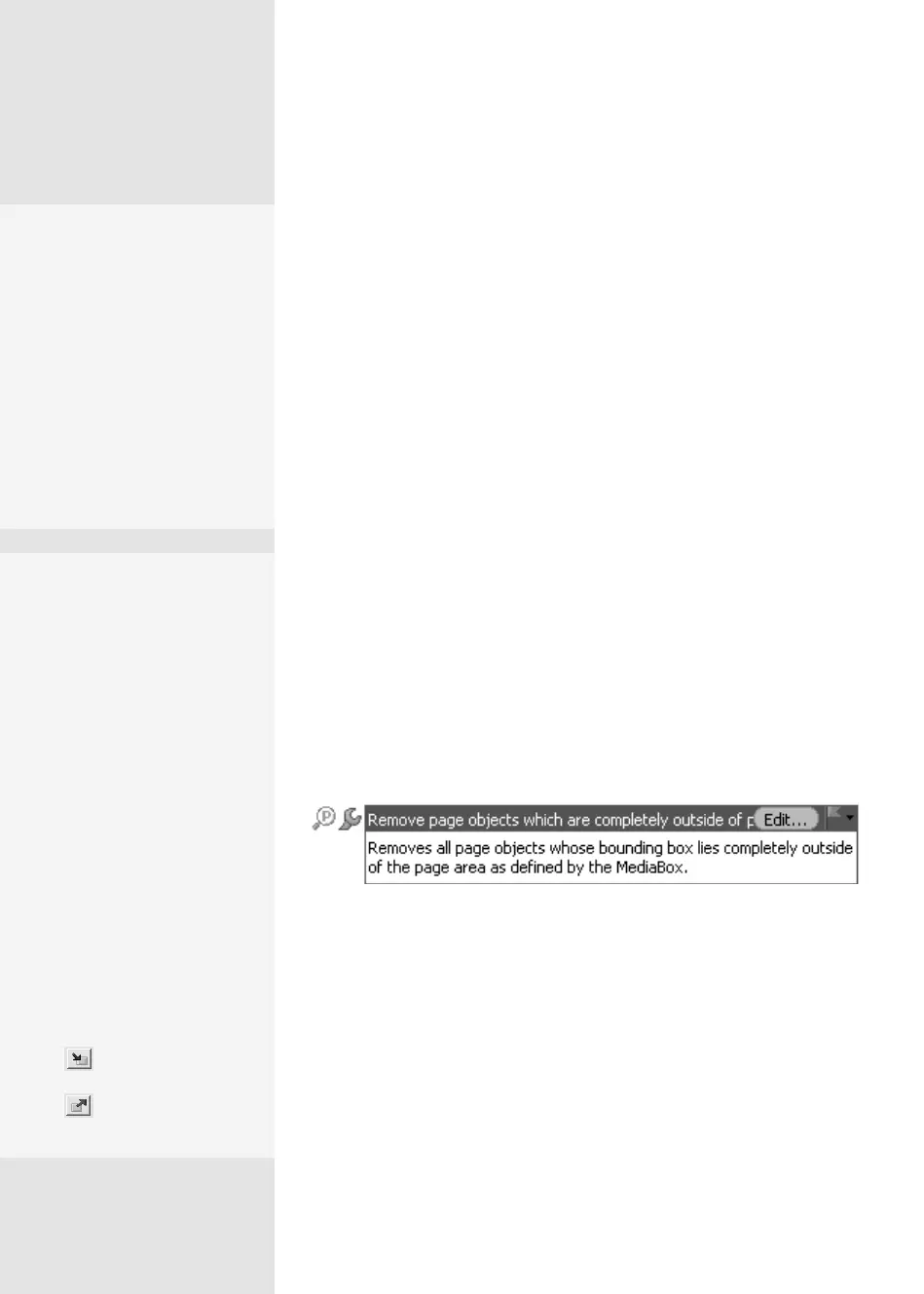
Designate proles as favorites. Locate the prole you want to use as
a favorite, and click its listing. You’ll see a description of the prole’s
action and a ag icon at the right of the listing. Click the ag to desig-
nate it as a favorite (Figure 42a). The next time you are searching for
proles, simply choose Favorites from the Show All menu.
Figure 42a Designate a profile as a favorite to make it simpler to find.
•
Specify a subset of a document for Preight. In the Preight dialog,
click Further Options and choose “Run Preight checks for visible
layers only” in a layered le, or select a page range in a multipage
document.
•
For some items, such as images, you can select the object in the Results
list, and click Show in Snap to view a close-up of the error. The Snap
view is useful if you have a lot of graphics in close proximity to one
another.
Making Preight
Work for You
#
42
Take a Shortcut
Rather than opening a file,
opening Preflight, searching
for a profile, and then run-
ning the profile, simply export
your file. Choose File > Export
and select PDF/E, PDF/X, or
PDF/A from the submenu.
Acrobat examines the file,
applies Preflight commands
automatically, and saves the
file for you.
Share and Share Alike
To use a profile provided by
your printer, choose Import
Preflight Profile from the
Options pop-up menu in the
Preflight dialog. In the result-
ing dialog, locate the file
and click Open to add it to
the Preflight dialog’s Profile
list. To share profiles, select
Export Preflight Profile from
the Options menu. Name
the file and locate the stor-
age folder. Then click Save to
save the profile using its .kfp
extension. If you have the
Preflight: Edit Profile dialog
open, use the buttons at the
bottom of the profiles list—
click Import Preflight Profile
to locate a new file, or
click Export Preflight Profile
to export an existing
profile.
From the Library of Daniel Dadian



 To Next Page