ptg
247
Some forms are fancy—period. There’s little chance that Acrobat 9, regard-
less of its intelligence level, is able to identify and build form elds on a
page that uses a lot of graphic content, or one in which it’s hard to make
out what might be the elds.
Visually complex forms are generally made in a layout or imaging pro-
gram, but you don’t have to start from scratch or add the elds manually.
Here’s how to use an interesting form built in InDesign in combination with
the power of the form eld recognition process in Acrobat to add elds.
1. In your source program, congure the layers so the eld labels and
their structures are on one layer, and export two versions of the form:
•
Export the form layer as PDF to use for placing the elds.
•
Export the entire publication as PDF to replace the single-layer form
after elds are added.
2. In Acrobat, choose Forms > Start Form Wizard to open the Create or Edit
Form dialog. Leave the default selection “An existing electronic docu-
ment” (Windows) or “Start with a PDF document”(Mac) and click Next.
3. Locate and select the PDF containing the form layer, and then click
Next. Acrobat processes the le, and the results are shown in the Form
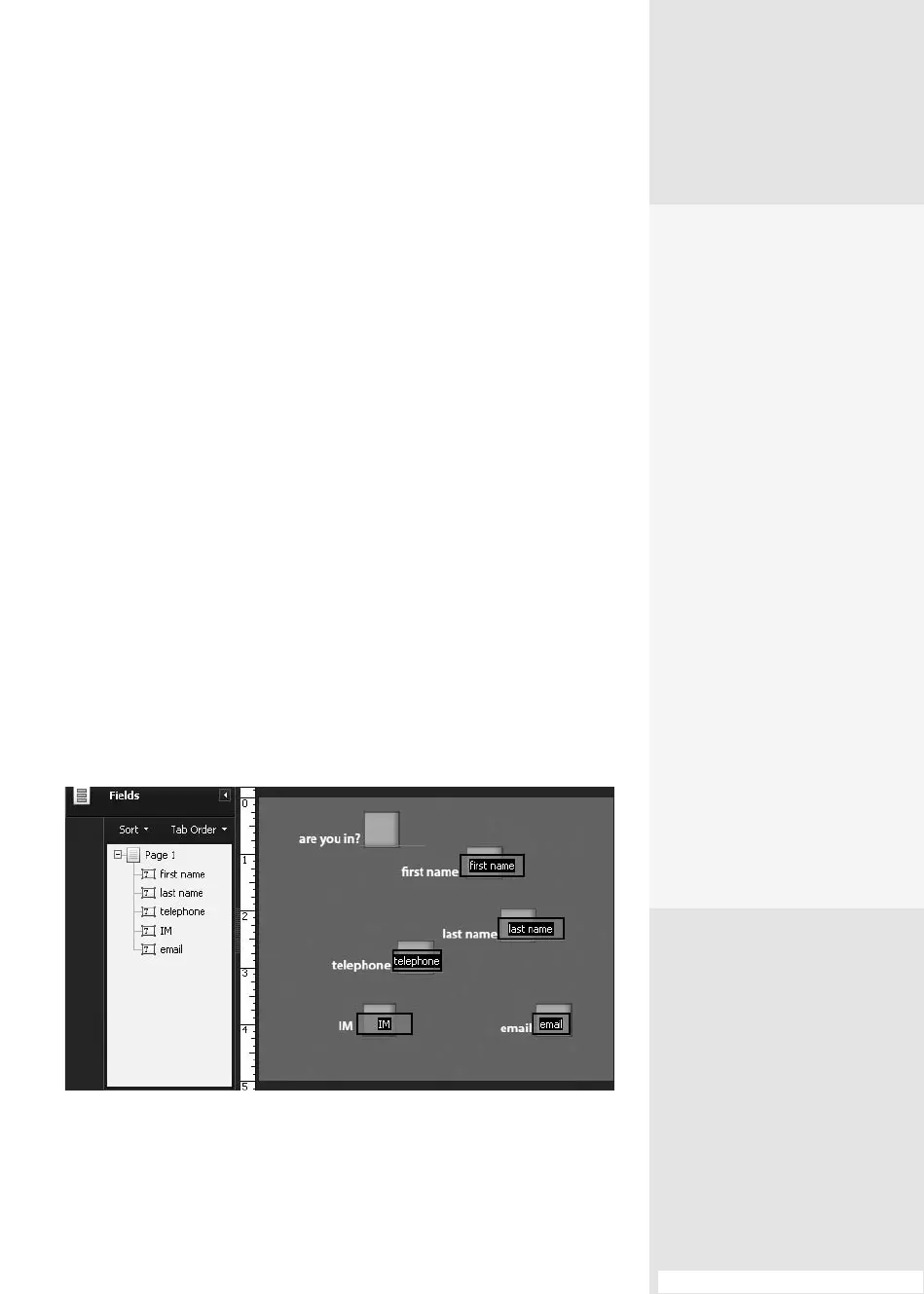
Edit mode. As you can see, all the text elds have been inserted auto-
matically (Figure 91a).
Figure 91a The form field layer contains nearly all the required fields.
#91: Simplifying a Visually Complex Form
Simplifying a Visually
Complex Form
#
91
Is It Worth the Time?
Good question. A few fac-
tors are involved, but as
a general principle—yes.
Whether to use two versions
of the form must be based
on its overall complexity.
Unless you are confident
the form’s appearance will
wreak havoc on the recogni-
tion process, it may not be
worth the time involved to
export two versions from
your source program. In the
example, Acrobat assigned
over a dozen form fields to
the full form layout, only
two of which were actually
the correct fields in the right
locations.
Your choice is also based on
how quick you are. If you
are a whiz in your source
program and not so fast in
Acrobat, making the extra
version may take far less
time than fixing fields. The
inverse scenario also applies.
(continued on next page)
From the Library of Daniel Dadian



 To Next Page