ptg
303
The Windows PDFMaker lets you assign bookmarks in Microsoft Oce
programs quickly and easily if the source document is constructed prop-
erly using styles or headings. However, if you aren’t that well versed in
the source document’s program, you may nd the process of converting
headings or styles to bookmarks a bit confusing—and your results will be
less than optimal.
Note
Instead of using structural elements, as in this technique, check out #113
(“Adding Bookmarks in Acrobat”) to learn how to add bookmarks visually
in Acrobat. You must use the technique in #113 if you are working in Mac
as Acrobat 9 doesn’t oer PDFMaker for Mac.
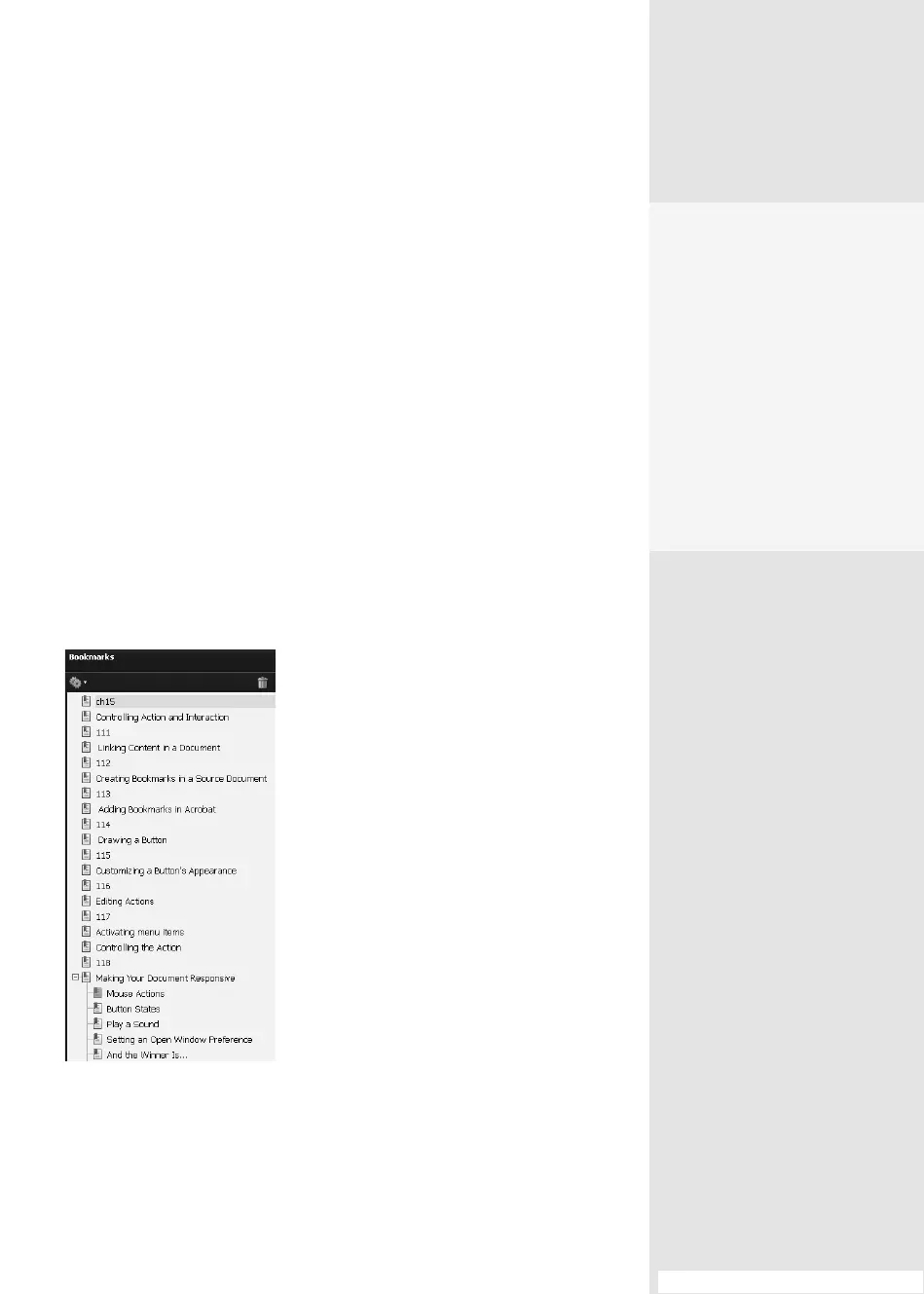
The bookmarks in a sample document converted to Acrobat PDF are
shown in Figure 112. You can see that there are many, many bookmarks,
and their organization is rather chaotic—the sample uses every option
available in the PDFMaker, and the document uses too many styles and
headings.
Figure 112 Only choose the styles or
headings you need for bookmarks, or your
results may be virtually useless, like this set
of bookmarks for a three-page document.
#112: Creating Bookmarks in a Source Document
Creating Bookmarks in
a Source Document
#
112
Jumping Bookmarks
Be sure to click the bookmark’s
name in the Bookmarks pane
to activate it before setting
the destination view. If you
position the document in the
desired location and set the
magnification, as soon as you
click the bookmark you want
to change, Acrobat jumps
to the original view—which
means you have to start all
over again.
From the Library of Daniel Dadian



 To Next Page