ptg
C H A P T E R F I V E Creating Output: Saving, Exporting, and Printing
80
There is a lot more to a document than what you see on the screen or
printed page. Use the Document Properties dialog when you want to
nd or modify information about your documents. Choose File > Proper-
ties (or press Ctrl+D [Command+D]) to open this dialog. It opens to the
Description tab by default. If you have modied settings in the dialog, the
last tab you worked with displays instead.
The dialog contains six tabs:
•
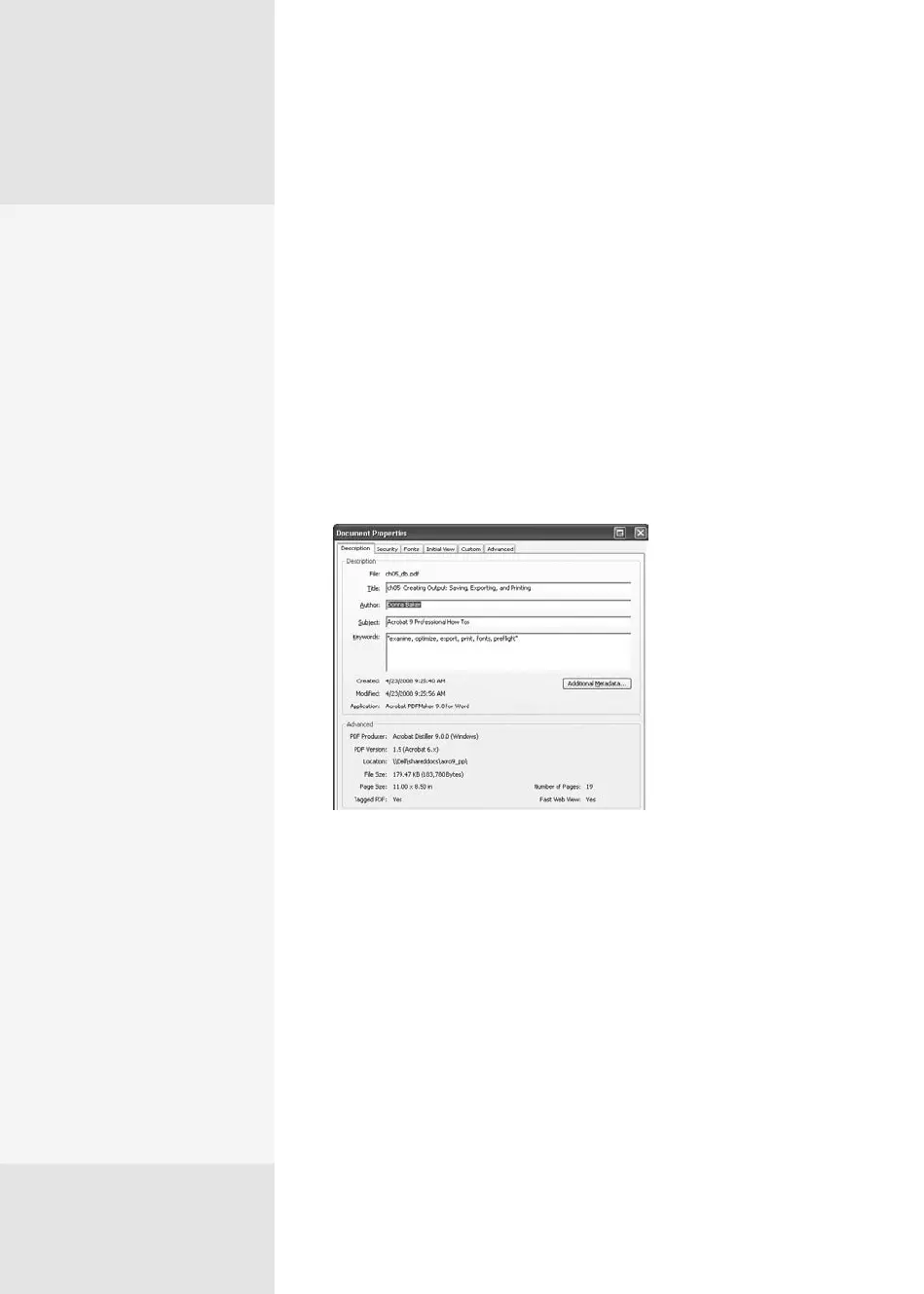
The Description tab contains information about a document (Figure
31)—how much information depends on the source program that
created the original document. Use this tab to add keywords for
searching. Click to activate a eld and add content to any description
element.
Figure 31 Add information about the document,
such as author and keywords, in the Description tab.
•
The Security tab describes what level of security has been added to the
document, and lists permissions granted to users of the document. If
you are the author, use either the document’s password or a security
certicate to change the security settings, depending on how they are
applied. You can read more about security in Chapter 16, “Making Your
Documents Secure.”
#
31
Finding Information
about Your Document
Crafting Your Readers’
Viewing Experience—
Part 1: Navigation
To offer your viewers clues
to the navigation included
in your document, choose
File > Properties, and select
the Initial View tab to display
the document view settings.
Choose a Navigation tab
option based on the docu-
ment’s contents and how the
reader uses the document:
•
In a long document, you
often use a bookmark
structure as a way to link
content in various loca-
tions. For such documents,
choose the Bookmarks
Panel and Page view.
•
In an image-based docu-
ment, such as a slide
show, use the Pages
Panel and Page view.
That way, your reader can
easily browse the docu-
ment using the thumb-
nail views of the pages.
•
In a short document with
multiple attachments,
choose the Attachments
Panel and Page view.
•
In a layered document,
choose the Layers Panel
and Page view; your
readers can make their
way through the layers in
the document.
Crafting Your Readers’ Viewing Experience—
Part 2: Magnification
Along with choosing the navigation pane that best suits your document’s
presentation, don’t forget about the page magnification. Choose File >
Properties > Initial View and select an option from the Magnification pop-up
menu. Keep these ideas in mind:
•
As with the page layouts, the reader can control magnification in the
document using the controls on the Page Display toolbar.
•
Choose a zoom option depending on the document’s content. Fit Width
is common for text documents, for example—the reader sees the entire
width of the document and can scroll through vertically to see the rest.
•
Use magnifications carefully. A large image is often best presented at full
size, and the reader can zoom in for a closer look.
From the Library of Daniel Dadian



 To Next Page